Scribe MCP Server for AI Agents: Choose the Right Signature Management Workflow
Learn how the Scribe MCP Server for AI Agents connects Claude, ChatGPT, Cursor, and other clients to email-signature workflows.
Sophie Grant
Email Signature Specialist, Scribe

On this page
- Choose where your signature work should happen
- Define the Scribe MCP server in practical terms
- Separate the AI client from the Scribe workspace
- Match agent requests to signature-management jobs
- Choose the connection route for your MCP client
- Understand OAuth and the connection boundary
- Compare conversational requests with admin-console control
- Use approval behavior to evaluate operational fit
- Select MCP, REST API, webhooks, or CLI by workflow
- Evaluate the built-in Scribe AI agent as another interaction location
- Connect, verify, and test one bounded request
- Choose the signature workflow that matches your operating model
- Which connection path should you evaluate first?
- What is the Scribe MCP server for AI agents?
- How can I connect my AI assistant to the Scribe MCP server?
- What tasks can I perform using the Scribe MCP server?
- What should I do before making a request to the Scribe MCP server?
- How does using the Scribe MCP server compare to using the Scribe dashboard?
- What are the integration options available with Scribe?
- What is the approval behavior of the Scribe connector?
- Sources
Choose where your signature work should happen
The Scribe MCP server gives you a conversational way to manage email signatures from an AI client instead of clicking through the Scribe dashboard. We provide a hosted MCP endpoint that connects your AI assistant to your Scribe account, so you can work with signature information through plain-English chat. The practical decision is not whether one interface replaces every other interface. It is where a particular task should happen.
Choose the MCP path when your work already happens in Claude, ChatGPT, Cursor, or another MCP-capable assistant and you want to express a bounded signature task in ordinary language. Choose the dashboard when direct visual control of the Scribe workspace is the more natural fit. Consider the REST API, webhooks, or CLI when another system, event, or local process should control the interaction.
Use three questions to frame the choice:
- Where do you want to make the request: an AI conversation, the Scribe interface, a program, an event-driven workflow, or a local command?
- How much direct confirmation do you want before a change is written?
- What should the output look like: a conversational answer, structured data, a real-time event, or a local-agent tool connection?
The rest of this guide maps those questions to the available Scribe workflows.
Get started with Scribe
Manage signatures across your whole team
Free 14-day trial — no credit card.
Define the Scribe MCP server in practical terms
The Scribe MCP server is a hosted Model Context Protocol endpoint that connects an AI assistant to your Scribe account. The assistant becomes the conversational interface, while Scribe remains the connected workspace for email-signature information and operations. You describe the task in plain English rather than navigating dashboard controls for every request.
The connection reaches email signatures and can also connect the assistant with teammates, smart fields, campaigns, and analytics. That makes the server more than a text-only question-and-answer layer: it gives the connected assistant access to the Scribe areas supported by the connector. Keep the requested job specific so you can understand what the assistant was asked to do and what it returned.
In practical terms, the server sits between your chosen AI client and your Scribe workspace. Your client handles the conversation. Scribe supplies the account context and signature-related operations. You decide whether the request should create, audit, or summarize information, then inspect the response before expanding the task.
Separate the AI client from the Scribe workspace
The AI client supplies the place where you write and refine a request; Scribe supplies the connected workspace that contains the email-signature context. Claude, ChatGPT, Cursor, and other assistants can connect to Scribe through the MCP model. The assistant is therefore the interaction layer, not a separate signature-management workspace.
That distinction matters when you evaluate fit. You may prefer an AI client because your request starts as an operational question, such as which signatures need attention or what a particular signature configuration contains. You may prefer the Scribe interface when you want to work directly in the workspace and keep the surrounding controls visible. Neither preference changes the underlying question: which location gives you the right amount of context for the task?
Claude and ChatGPT have dedicated Scribe listings, while another MCP-capable client can use the Scribe endpoint. Cursor fits the same broad model when it can connect to an MCP server. The client you already use should guide the route you select; switching clients is not required merely to test the connection.
Treat the client and the workspace as separate decision points. First choose the conversation environment that suits your work. Then assess what you want that environment to access, which actions need confirmation, and how you will inspect the result.
Match agent requests to signature-management jobs
The Scribe MCP server supports plain-English work around creating and auditing email signatures, with connected signature and analytics information available for reporting-oriented requests. You can use the assistant to turn a defined job into a request instead of translating the job into a sequence of dashboard clicks. The quality of the workflow depends on how clearly you define the task and how carefully you inspect the response.
Use a creation request when you have a specific signature task to initiate. A bounded request names the object and the intended change rather than combining several unrelated edits. For example, you can describe the signature you want to create and the relevant conditions in one focused instruction. Start with one creation request, then compare the returned result with the task you named before adding another operation.
Use an audit request when you need to inspect signature information rather than make a change. State the scope of the audit and the attributes you want returned. A request that asks for a defined status or configuration view gives you a clearer result to inspect than a broad instruction to check everything. Begin with the narrow audit, review the response, and only then expand the scope.
Use a reporting-oriented request when the answer needs to organize connected signature or analytics information for review. Name the period, population, or fields only when those details are part of the task you have defined. Keep the output format explicit if you need a concise summary, a list, or another structured view. The connected areas include campaigns and analytics, so your request can distinguish operational signature information from performance-oriented information.
A useful request pattern has four parts:
- Name the job. Say whether you want to create, audit, or report.
- Define the object. Identify the signature, workspace context, or connected information involved.
- Set the boundary. Limit the request to one operation or one clearly defined result.
- State the output. Ask for the fields or format you need to inspect.
This structure keeps the conversation tied to a concrete task and makes the returned answer easier to compare with your intention.
Choose the connection route for your MCP client
Scribe offers a Claude Directory listing, a ChatGPT app-directory listing, and the endpoint https://mcp.scribe-mail.com/mcp for other MCP-capable assistants. Your route depends on the client you plan to use. Claude and ChatGPT users can select the Scribe listing in the relevant directory; another compatible assistant can connect through the endpoint.
Choose the Claude Directory route when Claude is the assistant in which you want to work. The Scribe connector appears in that directory, so the directory listing is the relevant starting point for that client. Use the client’s connection action and continue through the Scribe authorization flow.
Choose the ChatGPT app-directory route when ChatGPT is your working environment. The Scribe listing provides the corresponding connection path. Start from that listing rather than treating the general MCP endpoint as the only route for ChatGPT.
Choose the endpoint route when your client is another MCP-capable assistant. Add https://mcp.scribe-mail.com/mcp through the client’s MCP connection settings, then continue with Scribe account authorization. The endpoint is the supplied route for compatible assistants outside the dedicated Claude and ChatGPT listings.
The route decision is therefore simple: use the directory that matches Claude or ChatGPT, or use the endpoint when your assistant needs a general MCP connection. Select the route before you formulate the first signature request so the connection test answers the right operational question.
Understand OAuth and the connection boundary
The supplied connection uses OAuth sign-in with your Scribe account and does not require an API key. You authorize the connection through the sign-in flow presented by the assistant or endpoint. That distinction affects how you prepare: you need a Scribe account for the connection, but you do not paste an API key into the MCP setup.
The documented connection flow is:
- Choose Claude, ChatGPT, Cursor, or another MCP-capable assistant.
- Choose the matching directory listing or the endpoint route.
- Start the client’s connect, install, or add-server action.
- Sign in with your Scribe account when the authorization flow asks for it.
- Allow the requested OAuth access.
- Confirm that the intended assistant and Scribe account are connected.
- Request a signature operation only after the connection is complete.
The final boundary matters. A successful sign-in is not the same as a reviewed signature result.
Keep the first operation separate from the connection test. Confirm the connection, send one bounded creation or auditing request, and inspect the response against the task you named. Expanding the workflow after that inspection gives you a clearer point of comparison than sending a broad set of changes immediately.
Use the connection boundary as a practical checkpoint. Before any signature operation, confirm three things:
- The intended AI client is connected.
- The intended Scribe account is authorized.
- The next request has a defined scope and expected result.
If any of those conditions is unclear, stop at the connection boundary and resolve it before asking for an operation.
Compare conversational requests with admin-console control
Conversational requests and admin-console work put the same signature-management decision in different interaction environments. The MCP path lets you create and audit signatures in plain English instead of clicking through the dashboard. The console keeps the work in the visual workspace. Evaluate the difference by task fit and control preference, not by assuming that one interface is universally faster or more effective.
| Decision criterion | MCP conversation | Scribe admin console |
|---|---|---|
| Request style | Describe a bounded creation, audit, or reporting-oriented task in plain English. | Navigate the workspace and use its visible controls for the task. |
| Starting context | Fits work that already begins in Claude, ChatGPT, Cursor, or another MCP-capable assistant. | Fits work that begins directly in the Scribe workspace. |
| Control preference | You state the task, review the response, and use the documented confirmation boundary for writes. | You work through the dashboard and keep the interface context visible while making the change. |
| Review point | Inspect the assistant’s response against the task you named before expanding the workflow. | Inspect the change within the workspace workflow before moving to another task. |
| Suitable first test | One bounded creation or auditing request after the connection is confirmed. | One defined signature task performed directly in the workspace. |
Choose the MCP conversation when the main friction is translating an operational question into many interface steps and your team already works in an AI client. Choose the console when direct visual navigation, visible workspace context, or manual control is more useful for the task. Both choices still require a defined request and an inspection point.
The conversational path can make the request itself the center of the workflow, but the result depends on how precisely you describe and inspect that request. The console can make controls and surrounding context more visible, but it requires you to perform the work through the dashboard. The meaningful trade-off is interaction style and control location, not a guaranteed productivity or security outcome.
For a fair comparison, run the same narrowly defined signature task through the environment you are evaluating. Record where you had to clarify scope, where you reviewed the result, and where you needed direct workspace context. Select the path that matches the way your team actually initiates and approves this kind of work.
Use approval behavior to evaluate operational fit
The Scribe connector is scoped to your workspace, with read actions auto-approved and writes confirmed. This approval behavior gives you a specific operational boundary to evaluate: information retrieval can follow the connector’s automatic read behavior, while a write requires confirmation.
That boundary changes how you should frame requests. Use read-oriented requests when you are gathering information for an audit or report. Treat a request that changes a signature as a separate decision point, even when the request begins in the same conversation. Keep the intended write clear enough that you can recognize what you are confirming.
Use this approval checklist before expanding the workflow:
- Is the request reading information or changing it?
- Does the result match the workspace and signature scope you intended?
- Can you identify the exact change that requires confirmation?
- Have you reviewed the response before moving from inspection to modification?
If the workflow needs automatic writes without a confirmation step, the documented connector behavior does not establish that fit. Keep the write confirmation as part of your operating model.
Choose the MCP route when workspace-scoped access with automatically approved reads and confirmed writes matches your control preference. If that boundary does not match the process you need, evaluate another supplied path rather than assuming the conversational route has the same control model.
Select MCP, REST API, webhooks, or CLI by workflow
Scribe provides several interaction and integration paths, and each path places control in a different part of the workflow. Use the MCP server for conversational work from an AI client. Use the REST API for programmatic access to Scribe data. Use webhooks when an event should deliver information to another system. Use the CLI when a local agent should receive Scribe tools over stdio.
Choose MCP when your starting point is a plain-language request in Claude, ChatGPT, Cursor, or another MCP-capable assistant. The connector provides 57 tools across 15 areas, according to the selected documentation. That breadth makes the first task definition especially important: select the operation you need, state its boundary, and inspect the response before you build a larger conversational workflow.
Choose the REST API when another program should request Scribe data directly. We offer a REST API for accessing all Scribe data, including signature status and conversions. This route fits a workflow in which your application controls the request and handles the returned data rather than asking an AI client to interpret the task conversationally.
Choose webhooks when the next action should begin with an event. We provide real-time events through webhooks, and we allow conversion data to be sent to CRM systems, data warehouses, or marketing tools through our API and webhooks. This path fits event delivery and downstream processing; it is not the same interaction model as asking an AI assistant a question.
Choose the CLI when a local agent should use Scribe tools through a command it can launch. We let you connect a local agent through our CLI by signing in once in your browser and serving Scribe tools over stdio, without setting up a remote connector. The CLI also provides structured JSON, which fits a local process that needs machine-readable output rather than a conversational response.
Use this selection rule:
- MCP: your request begins as plain-language work in an AI client.
- REST API: your application needs programmatic access to Scribe data, including signature status or conversions.
- Webhooks: an event should send information to a CRM, data warehouse, marketing tool, or another downstream process.
- CLI: a local agent needs Scribe tools over stdio or structured JSON.
Choose one path as the first boundary for the workflow. Combine paths only when the handoff between them is part of the requirement you have defined.
The distinction is about who or what controls the next action. You control the request in an MCP conversation. Your application controls the request through the REST API. An event controls the handoff through webhooks. A local command controls the connection through the CLI. Match that control point to the system that should own the workflow.
Evaluate the built-in Scribe AI agent as another interaction location
If your evaluation includes the built-in Scribe AI agent, treat its location as a separate decision point from an external MCP client. Compare where you want to express the request: inside Scribe’s own AI experience or inside the AI client you already use. Keep the comparison focused on location, surrounding context, and the approval boundary you want to apply.
Choose an external MCP client when your work already starts in Claude, ChatGPT, Cursor, or another MCP-capable assistant and you want Scribe connected to that conversation. The MCP server supplies the bridge to your Scribe account, while the client supplies the conversational setting.
Consider the built-in Scribe AI agent when keeping the request within Scribe’s own environment is the more natural operating choice. Evaluate whether that location gives you the context you need for the task and whether its interaction and approval behavior fit the way you review signature work. Do not choose an interface merely because it is inside or outside Scribe; choose it because the location matches the task.
Use one bounded audit or creation request as the comparison test. Ask which environment makes the task easiest to define, which one makes the returned information easiest to inspect, and where you want confirmation to occur before a write. Keep the winner specific to that workflow rather than treating it as a universal preference.
Connect, verify, and test one bounded request
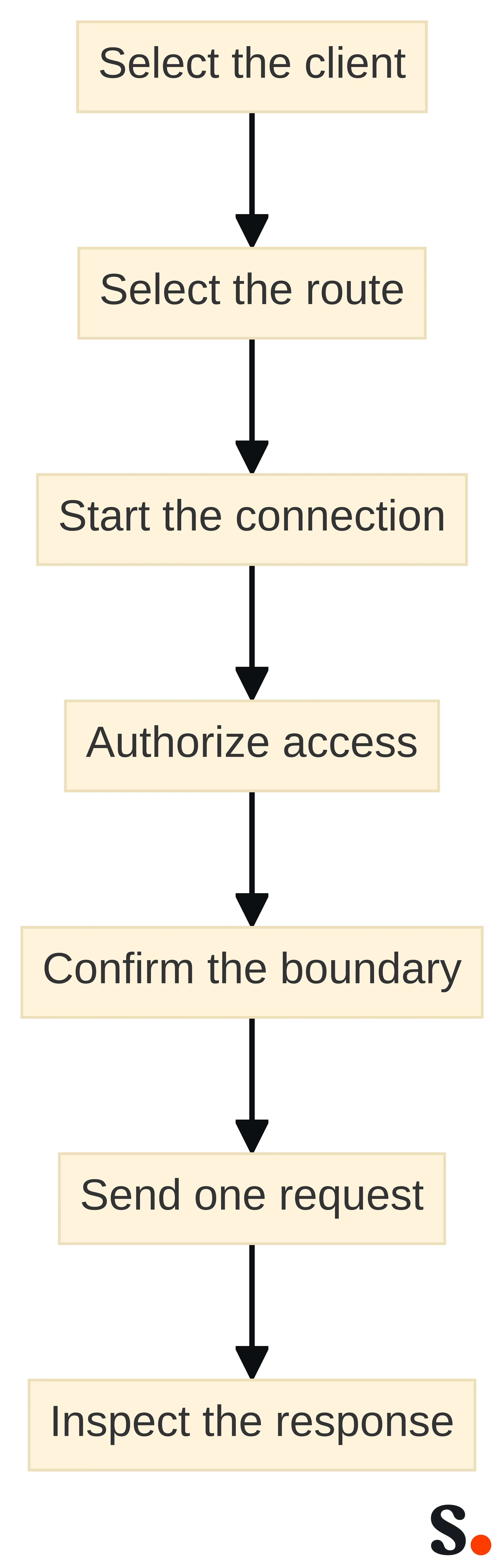
The connection sequence gives you a controlled starting point: choose the assistant and route, start the connection action, sign in with your Scribe account, allow OAuth access, and confirm that the connection is complete before requesting a signature operation. The supplied connection does not require an API key.
Work through the setup in this order:
- Select the client. Choose Claude, ChatGPT, Cursor, or another MCP-capable assistant that fits your existing workflow.
- Select the route. Use the relevant directory listing or the Scribe MCP endpoint.
- Start the connection. Use the client’s connect, install, or add-server action.
- Authorize access. Sign in with your Scribe account and allow the requested OAuth access.
- Confirm the boundary. Make sure the intended assistant and Scribe account are connected.
- Send one request. Start with a bounded creation or auditing task.
- Inspect the response. Compare the result with the task you named before expanding the workflow.
Start with one bounded creation or auditing request, inspect the response against the named task, and expand the workflow only afterward. A useful first request has one clear object, one defined action, and an expected result you can recognize. Avoid combining connection testing, broad auditing, and multiple changes in the same first instruction.
Use the first result to answer four operational questions:
- Did the assistant act on the Scribe workspace you intended?
- Did the response address the exact creation or audit task you named?
- Did you understand what was returned before requesting another operation?
- Does the read or write boundary fit the way you want to review changes?
If the answer is unclear, narrow the request and repeat the inspection step. Expand only after the first bounded task is understandable.
The first test should establish fit, not attempt to prove every possible use. Once the connection, request scope, response, and approval boundary are clear, decide whether the MCP workflow belongs in a larger operating process or whether another Scribe path should own the next step.
Choose the signature workflow that matches your operating model
Choose the Scribe MCP server when conversational work in Claude, ChatGPT, Cursor, or another MCP client matches the way you manage email signatures. We provide a hosted MCP endpoint that connects your AI assistant to your Scribe account so you can manage signatures through plain-English chat. Begin with one bounded creation or audit request, then inspect the response before expanding the workflow.
Choose another path when another system should own the interaction. Use the admin console for direct workspace navigation, the REST API for programmatic access to signature status and conversions, webhooks for real-time event delivery, or the CLI for a local agent that needs Scribe tools over stdio and structured JSON. The built-in Scribe AI agent is another interaction location to assess when keeping the work inside Scribe fits your process.
Your final choice should follow the operating model you can define clearly: where the request starts, what the connected path returns, who reviews a write, and which system receives the next action. If individual security, legal, compliance, or architecture requirements determine suitability, have a qualified professional make that decision for your environment.
Connect the path that matches those conditions, test one bounded task, and keep the first workflow small enough to inspect. That gives you a practical basis for deciding whether conversational signature management belongs in your daily AI-client workflow.
Which connection path should you evaluate first?
What is the Scribe MCP server for AI agents?
The Scribe MCP server is a hosted Model Context Protocol endpoint that connects an AI assistant to your Scribe account, allowing you to manage email signatures through plain-English chat instead of navigating the dashboard.
How can I connect my AI assistant to the Scribe MCP server?
You can connect your AI assistant by selecting the Scribe listing in the Claude Directory or ChatGPT app directory, or by using the endpoint https://mcp.scribe-mail.com/mcp for other MCP-capable assistants. The connection uses OAuth sign-in and does not require an API key.
What tasks can I perform using the Scribe MCP server?
You can create, audit, and report on email signatures using plain-English requests. The server allows you to interact with signature information and analytics without needing to click through the Scribe dashboard.
What should I do before making a request to the Scribe MCP server?
Before making a request, ensure that your AI assistant is connected to your Scribe account, and confirm that the connection is complete. Start with a bounded request to create or audit a signature and inspect the response.
How does using the Scribe MCP server compare to using the Scribe dashboard?
Using the Scribe MCP server allows for conversational requests in plain English, which can be more efficient for certain tasks. In contrast, the Scribe dashboard provides direct visual control and may be preferable for tasks requiring immediate context and manual adjustments.
What are the integration options available with Scribe?
Scribe offers multiple integration options including the MCP server for conversational requests, a REST API for programmatic access, webhooks for event-driven workflows, and a CLI for local agent interactions.
What is the approval behavior of the Scribe connector?
The Scribe connector is scoped to your workspace, with read actions auto-approved and writes requiring confirmation. This means you can retrieve information easily, but any changes made will need to be explicitly confirmed.
Get started with Scribe
Manage signatures across your whole team
Free 14-day trial — no credit card.