What Is Scribe AI? A Decision Guide to Managing Email Signatures Through MCP
Learn what Scribe AI means for email signatures, how MCP connections work, and when an AI-agent workflow fits your team.
Sophie Grant
Email Signature Specialist, Scribe

On this page
- Scribe AI in the context of business email signatures
- What an AI agent can do through the Scribe MCP server
- Conversational requests versus dashboard navigation
- Which assistants can connect to Scribe
- OAuth connection details to verify before proceeding
- When an AI-agent signature workflow is a fit
- A controlled first connection and validation request
- Choose your next step with Scribe’s MCP resources
- Questions to verify before connecting Scribe to an AI assistant
- What tasks can I perform with Scribe AI for email signatures?
- How do I connect my AI assistant to the Scribe MCP server?
- What is the connection model for using Scribe AI with my assistant?
- What should I verify before using Scribe AI for managing email signatures?
- Can I use Scribe AI for reporting on email signatures?
- Sources
Scribe AI in the context of business email signatures
Scribe AI is an AI-assistant interface for Scribe’s business email-signature work. The relevant question is whether you want to manage email signatures through an AI-agent workflow rather than working only through a dashboard.
Scribe provides a solution for managing email signatures. The MCP route connects an MCP-capable assistant with Scribe so you can express supported signature tasks in plain English. That makes the product relevant when your work already happens in Claude, ChatGPT, Cursor, or another assistant that can connect to an MCP server.
The decision has three parts:
- Task fit: determine whether you need to create or audit signatures through conversation, or whether your requirement is a reporting function that still needs testing.
- Connection fit: identify whether your assistant offers the Scribe directory route or accepts the Scribe MCP server endpoint.
- Control fit: decide whether a conversational request gives you the working style you want, while keeping review and approval decisions in your process.
The decision path starts with supported work, separates conversation from dashboard navigation, explains the connection paths, and ends with a controlled first request.
The Scribe MCP server is the practical center of the Scribe AI use case. We provide a hosted Model Context Protocol endpoint that connects AI assistants to email signatures and related Scribe areas, including teammates, smart fields, campaigns, and analytics. For example, creating a signature and auditing signatures are supported uses of the MCP server. Reporting deserves a narrower treatment: the endpoint connects to analytics. If reporting is part of your requirement, make it a validation request rather than assuming that an analytics connection answers the whole reporting question.
Get started with Scribe
Let AI build your signature — from a screenshot
Free 14-day trial — no credit card.
What an AI agent can do through the Scribe MCP server
The Scribe MCP server connects an AI assistant to Scribe for signature-related requests. That changes how you issue a request, not the need to decide what should be created, checked, or approved.
The supported tasks have different purposes:
- Creating a signature: describe the signature work you want the assistant to perform, then ask for a first result that you can inspect before anything goes live. Creation is the clearest fit for a conversational workflow because the request can begin with an explicit objective and a defined review point.
- Auditing signatures: ask the assistant to examine the relevant signature state and return an audit-oriented response. An audit request is useful when your first concern is finding what exists or identifying a mismatch that needs attention.
- Working with connected Scribe areas: the hosted MCP endpoint connects assistants to email signatures, teammates, smart fields, campaigns, and analytics. Those connected areas can shape the context of a request, but their presence does not establish that every possible operation is available.
Plain English does not mean vague English. A request should name the object, the intended action, and the boundary for the response. “Create a signature” is a starting point. “Create a first signature draft for the connected Scribe account and show a preview before anything goes live” gives the assistant a clearer sequence and gives you a review point.
Analytics and reporting should be separated when you define the acceptance test. The Scribe MCP server connects to analytics, and it supports creating and auditing signatures in plain English. That supports an analytics-related test, not a blanket assumption about reporting depth.
If reporting matters to your decision, use a request such as:
Show which signature-related analytics information is available through this connection, identify the fields returned, and explain the limits of the response.
Treat the result as a capability check. Do not make a reporting workflow part of your production process until the response contains the information your process requires. The same boundary applies to any operation that is material to your work but is not expressly established by the supported MCP description.
An AI-agent request works best when you separate instruction from evaluation. Use this four-part structure:
- Name the target: specify the email signature or signature set you want to address.
- Name the action: ask for creation, an audit, or an analytics-related capability check.
- Set the review boundary: request a preview or response before a live change.
- Define the output: ask for the fields, findings, or limits you need to inspect.
This structure preserves human control without forcing you to reproduce a dashboard sequence in conversational form. It also gives you a repeatable way to compare an AI-agent response with the requirement that prompted it.
Conversational requests versus dashboard navigation
AI-agent conversation and dashboard navigation address the same general signature-management context through different interaction models.
| Criterion | AI-agent conversation | Dashboard navigation |
|---|---|---|
| Starting point | You describe the signature task in a request to a connected assistant. | You locate the relevant control and move through the visible interface. |
| Work style | You state the goal, action, and requested output in plain English. | You follow the controls and fields presented by the dashboard. |
| Review approach | You can ask for a preview, audit response, or capability check before acting on the result. | You inspect the relevant screen or setting as you work through the interface. |
| Fit | The model fits when you already work in an MCP-capable assistant and want conversational interaction. | The model fits when direct visual navigation is the better way for you to understand or control the task. |
| Boundary | A natural-language request does not establish that every requested operation is supported. | A visible dashboard path does not make an AI-agent workflow necessary. |
The table is a choice of interaction model, not a claim that one route removes review. A conversational request can make the first instruction shorter, but you still need a clear target and an inspection point. Dashboard navigation can make controls more visible, but it may not match a workflow that begins in an AI assistant.
Choose the conversational route when the request itself is the main source of efficiency for you. Choose direct navigation when seeing the controls, fields, or state before acting matters more than issuing the request in plain English.
Your approval boundary should stay explicit in either model. A useful boundary is: draft or inspect first, then decide whether the result should affect a live signature. That boundary is a process recommendation, not an assumption about what the assistant will do automatically.
A second boundary applies to ambiguous requests. If you cannot name the signature, action, or output you need, pause and define those items before connecting the workflow to a production task. Clear request design matters more than conversational fluency.
Which assistants can connect to Scribe
Claude and ChatGPT have named directory paths for connecting to Scribe. We are listed as Scribe Mail in the Claude Directory and as Scribe in the ChatGPT app directory. If you use either assistant, open the relevant listing, connect or install it, sign in with your Scribe account, and allow access.
The directory names matter because they give you an assistant-specific starting point:
- Claude: look for Scribe Mail in the Claude Directory.
- ChatGPT: look for Scribe in the ChatGPT app directory.
- Another MCP-capable assistant: use the MCP server endpoint supplied for assistants without a Scribe directory listing.
The directory route is not a general statement that every assistant supports the same workflow. It is a way to identify the connection path for the assistant you already use.
Cursor is among the assistants identified as able to connect to our MCP server. We also provide the MCP server endpoint at https://mcp.scribe-mail.com/mcp for other MCP-capable assistants that do not provide a Scribe directory listing.
Use the endpoint path only when your assistant supports adding an MCP server. The endpoint is the connection route for assistants that support adding an MCP server, but installation screens, authorization wording, and available interaction patterns can vary. Your first task is therefore to identify which connection model your assistant accepts:
- A Scribe listing inside the assistant’s directory.
- A manually added MCP server endpoint.
- No supported MCP connection path visible in the assistant you are using.
The third result is a boundary, not a reason to improvise credentials or substitute an API-key workflow. Move to a supported connection path instead.
OAuth connection details to verify before proceeding
The Scribe MCP connection uses OAuth, so you do not need an API key for the supplied connection flow. OAuth changes the sign-in step, not the need to understand which assistant is being connected and which account is being authorized.
Use this sequence before sending a work request:
- Choose the connection path. Open the Scribe listing for Claude or ChatGPT, or add
https://mcp.scribe-mail.com/mcpin another MCP-capable assistant. - Start the connection. Select the assistant’s connect, install, or add-server action.
- Sign in. Use your Scribe account when the authorization flow asks for it.
- Allow access. Complete the OAuth authorization step presented by the connection flow.
- Stop at the connection boundary. Confirm that the connection is complete before asking for a signature operation.
The endpoint and directory listings are product details that can change. Check that the route presented by your assistant matches the path you intend to use before authorizing access. Do not enter an API key merely because an assistant’s generic MCP setup screen mentions one; Scribe’s MCP connection uses OAuth instead.
A connection test should answer three practical questions: did the intended assistant connect, did OAuth complete for the intended Scribe account, and can you proceed to a narrow signature request? Keep those questions separate from the larger question of whether the workflow fits your team.
The connection is ready for a controlled test when you have completed the authorization step and can identify the assistant that will receive the request. If the assistant presents a different route, asks for a different credential type, or does not expose an MCP connection action, stop at that boundary. Use the supported directory or endpoint path rather than treating an unverified route as equivalent.
When an AI-agent signature workflow is a fit
An AI-agent signature workflow is a fit when your task, working environment, and control requirements line up. The MCP server supports conversational creation and auditing, and it connects assistants such as Claude, ChatGPT, and Cursor to Scribe. Use those facts as the starting point for a decision rather than treating the word “AI” as the decision itself.
Check these criteria:
- Your work already starts in an MCP-capable assistant. If you routinely frame technical, RevOps, or IT automation work in Claude, ChatGPT, Cursor, or another MCP client, a conversational connection can sit closer to your existing workflow.
- Your immediate task is supported. Creation and auditing are established uses. If your actual requirement is a particular report, analytics field, or output format, test that requirement separately before adopting it as a working process.
- You prefer requests over dashboard navigation. The MCP route is relevant when plain-English instructions are a better starting point for you than locating each control manually.
- You can define a review boundary. A connected assistant should receive a named task and a clear point at which you inspect the result before a live change.
- You can separate connection fit from product fit. OAuth and an available endpoint answer how you connect. They do not answer whether the returned information or action satisfies your signature workflow.
If all five conditions describe your situation, explore the connector with a narrow first request. If the task is unsupported, the assistant cannot use MCP, or direct visual control matters more to you, keep the requirement at the evaluation stage and use the interaction model that matches it.
An AI-agent workflow is not the right next step when the main requirement is outside the supported task boundary or when the connection model does not match your assistant. Three examples make that boundary concrete:
- You need a report that has not passed a live capability check. Test the requested fields and output before relying on the result.
- You need to inspect every control visually before taking action. Use direct dashboard navigation for that evaluation rather than assuming conversation will provide the same view.
- You do not use an MCP-capable assistant. Do not force the workflow through an unsupported client; first identify whether your tool can accept the Scribe listing or endpoint.
These are workflow decisions, not judgments about the value of AI. The useful question is whether the connection removes a specific interaction problem without creating a new uncertainty about the action or output.
A controlled first connection and validation request
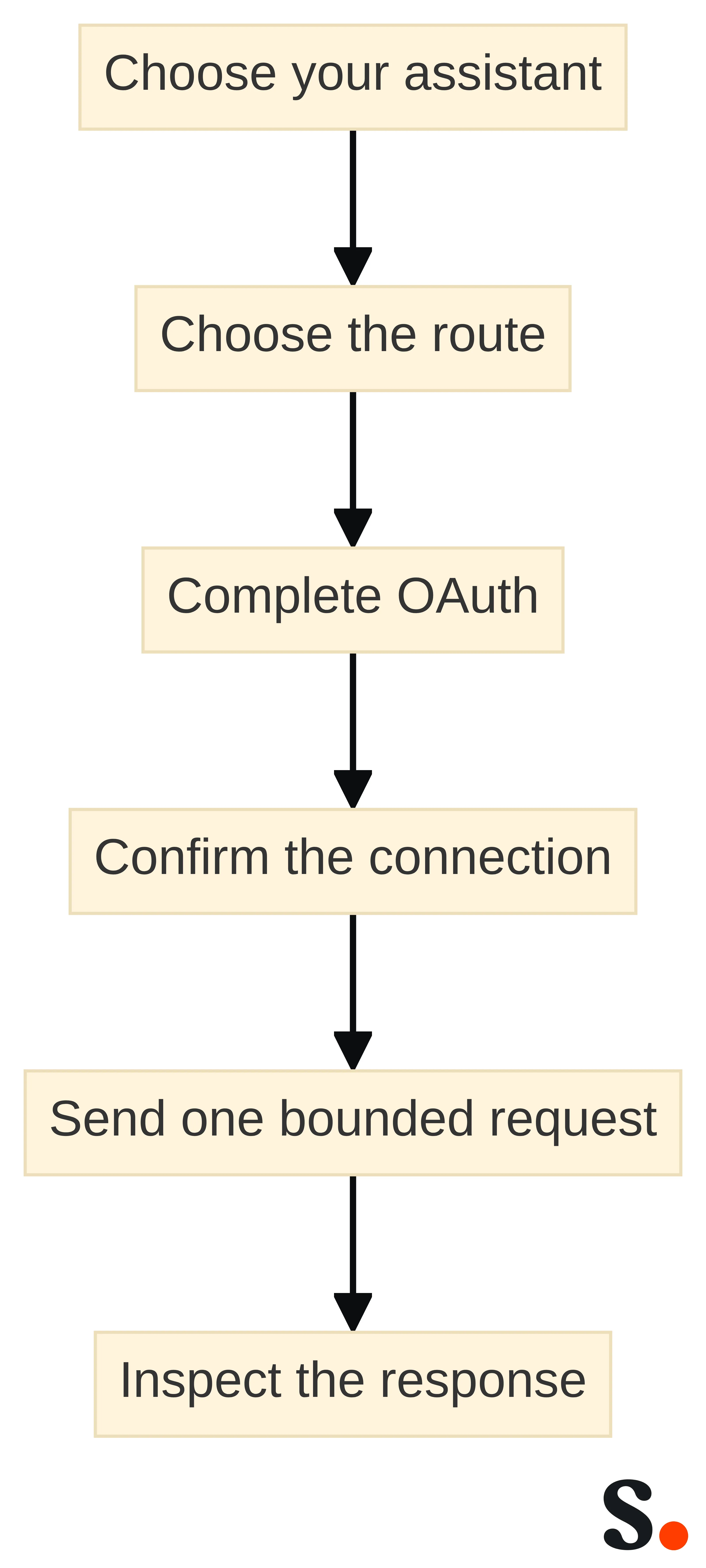
A controlled first connection should move from authorization to a narrow request, not from authorization to an open-ended administrative task. Use this sequence:
- Choose your assistant. Start with Claude, ChatGPT, Cursor, or another MCP-capable assistant that matches your existing work.
- Choose the route. Use the Scribe Mail listing in the Claude Directory, the Scribe listing in the ChatGPT app directory, or the Scribe MCP endpoint for another MCP-capable assistant.
- Complete OAuth. Sign in with your Scribe account and allow the requested access. The supplied flow does not require an API key.
- Confirm the connection. Wait until you have confirmed that the intended assistant and Scribe account are connected.
- Send one bounded request. Start with creation or auditing rather than a broad set of changes.
- Inspect the response. Compare the result with the task you named before expanding the workflow.
This sequence keeps the first test diagnostic. If the connection fails, the problem is in the connection path. If the assistant connects but the response does not address the request, the problem is in task definition or capability fit. If the response is useful but the review boundary is unclear, improve the process before using a live change.
A first creation request should ask for a preview before anything goes live. You can write:
Create my first email signature from the information available in the connected Scribe account. Show me a preview and wait for my approval before anything goes live.
An audit request should name the purpose of the audit and the response you want. You can write:
Audit the connected email signatures and return the findings in a structured response. Separate each finding from any action you recommend.
The creation request asks for a first signature and a preview before anything goes live. The audit request uses the supported audit capability while keeping the output reviewable.
If reporting is part of your requirement, use a separate validation request rather than combining it with a live change:
Identify the signature-related analytics information available through this connection, list the fields you can return, and show a sample response without changing any live signature.
Treat that response as an acceptance test for reporting.
Record the result of the first request in practical terms: the assistant used, the connection route, the request sent, the response returned, and the boundary you applied before any live action. This record gives you a basis for deciding whether the MCP workflow is repeatable for your own work.
A successful connection alone is not the decision. The decision is whether the assistant can handle the task you actually need, return information you can inspect, and fit the way you want to manage signature work.
Choose your next step with Scribe’s MCP resources
Scribe AI is relevant when you want to manage or audit business email signatures through an AI assistant rather than begin with dashboard navigation. The supported path connects Claude, ChatGPT, Cursor, or another MCP-capable assistant through an OAuth flow, while creation and auditing provide clear first tests. Analytics-related reporting should remain a separate capability check until the returned information matches your requirement.
If that workflow matches your task, start with the connection route for the assistant you already use. Send one bounded request, ask for a reviewable response, and expand only after the result fits the work you need to do. If the route or task does not fit, keep the requirement at the evaluation stage instead of forcing an unsupported connection.
Use the following resources to inspect the available connection path and the related Scribe AI workflow.
Questions to verify before connecting Scribe to an AI assistant
What tasks can I perform with Scribe AI for email signatures?
With Scribe AI, you can create and audit email signatures using conversational commands. This allows you to describe the signature work you want and receive a preview before any changes go live.
How do I connect my AI assistant to the Scribe MCP server?
You can connect your AI assistant, such as Claude or ChatGPT, to the Scribe MCP server by accessing the respective directory listings for each assistant. For other MCP-capable assistants, you can manually add the Scribe MCP server endpoint.
What is the connection model for using Scribe AI with my assistant?
The connection model involves using OAuth for authentication, which means you do not need an API key. You will sign in with your Scribe account and allow access through the assistant's connection flow.
What should I verify before using Scribe AI for managing email signatures?
Before using Scribe AI, verify that your assistant supports the Scribe directory listing or the MCP server endpoint. Additionally, ensure that the tasks you need, such as creating or auditing signatures, are supported.
Can I use Scribe AI for reporting on email signatures?
While Scribe AI supports creating and auditing signatures, reporting capabilities should be validated separately to ensure they meet your specific requirements.
Get started with Scribe
Let AI build your signature — from a screenshot
Free 14-day trial — no credit card.