Set Up Multiple Email Signatures in Gmail: A Step-by-Step Guide
In today's digital communication landscape, managing email signatures is crucial for projecting a professional image. This guide provides a clear, step-by-step
Sophie Grant
Email Signature Specialist, Scribe
Introduction
In today's digital communication landscape, managing email signatures is crucial for projecting a professional image. This guide provides a clear, step-by-step method for setting up multiple email signatures in Gmail, helping users customize their correspondence for different situations.
Users often struggle to maintain a uniform professional image when managing multiple signatures. Navigating Gmail's signature settings effectively can enhance branding potential. Addressing these challenges is vital for ensuring a cohesive brand presence in all communications.
Prepare Your Gmail Account for Multiple Signatures
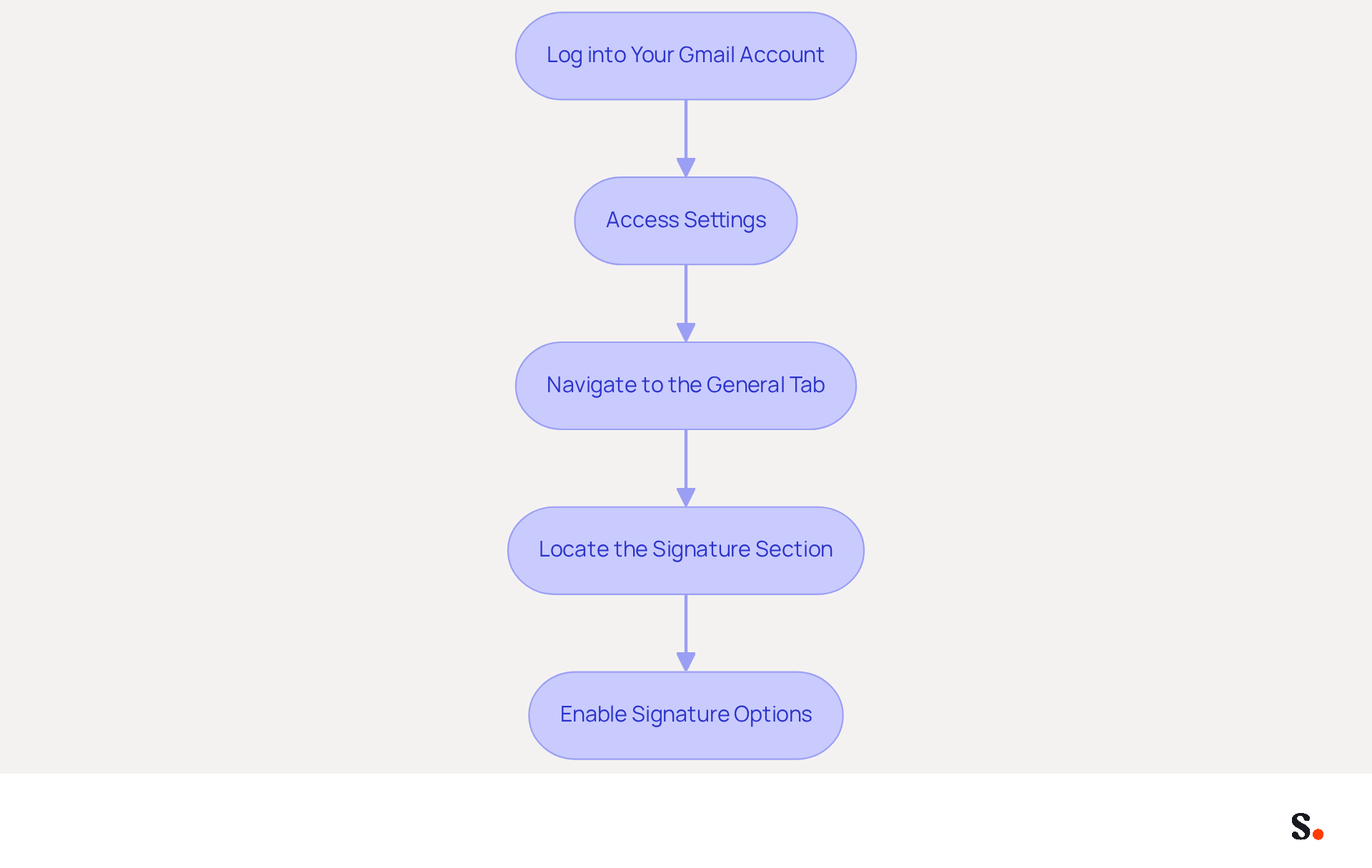
- Log into Your Gmail Account: Open your web browser and navigate to Gmail. Enter your credentials to access your inbox.
- Access Settings: In the top right corner, click on the gear icon (⚙️) to open the settings menu. Select 'See all settings' from the dropdown.
- Navigate to the General Tab: Once in the settings, ensure you are on the 'General' tab, which is the default tab that opens.
- Locate the Signature Section: Scroll down until you find the 'Sign-off' area. This is where you will manage your correspondence details.
- Enable Signature Options: If you do not see the option to create multiple email signatures in Gmail, make sure your Gmail account is updated to the latest version, as older versions may not support this feature. If you are using Google Workspace, confirm with your administrator that this feature is enabled for your account.
Managing electronic signatures effectively is crucial for maintaining professional communication standards. Consider using Scribe to enhance your electronic signature management with easy one-click synchronization. This enables automated updates to your branding, ensuring consistency across all communications. Scribe's SOC 2 Type II compliance ensures that your information is managed securely, offering reassurance as you handle your identifiers. With Scribe, you can also sync teammate information from HR software, simplifying the process of updating approvals automatically.
Current Statistics: As of 2026, approximately 93% of professionals check their messages daily, making effective communication tools crucial for correspondence. Branded digital identifiers can boost response rates by 22%, highlighting the importance of customizing identifiers for different contexts.
Case Studies: Regular updates to electronic correspondences are essential; 44.4% of professionals refresh their identifiers 2-4 times a year. This practice not only keeps autographs relevant but also enhances brand visibility and trust among clients. For example, organizations that include dynamic components in their branding have experienced a notable increase in engagement, with click-through rates reaching as high as 4%, in contrast to standard marketing communications. By adopting Scribe, organizations can not only streamline their signature management but also enhance their overall communication strategy.
Create and Customize Your Email Signatures
To create an effective email signature, follow these structured steps that enhance your branding and communication.
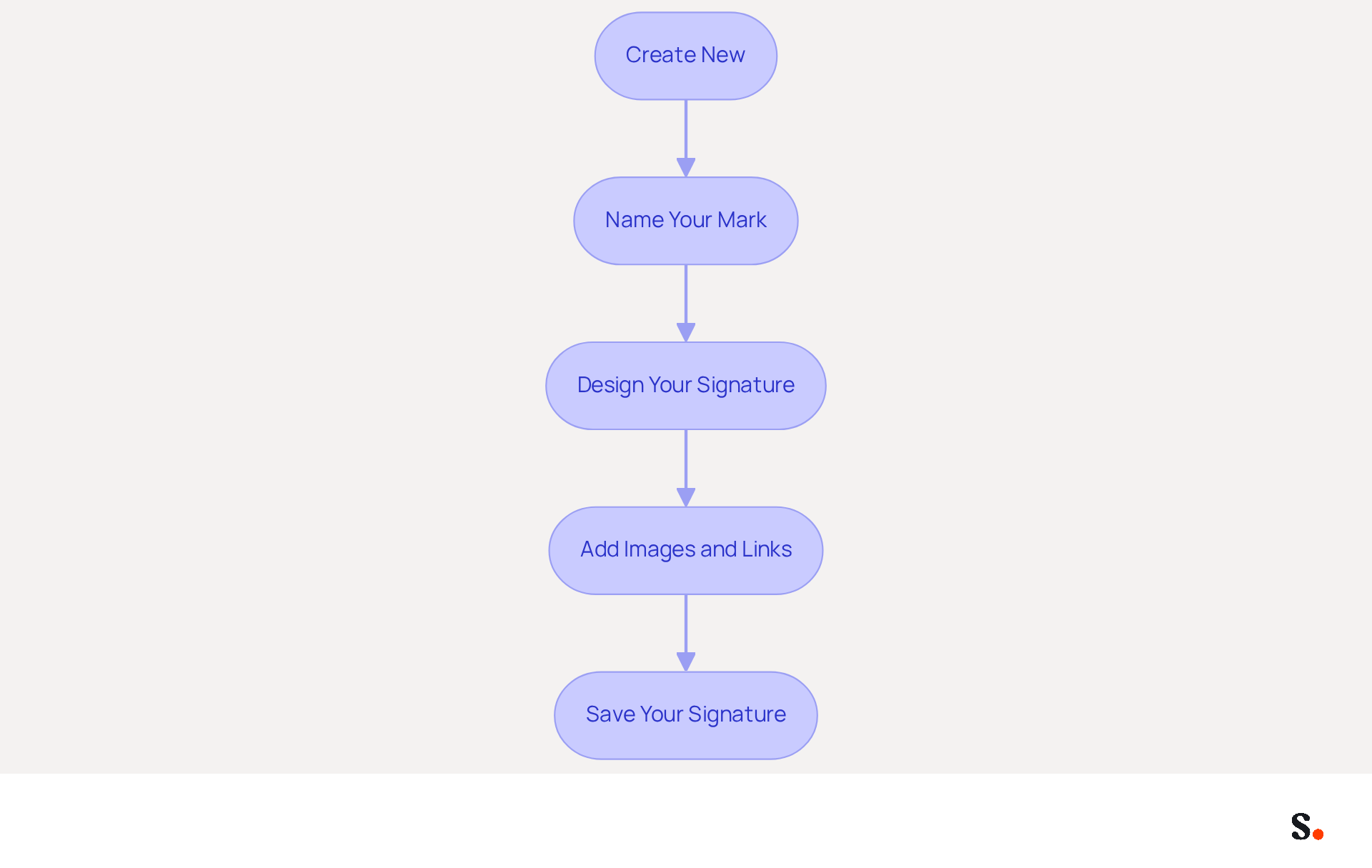
- Click on 'Create New': Begin by clicking the 'Create New' button to initiate your email layout.
- Name Your Mark: A prompt will appear asking you to designate your new mark. Choose a name that reflects its purpose, such as 'Professional', 'Personal', or 'Marketing'. This assists in efficiently arranging multiple email signatures in Gmail.
- Design Your Signature: Use the text editor to enter your name, title, company name, and any other pertinent information. Format the text using options like bold, italics, and varying font sizes to enhance readability and visual appeal. Research indicates that a well-designed email footer can boost response rates by up to 32%.
- Add Images and Links: To enrich your email footer, incorporate your company logo or a personal photo to enhance visual appeal. Click on the image icon to upload an image from your computer or insert a link to an online image. Additionally, enhance engagement by adding hyperlinks to your social media profiles or website; simply highlight the text and click the link icon. Including social media links can lead to a 22% increase in clicks on those icons.
- Save Your Signature: After finalizing your design, scroll down and click 'Save Changes' at the bottom of the settings page. Without regular updates, your branding risks becoming stale and ineffective. Regularly updating your branding with new marketing content ensures your branding remains impactful and aligned with current marketing strategies.
With Scribe, your message identifiers are not only adjustable but also benefit from automated management. By syncing with your business phone system and messaging provider, Scribe guarantees that your teammates' signature information is always current without requiring any action from them. This real-time synchronization, combined with Scribe's SOC 2 Type II compliance, guarantees that your data remains secure while enhancing your branding efforts. By leveraging Scribe's automated management, your branding not only stays current but also maximizes engagement potential.
Manage and Switch Between Your Signatures
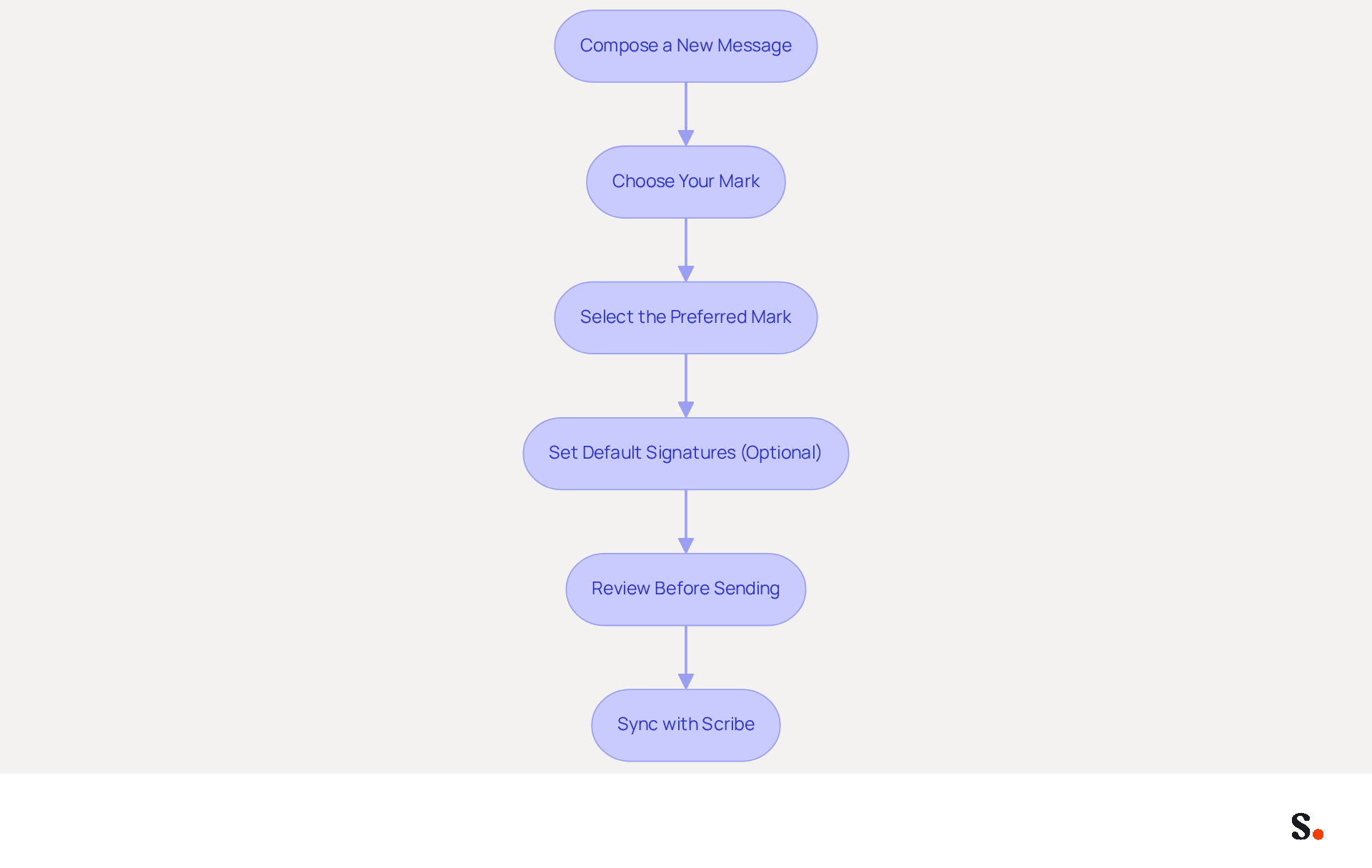
- Compose a New Message: Initiating a new message in Gmail is a straightforward process that sets the stage for effective communication. Begin by clicking the 'Compose' button to initiate a new message.
- Choose Your Mark: In the message composition window, find the pen icon (✏️) in the formatting toolbar. Click on it to access a dropdown menu showing your available initials.
- Select the Preferred Mark: From the dropdown, choose the mark you wish to use for this message. The selected mark will automatically fill in the message body, ensuring your branding remains consistent.
- Set Default Signatures (Optional): If you wish for a particular sign-off to be your default for new messages or responses, return to the Signature section in settings. Under 'Defaults for Signatures', choose your preferred sign-off for each category, enabling smooth transitions in your communications.
- Review Before Sending: Failing to verify the correct mark may lead to miscommunication and damage your professional image. Always double-check that the correct mark is displayed before dispatching your message. This verification is essential to uphold your professional image.
Using multiple email signatures in Gmail enhances your branding and supports your marketing strategies. By syncing your Google Workspace with Scribe, you save time as your teammates' information is automatically updated, allowing for effortless management of identifiers. This synchronization ensures that any changes in your Google Workspace, such as updates to job positions or group assignments, are reflected in Scribe without manual input. Organizations that employ branded digital identifiers report a 22% rise in response rates, as consistent branding results in enhancements in perceived professionalism. Moreover, 76-80% of marketers think that branded digital identifiers boost trust and credibility, making it crucial to present the appropriate mark for the suitable context. Furthermore, the introduction of multiple email signatures in Gmail commenced on April 8, 2020, enabling users to utilize this feature for improved message management. By implementing these practices, you position your communications for greater impact and professionalism.
Troubleshoot Common Issues with Gmail Signatures
Many users encounter common issues with email signatures that can hinder effective communication.
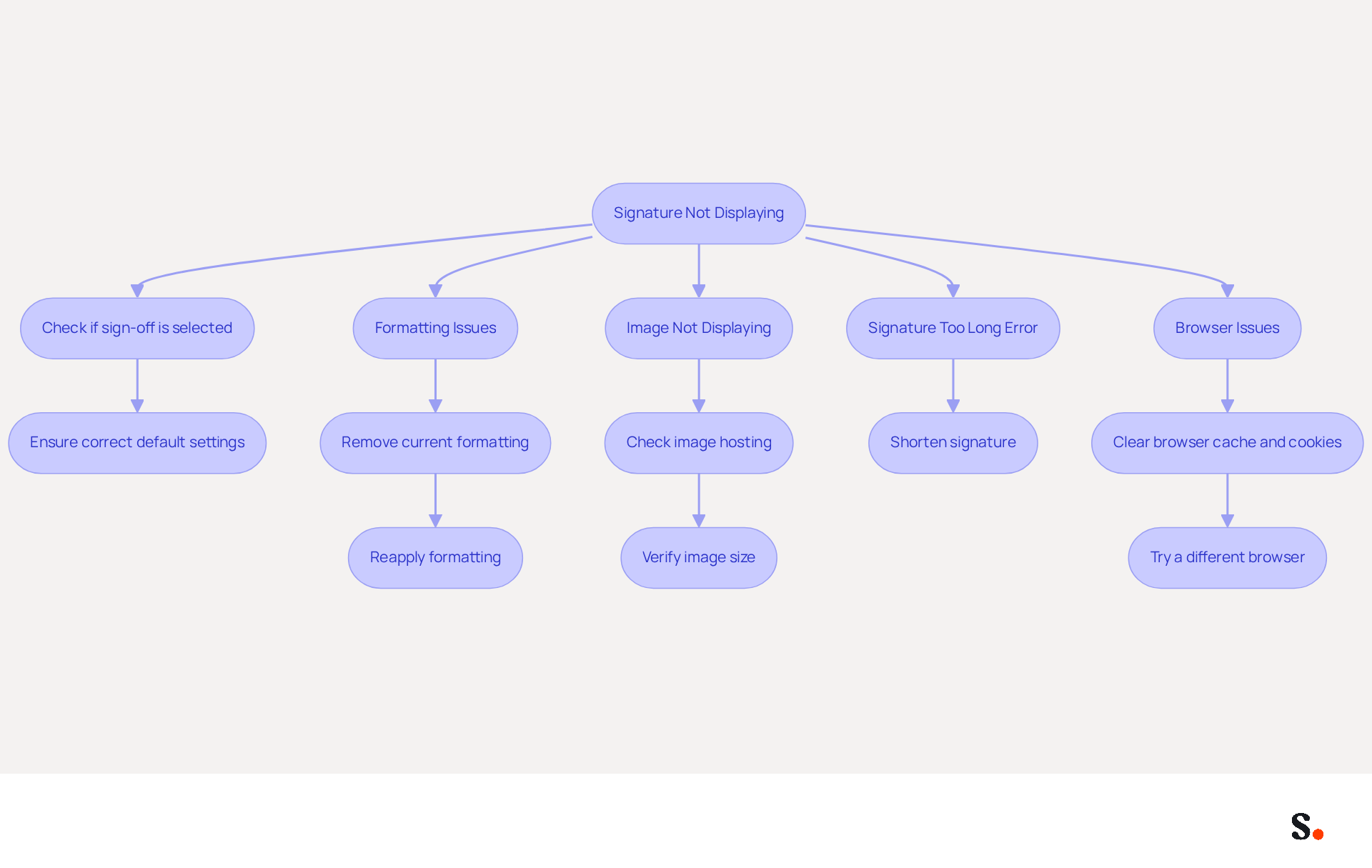
- Signature Not Displaying: To start, check if your sign-off is selected in the compose window if it’s not showing up in your messages. Ensure that the correct mark is set as the default for new emails and replies in your settings.
- Formatting Issues: If your mark looks different than expected, try removing the current formatting and reapplying it. Copying and pasting from external sources can often introduce unwanted formatting that disrupts the look of the document.
- Image Not Displaying: If an image in your email footer isn’t visible, ensure it’s hosted online or uploaded correctly. Additionally, check that the image adheres to the recommended size; excessively large images may not display properly in Gmail.
- Signature Too Long Error: Gmail enforces a character limit on email footers. If you encounter an error indicating your signature is too long, shorten it by eliminating unnecessary text or images to comply with the limit.
- Browser Issues: If problems persist, clear your browser’s cache and cookies. Alternatively, try accessing Gmail from a different browser to determine if the issue continues.
Addressing these signature issues is crucial for maintaining a professional image in your email communications.
Conclusion
Establishing multiple email signatures in Gmail is essential for professionals seeking to enhance their communication and brand identity. Following these steps allows users to create and manage their signatures effectively, ensuring each email reflects a professional image.
Key insights from this guide emphasize the importance of maintaining updated and visually appealing signatures. With tools like Scribe, organizations can automate the management of email signatures, ensuring consistency and compliance with security standards such as:
- SOC 2 Type II
- GDPR
- CCPA
The ability to switch between signatures seamlessly allows for tailored communication, which can enhance engagement and build trust with recipients.
This streamlined approach not only enhances professionalism but also drives higher engagement rates. By adopting best practices and utilizing solutions like Scribe, organizations can not only streamline their signature management but also maximize their marketing ROI, ensuring that every email sent reinforces the brand's reputation and fosters stronger connections with recipients.
Frequently Asked Questions
How do I log into my Gmail account?
Open your web browser, navigate to Gmail, and enter your credentials to access your inbox.
How can I access the settings in Gmail?
Click on the gear icon (⚙️) in the top right corner and select 'See all settings' from the dropdown menu.
Which tab should I navigate to for managing signatures in Gmail?
You should ensure you are on the 'General' tab, which is the default tab that opens in the settings.
Where can I find the signature section in Gmail settings?
Scroll down in the settings until you find the 'Sign-off' area, where you will manage your correspondence details.
What should I do if I don't see the option to create multiple email signatures in Gmail?
Ensure your Gmail account is updated to the latest version, as older versions may not support this feature. If you are using Google Workspace, confirm with your administrator that this feature is enabled for your account.
Why is managing electronic signatures important?
Managing electronic signatures effectively is crucial for maintaining professional communication standards.
How can Scribe help with electronic signature management?
Scribe enhances electronic signature management with easy one-click synchronization, enabling automated updates to your branding for consistency across all communications.
What compliance does Scribe offer for managing information securely?
Scribe's SOC 2 Type II compliance ensures that your information is managed securely.
What are the current statistics regarding professional communication?
As of 2026, approximately 93% of professionals check their messages daily, making effective communication tools crucial for correspondence.
How can branded digital identifiers impact response rates?
Branded digital identifiers can boost response rates by 22%, highlighting the importance of customizing identifiers for different contexts.
How often do professionals update their electronic correspondences?
44.4% of professionals refresh their identifiers 2-4 times a year to keep autographs relevant and enhance brand visibility and trust among clients.
What benefits have organizations experienced by adopting Scribe for signature management?
Organizations that include dynamic components in their branding have seen notable increases in engagement, with click-through rates reaching as high as 4%, compared to standard marketing communications.
List of Sources
- Prepare Your Gmail Account for Multiple Signatures
- 40+ Email Signature Statistics for 2026 (Data + Insights) (https://wavecnct.com/blogs/email-signature-statistics)
- Email Signature Essentials: Key Statistics to Know for 2023 (https://blog.hubspot.com/marketing/email-signature-statistics)
- Email Signature Statistics: A Closer Look at Email Signatures in 2026 (https://mysignature.io/blog/email-signature-statistics)
- Google Workspace Updates: Create and use multiple signatures in Gmail (https://workspaceupdates.googleblog.com/2020/03/multiple-signatures-gmail.html)
- Email signature statistics: Why every business should optimize their email signatures — Stripo.email (https://stripo.email/blog/email-signature-statistics-why-every-business-should-optimize-their-email-signatures)
- Create and Customize Your Email Signatures
- Top 10+ best practices for email signatures design in 2026 (https://mysignature.io/blog/email-signature-best-practices)
- How to Create an Email Signature in 2024: The Ultimate Guide (https://linkedin.com/pulse/how-create-email-signature-2024-ultimate-guide-helga-zabalkanska-ncerf)
- Email Signature Best Practices - NEWOLDSTAMP (https://newoldstamp.com/blog/email-signature-best-practices)
- 10 ideas for marketing campaigns in email signatures (https://signitic.com/en/resources/10-ideas-for-marketing-campaigns-in-email-signatures)
- Best Practices Designing Email Signatures - Lynne Golodner (https://lynnegolodner.com/articles/best-practices-designing-email-signatures)
- Manage and Switch Between Your Signatures
- 40+ Email Signature Statistics for 2026 (Data + Insights) (https://wavecnct.com/blogs/email-signature-statistics)
- Google Workspace Updates: Create and use multiple signatures in Gmail (https://workspaceupdates.googleblog.com/2020/03/multiple-signatures-gmail.html)
- Email Signature Statistics: A Closer Look at Email Signatures in 2026 (https://mysignature.io/blog/email-signature-statistics)
- Troubleshoot Common Issues with Gmail Signatures
- Solving a Gmail signature problem (https://signitic.com/en/guides/solving-a-gmail-signature-problem)
- What To Do When Your Gmail Signature is Not Showing Up (https://appointlet.com/blog/gmail-signature-not-showing-up)
- Troubleshoot issues with Gmail signatures - Gmail Help (https://support.google.com/mail/answer/11468381?hl=en)
- Gmail Signature Too Long or Not Showing? Fixes for Admins (https://patronum.io/gmail-signature-not-showing-or-too-long)
- 4 Best Practices to Fix Why Your Signature Isn't Showing in Gmail (https://scribe-mail.com/en-US/blog/4-best-practices-to-fix-why-your-signature-isn-t-showing-in-gmail)
Get started with Scribe
Create your signature in minutes
Free 14-day trial — no credit card.