Google Workspace Email Signatures: How to Deploy One Signature for All Users (2026 IT Guide)
How IT admins roll out one managed signature to every Google Workspace user: what the Admin console and Gmail API can and can't do, directory sync with OUs and groups, server-side routing for Android and Apple Mail, and fixes for the common errors.
Sophie Grant
Email Signature Specialist, Scribe

On this page
- Can Google Workspace set one signature for all users?
- The Append footer setting
- The Gmail API
- Limits that apply to every method
- What do you need before you start?
- How do you install a signature app for the whole domain?
- How do you sync users, OUs and groups from the Google directory?
- How do you add server-side routing for Android, Apple Mail and other senders?
- What is covered on mobile and third-party senders?
- How do send-as aliases and shared addresses work?
- How do you phase the rollout with OUs?
- How do you fix the common errors?
- What does the security review need to know?
- Where does Scribe fit in Google Workspace?
- Frequently asked questions
- Can a Google Workspace admin set everyone's Gmail signature?
- What is the Gmail signature character limit?
- Can users change a signature set by the admin?
- Do managed Gmail signatures work on Android?
- Can I give replies or internal emails a different signature in Gmail?
- Why do I get "User not found" when installing a signature on an alias?
- How do I roll out to one department first?
- Does a Gmail signature app read my email?
- Related Handbook guides
TL;DR: Google Workspace can't natively push one designed, personalized signature to every user. The Admin console only offers an "Append footer" compliance setting (the same text for everyone, invisible while composing), and the Gmail API can write signatures per user if you build the tooling. To roll out company signatures at scale, install a Marketplace signature app as a super admin, sync users, OUs and groups from the Google directory, and add server-side routing if you need Gmail on Android, Apple Mail and other clients covered.
Last reviewed: October 2026. Covers Gmail on the web, Gmail for iOS and Android, Apple Mail and other IMAP clients on Google Workspace accounts.
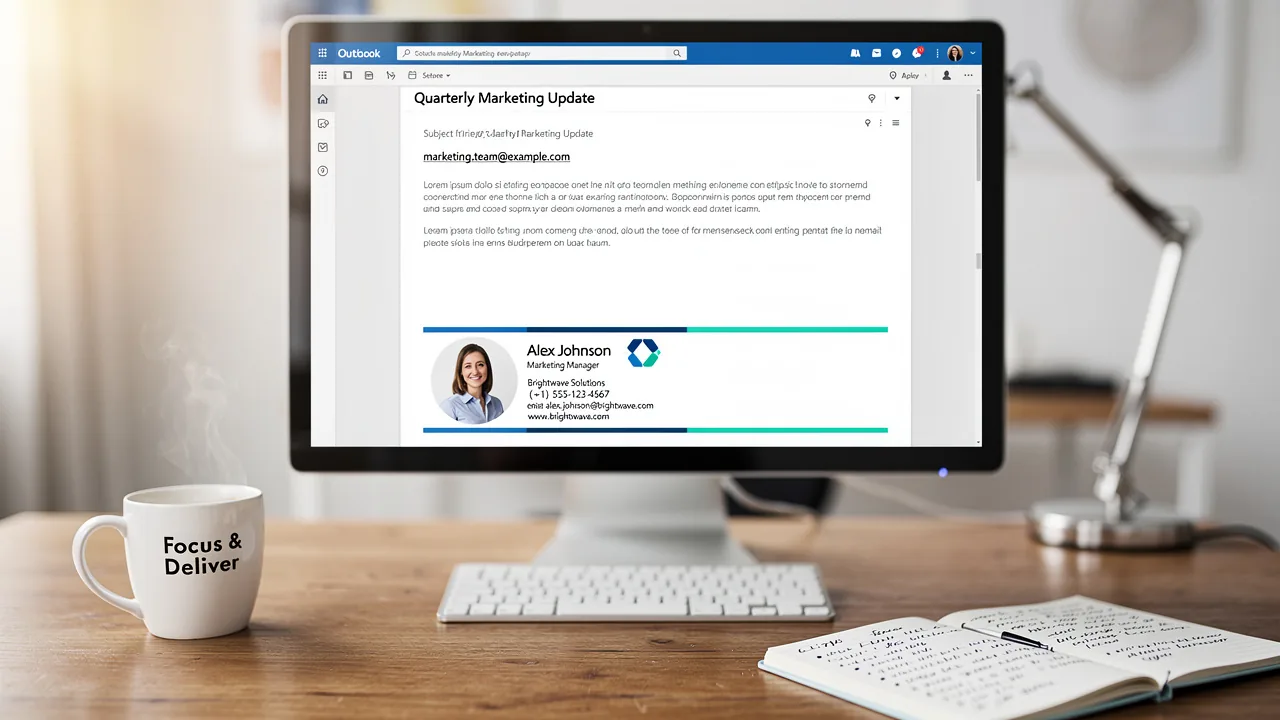
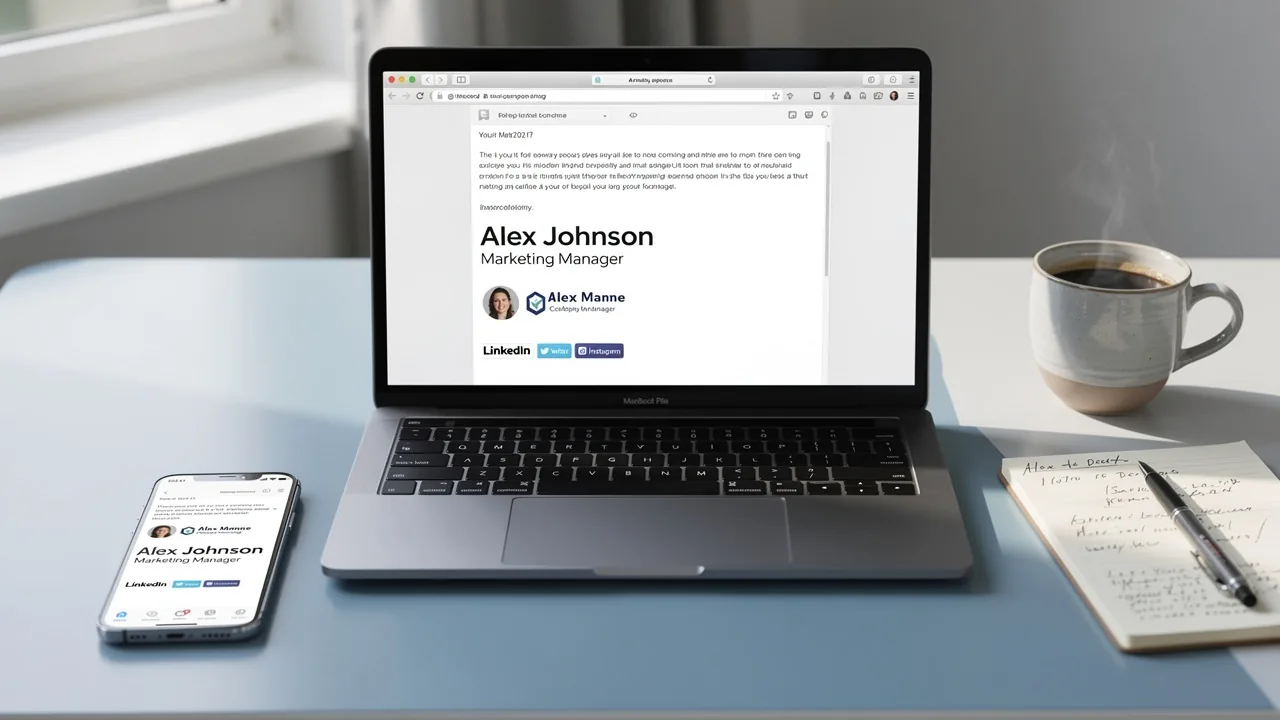
This guide is for Google Workspace admins who need every employee to send the same, correct signature: right title, right phone number, right legal text, on every device. It explains what Google gives you natively, where those tools stop, and how to deploy and verify a managed rollout step by step. If you only need to add a signature to your own Gmail account, see how to add a signature in Gmail.
Can Google Workspace set one signature for all users?
Partly. Google's own admin documentation lists three routes for setting up user signatures: a default footer added in the Admin console, the Gmail API, and third-party apps from the Google Workspace Marketplace (Set up Google Workspace user signatures in Gmail).
| Option | How it works | Seen while composing | Users can change it | Personalized per user |
|---|---|---|---|---|
| Append footer (Admin console) | Gmail adds the same footer text to outgoing mail for an organizational unit | No | No | No |
| Gmail API | Your script writes each user's signature into their Gmail settings | Yes | Yes | Yes, if you build it |
| Marketplace signature app | A vendor app, installed by an admin, writes and maintains signatures from directory data | Yes | Overwritten by the app on update | Yes |
| Server-side routing | Gmail routes outbound mail through a signature relay that inserts the signature in transit | No | No | Yes |
The Append footer setting
Append footer lives under Admin console > Apps > Google Workspace > Gmail > Compliance and needs the Gmail Settings administrator privilege. Per Google (Add a standard footer to outgoing emails):
- It applies to an organizational unit; child OUs inherit it.
- Footer text can be up to 10,000 characters. The editor doesn't accept raw HTML, and images must be hosted on a public web server (not Google Drive).
- By default it applies to messages leaving the organization; a checkbox extends it to internal mail.
- Plain-text messages get a plain-text version of the footer.
- It isn't supported for messages encrypted with Google Workspace client-side encryption.
- Changes can take up to 24 hours.
It is the right tool for a single legal disclaimer. It is not a signature system: there are no per-user fields, no visual editor, and the sender never sees it. Disclaimer wording by country is covered in the email disclaimers guide.
The Gmail API
Gmail stores a signature on each "send-as" address. The users.settings.sendAs resource lets you read and update that signature for the primary address and for aliases (Managing aliases and signatures, Google for Developers). Doing this for a whole domain means a service account with domain-wide delegation, a template engine, a scheduler, and error handling for every user the API rejects. Google notes that signatures set this way remain editable by users (Google), so you also need to re-apply them on a schedule.
That custom build is what Marketplace signature apps package for you. Scribe's Gmail app, for example, requests exactly two Gmail scopes: gmail.settings.basic to set signatures on primary addresses and gmail.settings.sharing for aliases. Neither scope can read mail (Scribe: data collected from Gmail).
Limits that apply to every method
- 10,000 characters. Gmail signatures are limited to 10,000 characters (Gmail Help). Heavy inline HTML, long legal text and base64 images hit this quickly. When it happens, Gmail rejects the signature; our "signature too long" fix walks through the usual causes.
- One signature per send-as address in settings. Users can keep several signatures, but what an admin tool writes is tied to an address.
- Mobile apps. The Gmail apps have their own signature behavior, covered below.
Get started with Scribe
Roll out signatures to your whole organization
Free 14-day trial — no credit card.
What do you need before you start?
| Item | Why it matters |
|---|---|
| Super admin account | Scribe's Gmail app and directory sync both require a super admin (Scribe docs). If you aren't one, Scribe lets you invite one into the workspace to finish the connection. |
| Third-party app access policy | If your organization restricts API access, the connection fails with Error 400: admin_policy_enforced until the app is allowed under API controls (Google: control which apps access Google Workspace data) |
| Clean directory data | Job title, department, phones and addresses in user profiles become signature content |
| Custom attributes, if needed | Licence numbers, pronouns or booking links can live in custom user attributes (Google: custom attributes) |
| Aliases set up as "Send mail as" | Aliases created only in the Admin console can't receive a signature until Gmail knows them as send-as addresses (see troubleshooting) |
| A pilot OU or group | Lets you turn the app on for a subset first |
| DNS access (server-side only) | Routing through a relay requires a DKIM record for the relay |
How do you install a signature app for the whole domain?
With Scribe, the client-side installation is a Google Workspace Marketplace app. Steps from Scribe's documentation (Scribe: Google Workspace):
- In Scribe, open the Google Workspace integration and click Install Scribe App. This opens the Marketplace listing.
- Click Install, then Continue in the "Admin install" dialog.
- Select Everyone at your organization and agree to the terms of service. To pilot first, you can later restrict the app to specific OUs or groups (see phased rollout).
- Click Done and return to Scribe.
- Confirm with Yes I installed it. Scribe says Google's validation usually takes a few seconds.
- Click Install signature and deploy all signatures at once or one at a time (Install signatures).
Scribe's status documentation notes that Gmail installs can take up to 72 hours to show as Installed (Statuses and errors). Teammates don't need to do anything; after the first install, design changes you publish are pushed automatically.
One design decision to make now: Gmail's client-side install writes a single signature into Gmail settings, with no separate reply or internal variant (Scribe: signature variants). If you want a shorter signature on replies or a minimal one for internal mail, you need server-side routing, which applies variants per message.
How do you sync users, OUs and groups from the Google directory?
Directory sync is a separate connection from the Gmail app. It imports people and keeps their data current.
- In Scribe, go to Teammates > + Add Teammates > Google Workspace, or Integrations > Teammates.
- Click Connect Google Workspace (or Invite a Super Admin) and sign in.
- Accept the read-only directory scopes.
- Select who to sync: individual teammates, whole organizational units, or Google Groups (which you can expand before syncing).
- Turn on Auto-sync new teammates added to Google Workspace and, if needed, Import email aliases.
- Click Sync teammates.
Sync runs once a day based on your time zone, plus on demand with Refresh. Data flows one way, from Google to Scribe, so fixes are made in Google (Scribe: Google Workspace directory).
| Directory API scope | Purpose |
|---|---|
admin.directory.user.readonly | Read users |
admin.directory.orgunit.readonly | Read organizational units |
admin.directory.group.readonly | Read groups |
admin.directory.domain.readonly | Read domains |
admin.directory.userschema.readonly | Read custom attributes for use in signatures |
Scribe lists the stored fields as profile picture, first name, surname, job position, mobile, home and work phones, home, work and other addresses, organizational unit, custom attribute values, group and OU memberships, and domains (Scribe: scopes used from Google Workspace).
Assignment works best as a rule: assign a signature to an OU or group, or by Smart Field condition such as "Department is Sales," and tick auto-assign for future teammates so new hires get the right signature on day one (Assign teammates). Empty fields are dropped from the rendered signature rather than shown as blank lines (Smart Fields).
How do you add server-side routing for Android, Apple Mail and other senders?
Client-side coverage on Google Workspace has gaps. Scribe's mobile matrix: the Gmail app for iOS is covered; the Gmail app for Android and Apple Mail are not, because those apps don't let external tools set the compose signature (Scribe: mobile). Server-side routing, which Scribe offers on the Business and Enterprise plans, closes the gap by inserting the signature after the message leaves the device.
The Google side uses three standard Gmail admin features: a mail host (route), the SMTP relay service, and a content compliance rule (Google: content compliance; Google: SMTP relay service). With Scribe (Scribe: Google Workspace server side):
- Add a host. In Apps > Google Workspace > Gmail > Hosts, add a route named
Scribe: single hostsmtp.server.scribe-mail.com, port 25. - Configure the SMTP relay service. In Gmail > Routing, configure SMTP relay service with description
Receive from Scribe, "Only accept mail from the specified IP addresses" set to15.236.243.144and51.44.50.107, and Require TLS encryption. - Create the content compliance rule. In Gmail > Compliance > Content compliance, add
Route to Scribefor Outbound and Internal - sending messages, matching if ALL of:- Full headers do not contain
X-Scribe-Processed(prevents double processing). - Envelope sender does not match regex
.*@google\.com$(excludes Google system mail such as Forms receipts, which Google's relay rejects if routed).
- Full headers do not contain
- Configure DKIM in Scribe and publish the
scribe._domainkeyrecord for each sending domain. Scribe re-signs processed mail and adds an ARC chain, because inserting a signature invalidates Google's original DKIM signature. - Install signatures and send a test message to an external mailbox. Check for the
X-Scribe-Processedheader.
Rolling back means disabling the content compliance rule; the host and relay entries can stay unused. When both client-side and server-side are connected, Scribe uses client-side where it's supported so people see their signature while composing, and server-side covers the rest (Integrations overview).
What is covered on mobile and third-party senders?
| Sending from | Client-side (Gmail app) | Server-side routing |
|---|---|---|
| Gmail on the web | Yes, visible while composing | Yes |
| Gmail for iOS | Yes; Scribe notes the signature is applied after sending, and the app's own "Mobile Signature" must be off (Scribe docs) | Yes |
| Gmail for Android | No | Yes |
| Apple Mail (Mac, iPhone) | No (a manual Apple Mail integration exists per user) | Yes |
| Outlook or other clients on a Google account | Depends on the client | Yes |
| CRM or sequencer sending through the user's Gmail (for example HubSpot one-to-one and sequence emails) | No | Yes, if the From address is a teammate with an installed signature (Scribe docs) |
| Tools that send from their own servers (for example HubSpot marketing email) | No | No; the mail never passes through Google |
| Reply and internal variants | No (single signature in Gmail settings) | Yes |
How do send-as aliases and shared addresses work?
Each person can have one signature on their primary address and separate signatures on any number of aliases; Scribe bills per primary address, so aliases don't add cost (Scribe: aliases). Aliases are imported from the directory when Import email aliases is on, and the right signature appears based on the From address the user selects.
The catch is Gmail itself: an alias that exists only in the Admin console can receive mail, but Gmail won't accept a signature for it until the user has added it under Settings > Accounts > Send mail as. Until then, the API returns "User not found" (Scribe docs). Build that step into your alias provisioning.
Scribe doesn't import shared mailboxes from Google Workspace. For an address a team sends from, such as support@ or sales@, add it as an alias on each person who sends from it, and make sure each of them has it as a Send mail as address in Gmail (Scribe: aliases).
How do you phase the rollout with OUs?
Google Workspace lets you turn a Marketplace app on or off per organizational unit or group under Apps > Google Workspace Marketplace apps > Apps list > [app] > User access. Scribe uses the same setting: if the app is off for a user's OU, their install fails with "Google Workspace API has forbidden access to this teammate's signature" (Scribe docs). That makes OUs a clean rollout lever.
- Week 0. Fix directory data; create custom attributes you need; approve templates.
- Week 1: pilot. Turn the app on for a pilot OU or group of 10 to 30 people on mixed devices. If you test server-side, limit the content compliance rule to the pilot OU.
- Week 2: first departments. Turn the app on for the teams that email customers most and assign their signatures by department condition. Use the install modal's option to email teammates a preview of their new signature.
- Week 3: everyone. Set the app to On for everyone, enable auto-assign, and apply the compliance rule at the top-level OU if you use server-side.
- Steady state. Marketing owns templates and campaign banners; IT owns the app, the directory connection and the routing rule.
Scribe estimates around 10 minutes of IT work and 15 to 20 minutes of Marketing work for the setup itself; most elapsed time is internal sign-off (Scribe docs).
How do you fix the common errors?
| Error or symptom | Cause | Fix |
|---|---|---|
Error 400: admin_policy_enforced | API controls block the app | Allow the app under API controls (Scribe, Google) |
| App not validated after 30 minutes | Wrong Google account or domain; not installed for everyone; not a super admin; a personal Gmail account | Re-check the account and "Everyone at your organization" (Scribe) |
| Integration shows Access lost | Scopes no longer granted | Admin console > Apps > Google Workspace Marketplace apps > Scribe > Grant access (Scribe) |
| "Forbidden access to this teammate's signature" | App turned off for that OU or group | Set App distribution to On for the OU, then reinstall |
| "User not found on Google Workspace" on an alias | Alias not added as Send mail as | Add it in Gmail settings, then push again |
| "Signature is too long" | Over Gmail's 10,000-character limit | Remove elements or use hosted images, then reinstall |
| Signature missing in Gmail web | Signature defaults not set to "my signature," or Plain text mode on | Fix both settings (Scribe) |
| Signature missing on Gmail iOS | Local mobile signature enabled | Turn off "Mobile Signature" in the app |
| Status stays Not installed | Gmail disabled for the user, or account inactive | Enable Gmail for the user in Google Workspace |
| Google Forms receipts bounce after enabling routing | System mail routed to the relay | Keep the .*@google\.com$ envelope-sender exclusion |
What does the security review need to know?
- Client-side: Gmail settings scopes only; mail is not routed anywhere and the scopes cannot read mail.
- Directory: read-only Admin SDK scopes listed above; nothing is written back to Google.
- Server-side: outbound and internal-sending mail takes one TLS hop to Scribe and returns through the SMTP relay from two fixed IPs. Scribe documents that recipients, subject, attachments and body text pass through unchanged, and that it adds its own headers, a fresh DKIM signature and an ARC chain. SPF is unaffected because Google still makes the final delivery.
- Assurance: Scribe states it is SOC 2 Type II and GDPR compliant and publishes a Trust Center (Scribe security).
Where does Scribe fit in Google Workspace?
Scribe covers the three building blocks in this guide from one dashboard: the Gmail app, directory sync with custom attributes, and server-side routing. HR data can come from tools such as BambooHR, Workday, Rippling or HiBob when the directory isn't the system of record. Admins can also audit and update signatures from Claude or ChatGPT through Scribe's MCP server, or from scripts through the API, for example to check per-email install state during onboarding. Plans are per user, with a free plan for two users and a 14-day trial (pricing).
Frequently asked questions
Can a Google Workspace admin set everyone's Gmail signature?
Not with a built-in signature editor. The Admin console's Append footer setting adds the same footer to outgoing mail for an organizational unit, but users don't see it and it can't be personalized. To write a personalized signature into each user's Gmail settings, use the Gmail API or a Marketplace signature app installed by a super admin.
What is the Gmail signature character limit?
10,000 characters, according to Gmail Help. Google's Append footer is also limited to 10,000 characters. Inline images and long legal text are the usual reasons a signature exceeds it.
Can users change a signature set by the admin?
Signatures written to Gmail settings through the API stay editable by the user, according to Google, so tools re-apply the approved version. The Append footer can't be changed or removed by users.
Do managed Gmail signatures work on Android?
Not client-side: the Gmail app for Android doesn't let signature tools set the compose signature. Scribe supports Gmail for Android only with server-side installation (Business and Enterprise plans), which also covers Apple Mail and other clients because the signature is added after the message is sent.
Can I give replies or internal emails a different signature in Gmail?
Not with a signature stored in Gmail settings, which holds one signature per address. Scribe's client-side Gmail install writes a single signature with no reply or internal variants; its server-side routing chooses the primary, on-reply or internal variant for each message.
Why do I get "User not found" when installing a signature on an alias?
The alias exists in the Admin console but hasn't been added as a Send mail as address in the user's Gmail settings. Add it under Settings, Accounts, Send mail as, then push the signature again.
How do I roll out to one department first?
Turn the signature app on only for a pilot organizational unit or group under Apps, Google Workspace Marketplace apps, then User access. Expand to more OUs, then set it On for everyone. Scribe shows a forbidden-access error for users whose OU doesn't have the app.
Does a Gmail signature app read my email?
It shouldn't need to. Scribe's Gmail app requests only gmail.settings.basic and gmail.settings.sharing, which manage signatures and can't read messages; directory sync uses read-only Admin SDK scopes.
Related Handbook guides
Get started with Scribe
Roll out signatures to your whole organization
Free 14-day trial — no credit card.