4 Steps to Make a Signature in Outlook for Marketing Managers
Creating a professional email signature in Outlook is essential for effective communication and brand representation. Marketing managers, in particular, can
Sophie Grant
Email Signature Specialist, Scribe
Introduction
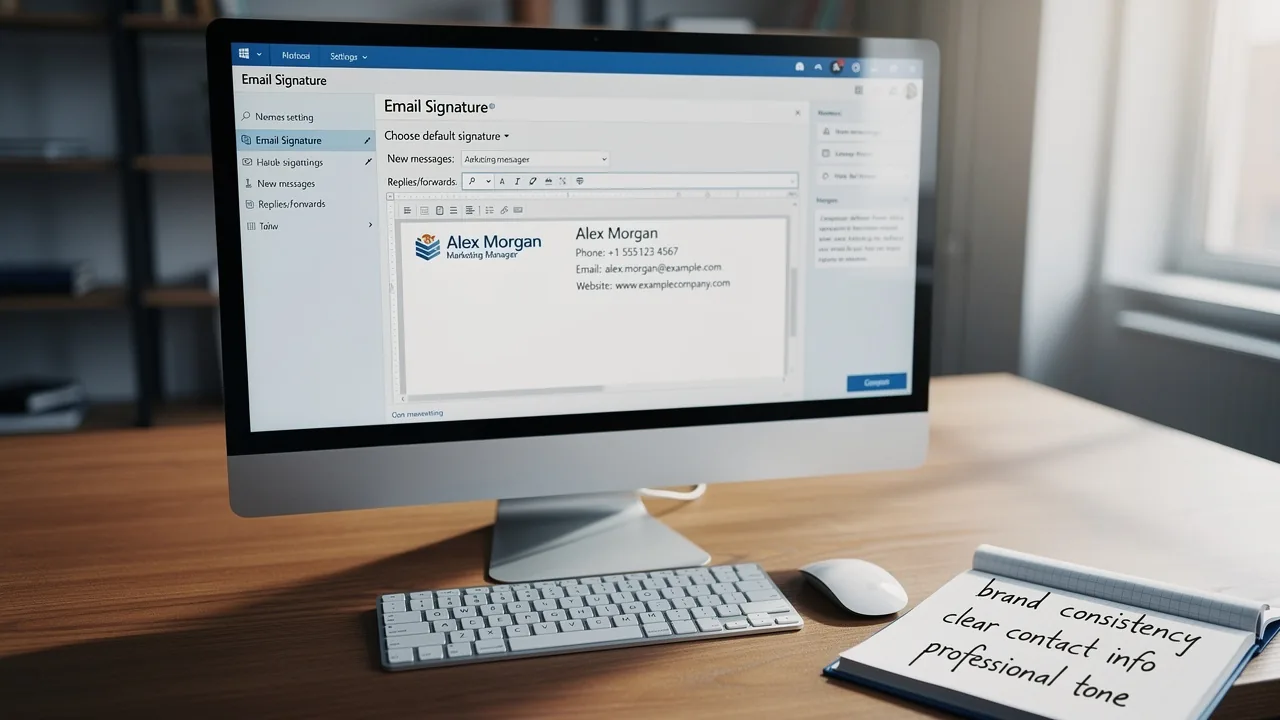
Creating a professional email signature in Outlook is essential for effective communication and brand representation. Marketing managers, in particular, can leverage well-designed signatures to enhance brand consistency and engagement, turning every email into a marketing opportunity.
Navigating the complexities of Outlook can be challenging for many users, but ensuring your signature looks great and functions seamlessly across platforms is achievable.
This guide outlines essential steps to create, customize, and troubleshoot email signatures in Outlook, empowering marketing professionals to enhance their correspondence and brand image.
Create Your Email Signature in Outlook
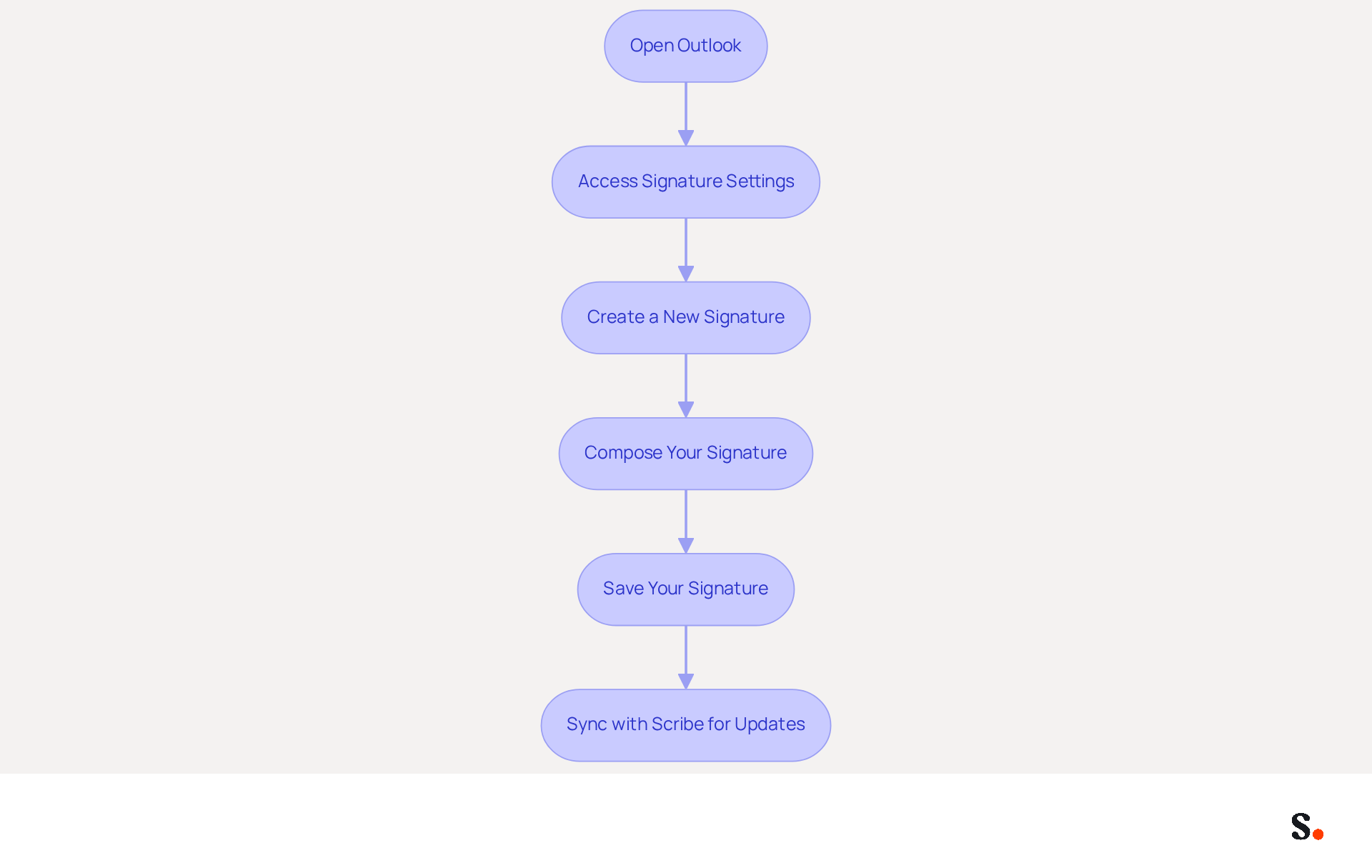
It is essential for effective communication to understand how to make a signature in Outlook. To create your email signature in Outlook, follow these steps:
-
Open Outlook: Launch the Outlook application on your computer.
-
Access Signature Settings: Click on the 'File' tab in the top-left corner, then select 'Options'. In the Mail category, click on 'Signatures' to understand how to make a signature in Outlook.
-
Create a New Signature: In the Signatures and Stationery window, click 'New'. Enter a name for your signature and click 'OK'.
-
Compose Your Signature: In the editing box, type your desired signature. Your email signature should contain eight essential elements:
- Full name
- Job title
- Company name with logo
- One phone number
- Contact address
- Company web address
- Social profiles
- A legal disclaimer if necessary
Use formatting tools to adjust the font, size, and color, ensuring high contrast for readability. To create a personalized email, you might want to learn how to make a signature in Outlook. If you want to know how to make a signature in Outlook your default for new messages or responses, select it from the dropdown menus under 'Choose default signature'.
-
Save Your Signature: Click 'OK' to save your changes and close the window. Now, you’re all set to understand how to make a signature in Outlook for your emails.
Managing email signatures manually can be time-consuming and prone to errors. By syncing your Google Workspace with Scribe, you can save time as your teammates' data is automatically updated, allowing for effortless auto-filling of information. This integration streamlines your workflow, ensuring accuracy and efficiency. Remember, a well-crafted email signature significantly boosts your professional image, as 42.2% of users view marketing through messages as one of their top three effective channels. Regularly review and update your signature quarterly and promptly for job changes to reflect any modifications in your contact information or branding. Furthermore, Scribe's adherence to SOC 2 Type II and GDPR guarantees secure data management, making it a trustworthy option for your correspondence management. With Scribe, you can ensure your email signatures are always up-to-date, enhancing your professional image.
Customize Your Signature for Brand Consistency
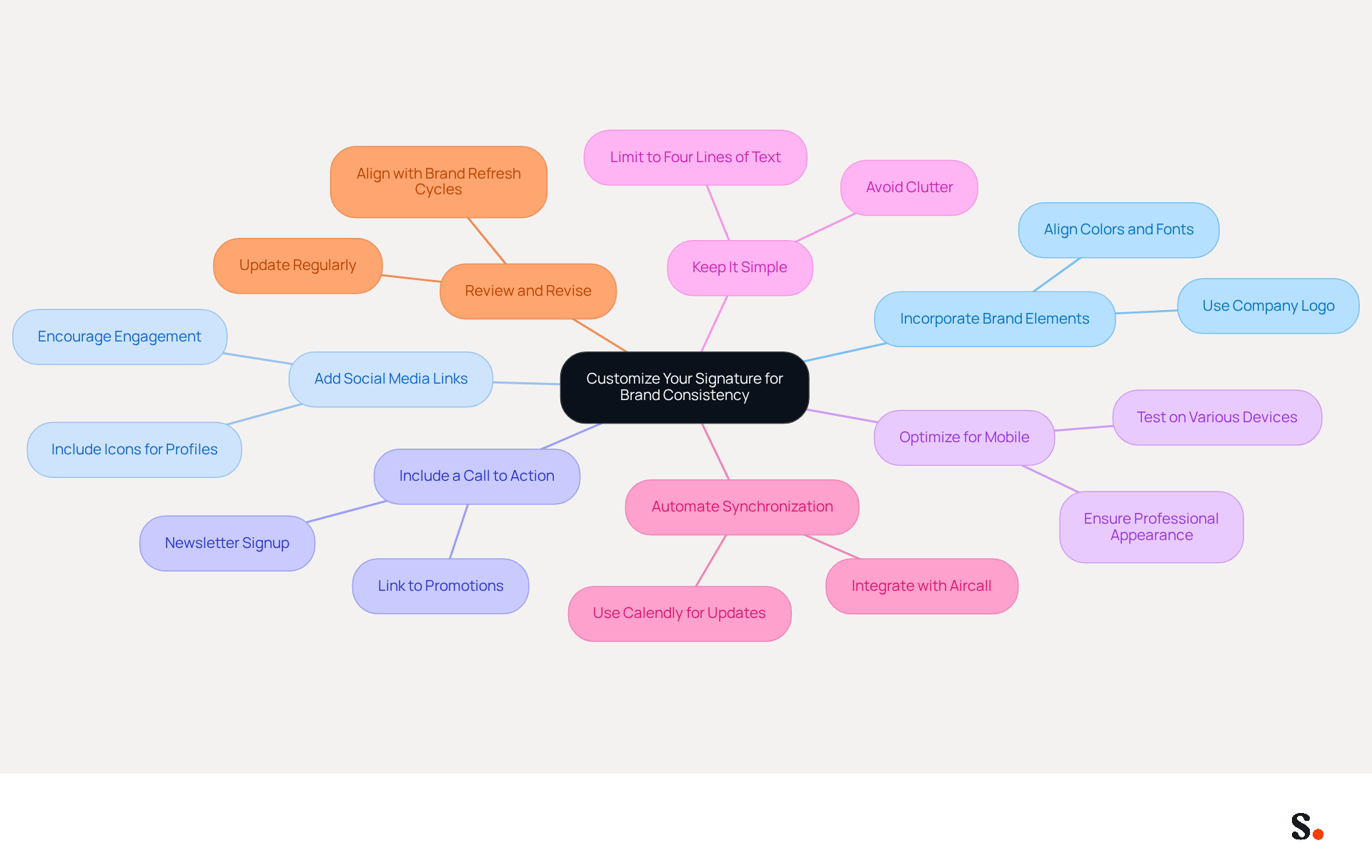
To ensure your email signature reflects your brand consistently, it is essential to follow a structured approach that incorporates key elements of your identity:
- Incorporate Brand Elements: Include your company logo, colors, and fonts that align with your brand guidelines. This creates a recognizable identity, especially important given that over 360 billion emails are sent daily, making each sign-off a potential promotional opportunity to enhance brand visibility.
- Add Social Media Links: If applicable, include icons linked to your company’s social media profiles. This encourages recipients to engage with your brand across multiple platforms, enhancing visibility and interaction.
- Include a Call to Action: Consider adding a call to action (CTA) such as a link to your latest promotional campaign or a newsletter signup. Well-crafted CTAs can significantly boost traffic and engagement, with optimized sign-offs yielding up to 40% higher engagement rates compared to standard alternatives.
- Optimize for Mobile: Ensure that your email footer appears well on mobile devices. With over 60% of business correspondence accessed on mobile, ensuring your email signature looks professional on mobile devices can be challenging, especially with the increasing reliance on mobile for business communication. Testing your closing on various devices is essential for upholding professionalism and readability.
- Keep It Simple: Avoid clutter. A clean and concise signature not only looks professional but also communicates your message effectively. Aim for a maximum of four lines of text to ensure clarity and impact. This corresponds with the trend towards minimalist digital designs anticipated in 2026.
- Automate Synchronization: Utilize Scribe's integration with Aircall to ensure that any changes made in your Aircall configuration are automatically reflected in your Scribe profiles. Furthermore, utilize the smooth integration with Calendly for automatic updates to your contact information, further improving brand consistency and saving time.
- Review and Revise: Regularly update your personal mark to reflect any changes in your role, contact information, or company branding. Conducting yearly evaluations of your digital identifiers can help align these updates with brand refresh cycles, ensuring consistency across communications. Regular updates to your email signature not only maintain brand consistency but also enhance your professional image in every correspondence.
Integrate Signatures with Marketing Tools
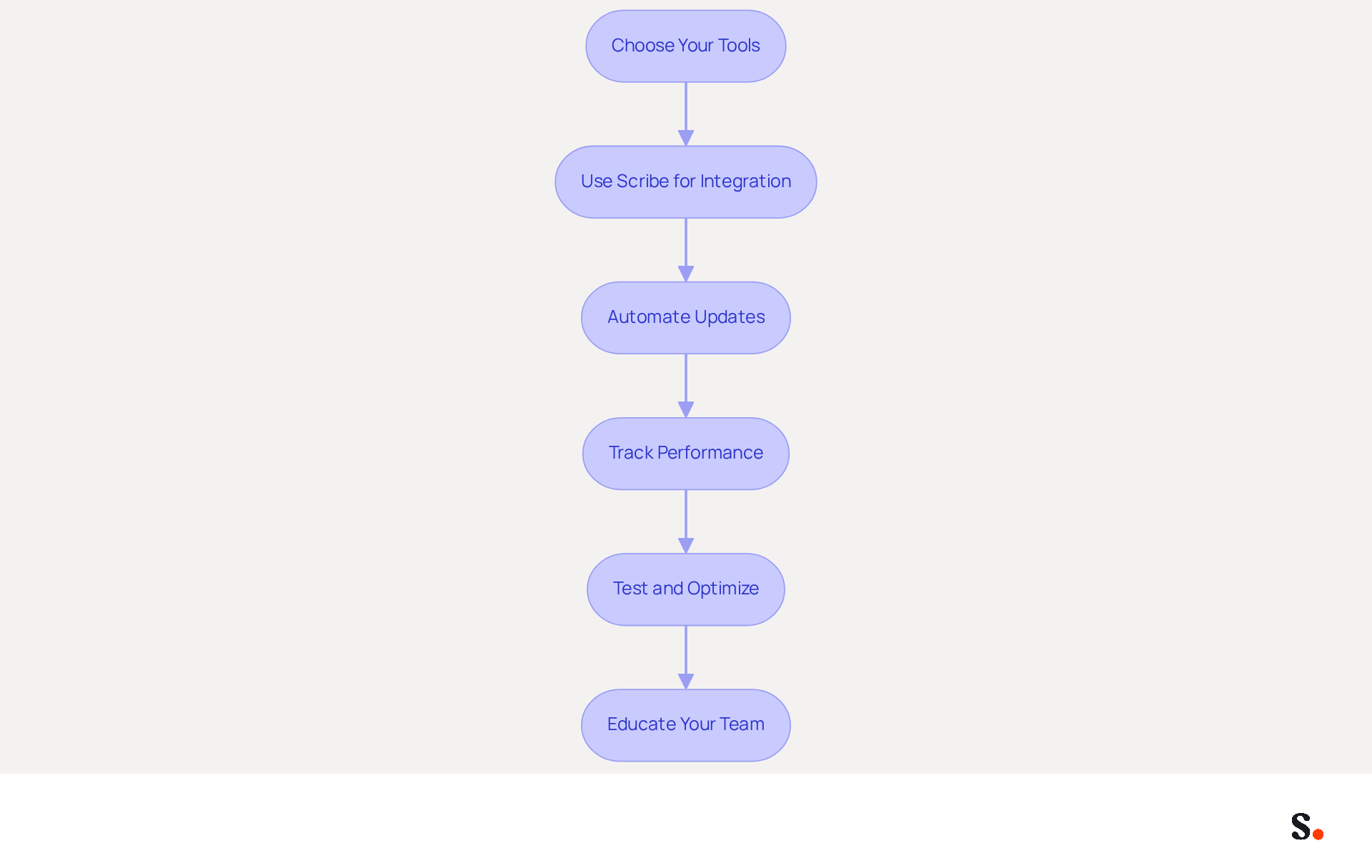
To effectively integrate your email signatures with marketing tools, a strategic approach is essential:
- Choose Your Tools: Identify the marketing tools you currently use, such as CRM systems, digital marketing platforms, or social media management tools. This will assist you in understanding how to optimally utilize your messaging identifiers.
- Use Scribe for Integration: If you are utilizing this tool, navigate to the integration settings within the platform. Link your messaging account (e.g., Outlook) to Scribe to manage your identifiers centrally, ensuring consistency across all communications and enhancing your brand image. Scribe allows modifications in your Aircall setup to sync automatically with your correspondence labels, which enhances team collaboration and maintains brand consistency.
- Automate Updates: Establish automated updates for your identifiers to reflect the latest promotional campaigns or offers. Scribe’s campaign scheduling feature allows you to implement changes swiftly, enhancing responsiveness to market trends and ensuring that your communications are always aligned with your current marketing strategies. This automation not only saves time but also ensures compliance with SOC 2 Type II standards for secure data handling.
- Track Performance: Utilize analytics tools to monitor the effectiveness of your messages. Track metrics such as click-through rates on links included in your email footer to assess effectiveness. Studies show that businesses using digital identifiers in their correspondence experience a notable increase in engagement rates, with some reporting up to 40% growth. Additionally, tracking links can measure engagement with websites and offers, providing valuable insights into customer interactions.
- Test and Optimize: Regularly test different versions of your signature to determine which elements drive the most engagement. Implement A/B testing to refine your approach and maximize the impact of your email communications. This iterative process will assist you in improving the effectiveness of your promotional campaigns.
- Educate Your Team: It's important for your team to grasp how to effectively use the integrated marks. Provide training or resources to help them leverage this tool in their communications, fostering a unified brand image and enhancing overall marketing efforts. Furthermore, highlight the significance of upholding legal and ethical standards when gathering data through electronic communications to foster trust with recipients.
By prioritizing these steps, you can significantly enhance your marketing effectiveness and brand consistency.
Troubleshoot Common Signature Issues
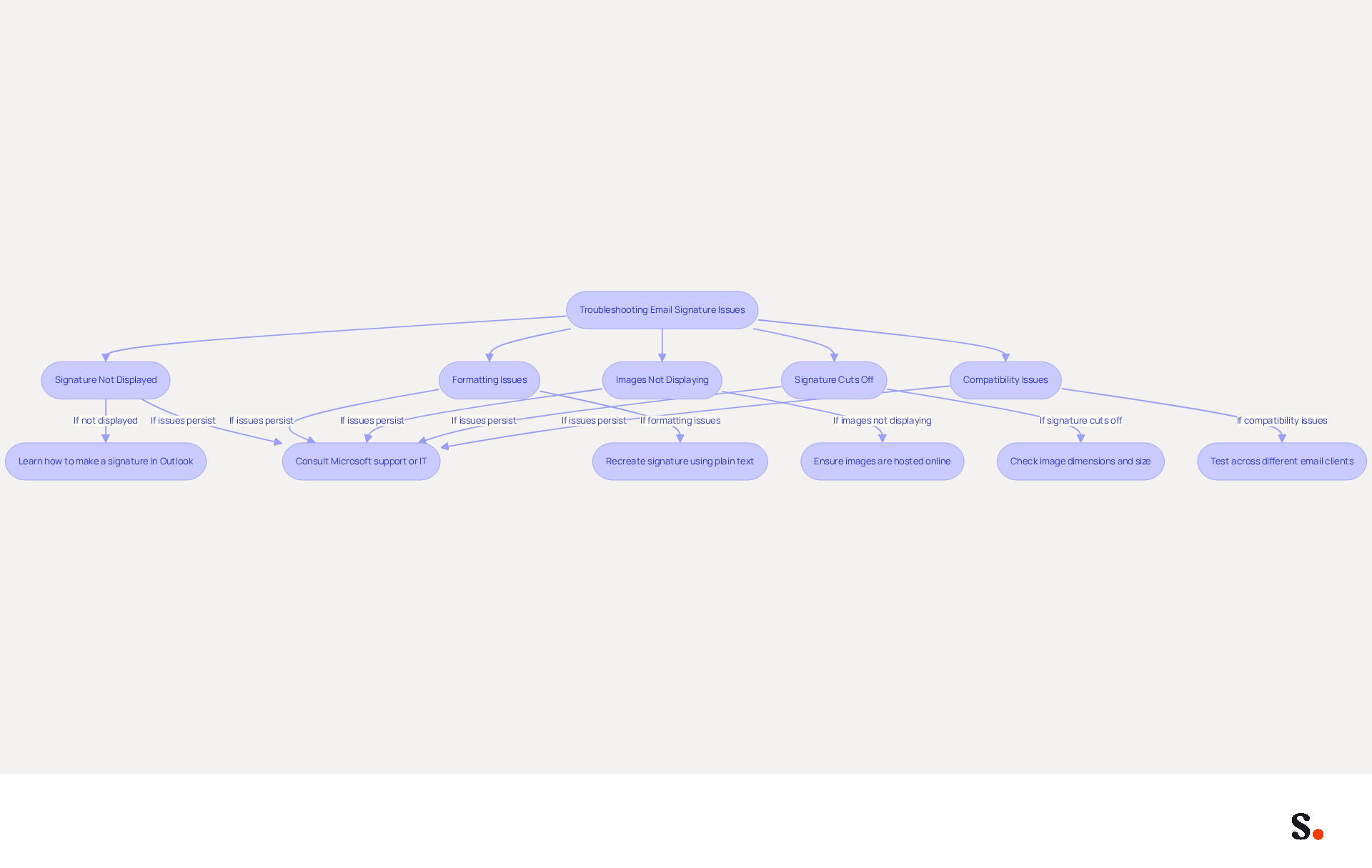
To troubleshoot common email signature issues, follow these steps:
- Signature Not Displayed: Many professionals encounter challenges with email signatures that can hinder communication effectiveness. If your sign-off is not visible in messages, you should learn how to make a signature in Outlook. Ensure that the appropriate mark is chosen for new messages and replies. Recent statistics show that 35% of IT teams recognize email management as one of their top two most time-consuming tasks, emphasizing the significance of proper setup.
- Formatting Issues: If your mark looks different when sent, it may be due to HTML formatting. You can learn how to make a signature in Outlook by recreating your personal mark using plain text or adjusting the formatting settings. Reports indicate that signatures created in Microsoft Word frequently carry hidden formatting issues that can alter their intended appearance.
- Images Not Displaying: If images in your email are not showing, ensure they are hosted online and accessible. Alternatively, try embedding images directly into the settings of your email. A common issue is that large images can cause Outlook to freeze during long email conversations, so keep image sizes manageable.
- Signature Cuts Off: If your mark is cut off or appears misaligned, check the dimensions of images and the overall size of the mark. Keeping it within recommended limits (e.g., 600px wide) can prevent display issues. Users have discovered how to make a signature in Outlook, as marks may revert to previous versions if not saved correctly.
- Compatibility Issues: Test your identifier by sending messages to various messaging clients (e.g., Gmail, Yahoo) to ensure it displays correctly across platforms. Variations in how messaging applications manage their identifiers can result in discrepancies, as noted by numerous users.
- If issues persist, seek help by consulting the Microsoft support page or reaching out to your IT department for assistance on how to make a signature in Outlook. A recent analysis revealed that users facing unresponsive editors found success by checking for updates and clearing the Outlook cache.
Furthermore, syncing your Google Workspace with Scribe can greatly enhance your email management. By automatically updating your teammates' information, such as job positions or group changes, you save time and ensure consistency across all email footers. This integration enables effortless auto-filling of detail information, decreasing manual input and reducing errors. With Scribe, you can manage email signatures independently after the initial IT setup, ensuring 100% brand consistency and measurable marketing ROI.
Conclusion
A professional email signature is essential for effective communication, particularly for marketing managers who seek to enhance their brand's visibility. By following the outlined steps, one can ensure that their email signature not only conveys essential contact information but also reinforces brand identity and consistency across all communications.
The article detailed a comprehensive approach to crafting an email signature, emphasizing the importance of incorporating brand elements, optimizing for mobile, and integrating with marketing tools. It highlighted the necessity of regular updates to maintain relevance and effectiveness, as well as the benefits of using Scribe for seamless synchronization and management of email signatures. With Scribe's capabilities, marketing teams can achieve 100% brand consistency and measurable ROI from their email communications.
Every email sent is an opportunity for engagement, and a professional signature can maximize that potential. It is vital for marketing managers to prioritize the creation and maintenance of their email signatures. By utilizing Scribe, marketing teams can not only enhance their professional image but also significantly improve their engagement metrics. Investing in a professional email signature can lead to measurable improvements in engagement and brand perception.
Frequently Asked Questions
How do I create an email signature in Outlook?
To create an email signature in Outlook, open the Outlook application, click on the 'File' tab, select 'Options', and then click on 'Signatures' in the Mail category. In the Signatures and Stationery window, click 'New', enter a name for your signature, and click 'OK'. Then, compose your signature in the editing box.
What should be included in my email signature?
Your email signature should contain the following eight essential elements: full name, job title, company name with logo, one phone number, contact address, company web address, social profiles, and a legal disclaimer if necessary.
How can I format my email signature in Outlook?
You can use formatting tools in the editing box to adjust the font, size, and color of your email signature, ensuring high contrast for readability.
How do I set my email signature as the default in Outlook?
To set your email signature as the default for new messages or responses, select it from the dropdown menus under 'Choose default signature' in the Signatures and Stationery window.
How can syncing Google Workspace with Scribe help with email signatures?
Syncing Google Workspace with Scribe allows for automatic updates of your teammates' data, enabling effortless auto-filling of information and streamlining your workflow, which saves time and ensures accuracy.
Why is it important to have a well-crafted email signature?
A well-crafted email signature significantly boosts your professional image, as 42.2% of users view marketing through messages as one of their top three effective channels.
How often should I review and update my email signature?
It is recommended to regularly review and update your email signature quarterly and promptly for job changes to reflect any modifications in your contact information or branding.
What security measures does Scribe adhere to for email signature management?
Scribe adheres to SOC 2 Type II and GDPR standards, ensuring secure data management for your correspondence management.
List of Sources
- Create Your Email Signature in Outlook
- Email Signature Best Practices for 2026 (+ 15 Pro Examples) (https://wavecnct.com/blogs/email-signature-best-practices-2026)
- The Complete Email Signature Guide 2026: Best Practices and Policy (https://opensense.com/complete-email-signature-guide)
- Top 10+ best practices for email signatures design in 2026 (https://mysignature.io/blog/email-signature-best-practices)
- "Email Signature Trends for 2026: What's In, What's Out" | Crossware posted on the topic | LinkedIn (https://linkedin.com/posts/crossware-ltd_new-year-new-trends-even-for-your-email-activity-7394554686046908416-vD_O)
- Customize Your Signature for Brand Consistency
- Email Signature Trends to Watch in 2026 | The Future of Email Signatures (https://signandgo.io/blog/email-signature-trends-to-watch-in-2026)
- Email Signature Design Trends in 2026: What Works and What to Drop (https://bulksignature.com/blog/email-signature-design-trends)
- Email Signature Design Trends for 2026: What’s In and What’s Out | Crossware365 (https://crossware365.com/blog/email-signature-design-trends-for-2026-whats-in-and-whats-out)
- Top email signature trends for companies in 2026 (https://bybrand.io/blog/trends-email-signatures)
- Email Signature Trends 2026: What's In and What's Out | Signkit (https://beta.signkit.io/blog/email-signature-trends-2026)
- Integrate Signatures with Marketing Tools
- 2026 Marketing Trends: Email Signatures as a Marketing Tool (https://bluechiptt.com/blog/5-marketing-trends-for-2026-and-how-your-email-signature-fits-in)
- How to Benefit from Email Signature Software (https://bulksignature.com/blog/why-you-should-start-using-email-signature-software-now)
- Email signature solution: why integrate them in the Marketing Stack? (https://letsignit.com/blog/tool-saas-email-signature)
- Why Email Signature Management Software is Essential for Marketing Success (https://scribe-mail.com/en-US/blog/why-email-signature-management-software-is-essential-for-marketing-success)
- Why Email Signatures Must Be In Your 2026 Marketing Plan | Rocketseed (https://rocketseed.com/blog/what-are-the-biggest-email-trends-for-2026)
- Troubleshoot Common Signature Issues
- justanswer.com (https://justanswer.com/email/lyeqn-email-signatures-no-longer-loading-automatically.html)
- How to solve problems with email signatures in Microsoft 365? (https://mail-signatures.com/articles/problems-email-signatures-office-365)
- Outlook Signature Not Working in Office 365: Causes & Fixes (https://exclaimer.com/email-signature-handbook/outlook-signature-not-working-in-office-365)
- Microsoft Outlook Classic Email Signatures Picture Display Issues - Microsoft Q&A (https://learn.microsoft.com/en-us/answers/questions/5982071/microsoft-outlook-classic-email-signatures-picture)
- Images are not displayed in emails, newsletters, or signatures in classic Outlook | Microsoft Support (https://support.microsoft.com/en-us/support/known-issues/images-are-not-displayed-in-emails-newsletters-or-signatures-in-classic-outlook)
Get started with Scribe
Signatures for every role on your team
Free 14-day trial — no credit card.