Edit Your Gmail Signature in 4 Simple Steps for Marketing Success
An effective email signature is not merely a digital formality; it is a crucial marketing asset that enhances brand visibility and credibility. With over
Sophie Grant
Email Signature Specialist, Scribe
Introduction
An effective email signature is not merely a digital formality; it is a crucial marketing asset that enhances brand visibility and credibility. With over 10,000 marketing and IT teams leveraging Scribe for effective email signature management, the importance of a well-crafted signature cannot be overstated. Yet, many professionals find it challenging to edit their Gmail signatures in a way that aligns with their branding and marketing objectives.
So, how can you create an email signature that truly reflects your professional identity while boosting engagement and ensuring consistency across platforms?
Access Gmail Settings to Edit Your Signature
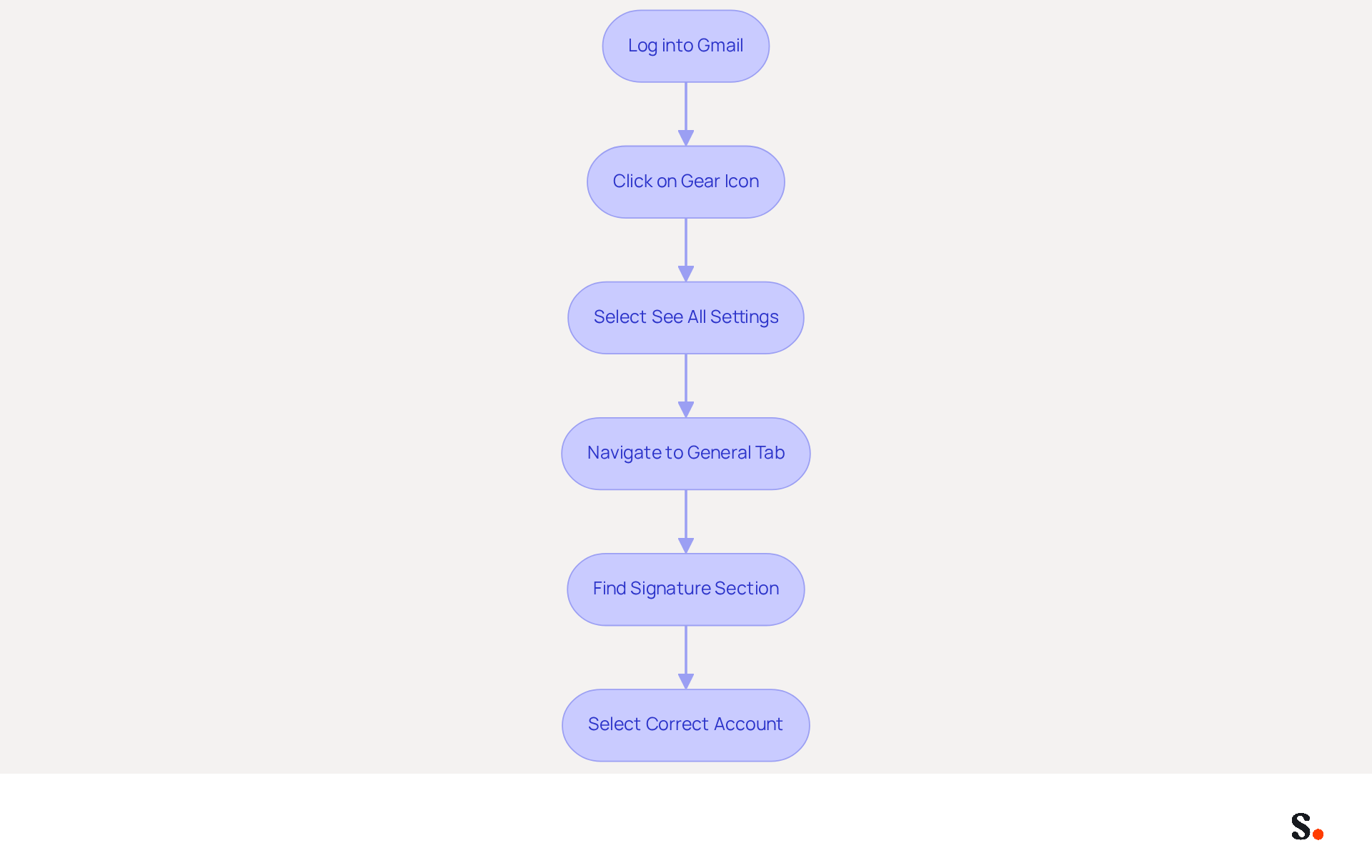
- To get started with Scribe, first log into your Gmail account.
- Click on the gear icon located in the top right corner of the Gmail interface.
- From the dropdown menu, select 'See all settings.'
- In the settings menu, navigate to the 'General' tab.
- Scroll down until you find the 'Signature' section. Here, you can easily create or modify your message footer. To enable one-click synchronization, grant the necessary permissions for the application to connect with your provider. Note that you must be a Super Admin to do this. With Scribe, you can simplify this process through one-click synchronization, ensuring that your signatures are consistently branded and adhere to security standards.
- If you have multiple accounts linked, be sure to select the correct one from the dropdown menu at the top of the settings page. Remember, Scribe automatically syncs teammate data from your email provider daily, enhancing your branding efforts while maintaining SOC 2 Type II compliance.
Create or Modify Your Email Signature
Creating a professional digital identifier is essential for effective communication and branding in today's digital landscape.
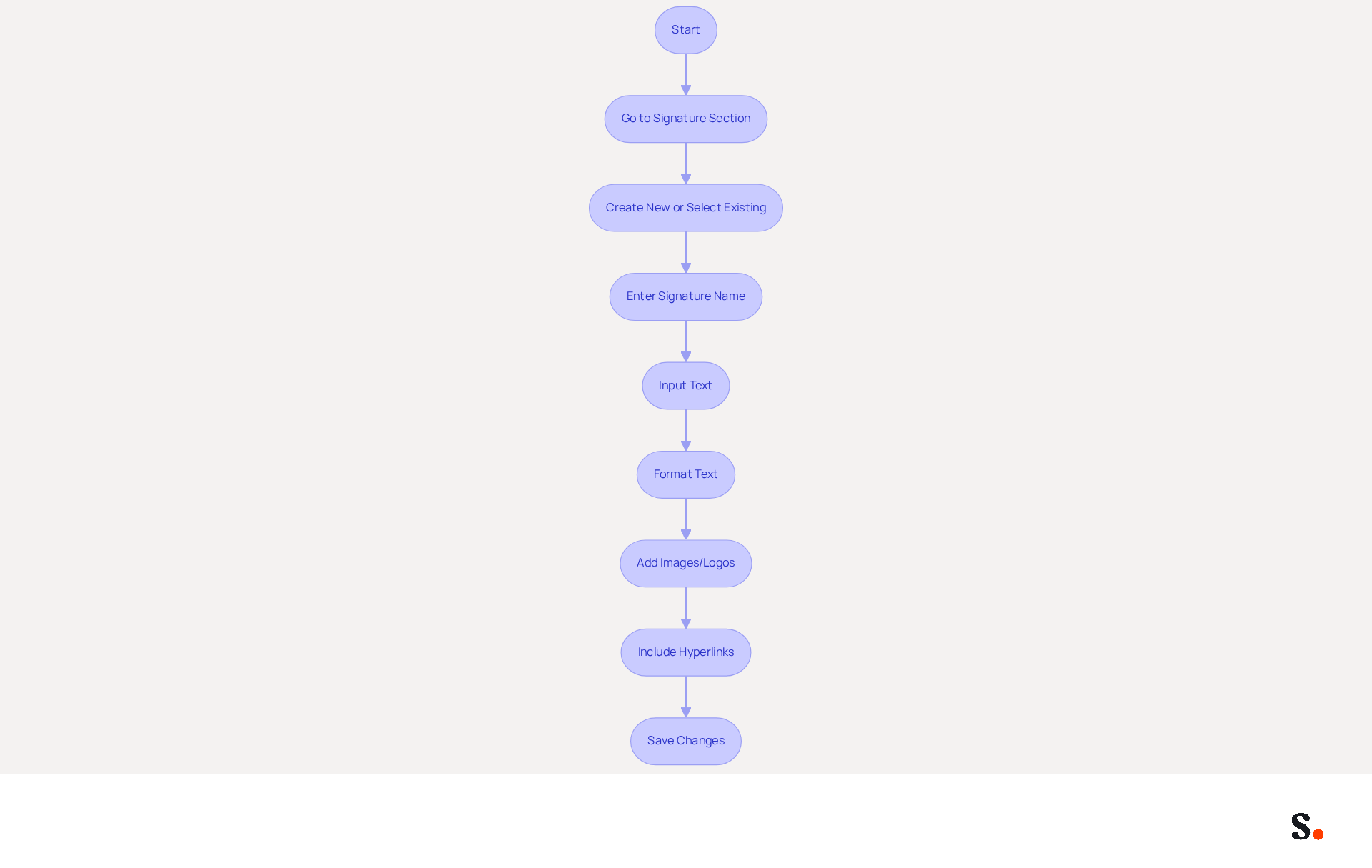
- In the 'Signature' section, click on 'Create new' to initiate a new entry or select an existing one to edit the Gmail signature.
- Enter a name for your mark (if creating a new one) and click 'Create.'
- Use the editor to input your preferred text, such as your name, job title, company name, and contact details, making sure it accurately reflects your identity.
- Format your text using the available tools (font size, color, bold, italics) to enhance readability and align with your style.
- If you want to add images or logos, just click the image icon and upload your file, ensuring it stays under 100 KB for quick loading.
- If applicable, include hyperlinks to your website or social media profiles by highlighting the text and clicking the link icon, ensuring that these links are functional and lead to the correct destinations.
- Once satisfied with your signature, scroll down and click 'Save Changes' at the bottom of the settings page to edit your Gmail signature and finalize your updates.
By implementing these steps, you ensure that your digital signature not only reflects your professional identity but also enhances your marketing efforts.
Test Your Signature for Consistency Across Platforms
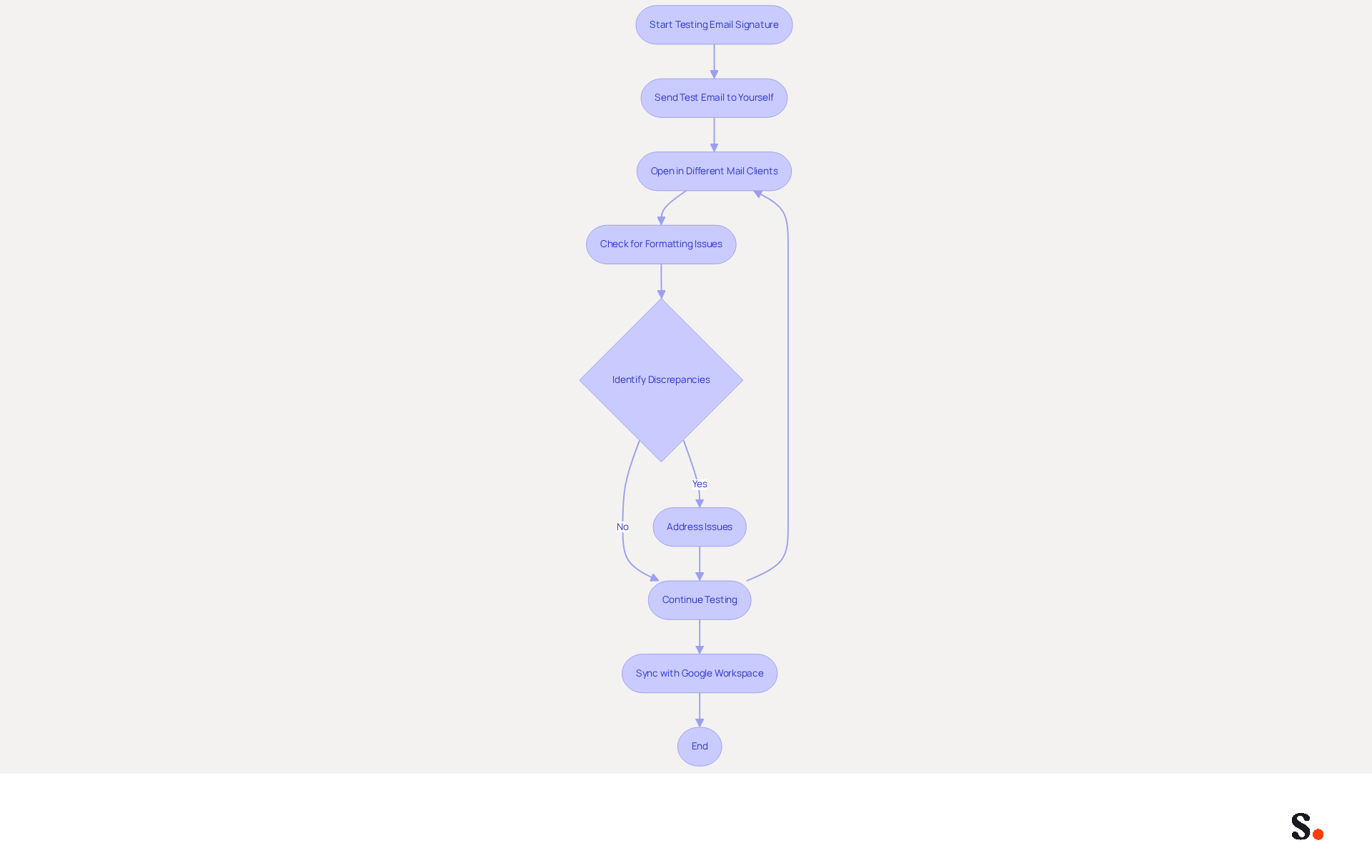
Ensuring your email signature appears consistently across various platforms is crucial for maintaining brand integrity. Start by sending a test message to yourself and opening it in different mail clients, including Outlook, Apple Mail, and mobile devices, to assess how your sign-off appears across platforms. Look for formatting issues such as misaligned text, broken images, or discrepancies in layout.
Research indicates that 76% of marketers find that consistent branded digital identifiers build trust, highlighting the importance of maintaining brand integrity. With this tool, you can simplify this process by syncing your Google Workspace, ensuring that any modifications to your teammates' details are automatically reflected in their email footers, saving you time and effort.
Additionally, Scribe adheres to security standards such as SOC 2 Type II, GDPR, and CCPA, enhancing the credibility of your communications. If you notice any discrepancies, it's important to address them promptly, as discrepancies in your email signature can undermine your brand's professionalism.
Considering that 44.4% of users modify their contact details 2-4 times annually, regular assessments are crucial to ensure your information remains effective. Repeat the testing process until your mark displays correctly across all platforms. Testing is essential; without thorough testing, your brand's message may become muddled, leading to potential miscommunication.
Utilizing Scribe's automated synchronization with Aircall further enhances brand consistency, as any changes made in your Aircall configuration will automatically update in your Scribe profiles. You might want to test your footer with different tools to see how it looks in various clients before you finalize it. This proactive approach can help mitigate compatibility issues, which are common among users, especially with Outlook versions.
Furthermore, ensure that your mark utilizes inline CSS and table-based layouts to achieve cross-client consistency, as different message formats (HTML vs. plain text) can significantly influence how your mark is presented. Remember, over 10,000 marketing and IT teams globally rely on Scribe for their management of digital signatures.
Utilize Tools for Enhanced Email Signature Management
Effective email signature management is crucial for maintaining a consistent brand identity across all communications. Explore email signature management tools like Scribe, which automate the creation and updating of signatures across your organization, ensuring that every email sent reflects your identity consistently. Research indicates that 80% of businesses recognize the importance of consistent identity through digital identifiers, significantly enhancing visibility.
These tools often provide templates that ensure consistency and allow for easy updates when team members change roles or contact information. Research shows that messages featuring branded elements can enhance brand awareness by 22%, highlighting the necessity of incorporating a professional closing in all communications to maximize impact.
Look for features such as analytics to track engagement with your links and A/B testing capabilities to optimize your performance. Businesses employing digital identifiers as marketing tools have experienced a 40% increase in engagement rates, showcasing the effectiveness of well-managed digital identifiers. This increase in engagement rates underscores the importance of effective digital identifier management.
Think about how integrating your messaging management tool with platforms like Gmail can simplify updates and management. This integration not only streamlines the process but also minimizes the risk of outdated information being sent to clients. Outdated information can lead to security breaches, as evidenced by the 49% of UK organizations that experienced email-related incidents last year.
Regularly review and update your personal mark to edit your Gmail signature and reflect any changes in branding or marketing campaigns. A well-crafted email signature can serve as a marketing tool, promoting campaigns or important announcements with every message, thereby reinforcing your company's brand identity. By neglecting to edit your Gmail signature, you risk undermining your brand's credibility and effectiveness in communication.
Conclusion
Editing your Gmail signature is essential for maximizing your marketing impact, not merely a technical task. A well-crafted email signature acts as a digital business card, strengthening your brand identity and improving communication with each email. By following the outlined steps, users can ensure their signatures are not only professional but also aligned with their marketing goals.
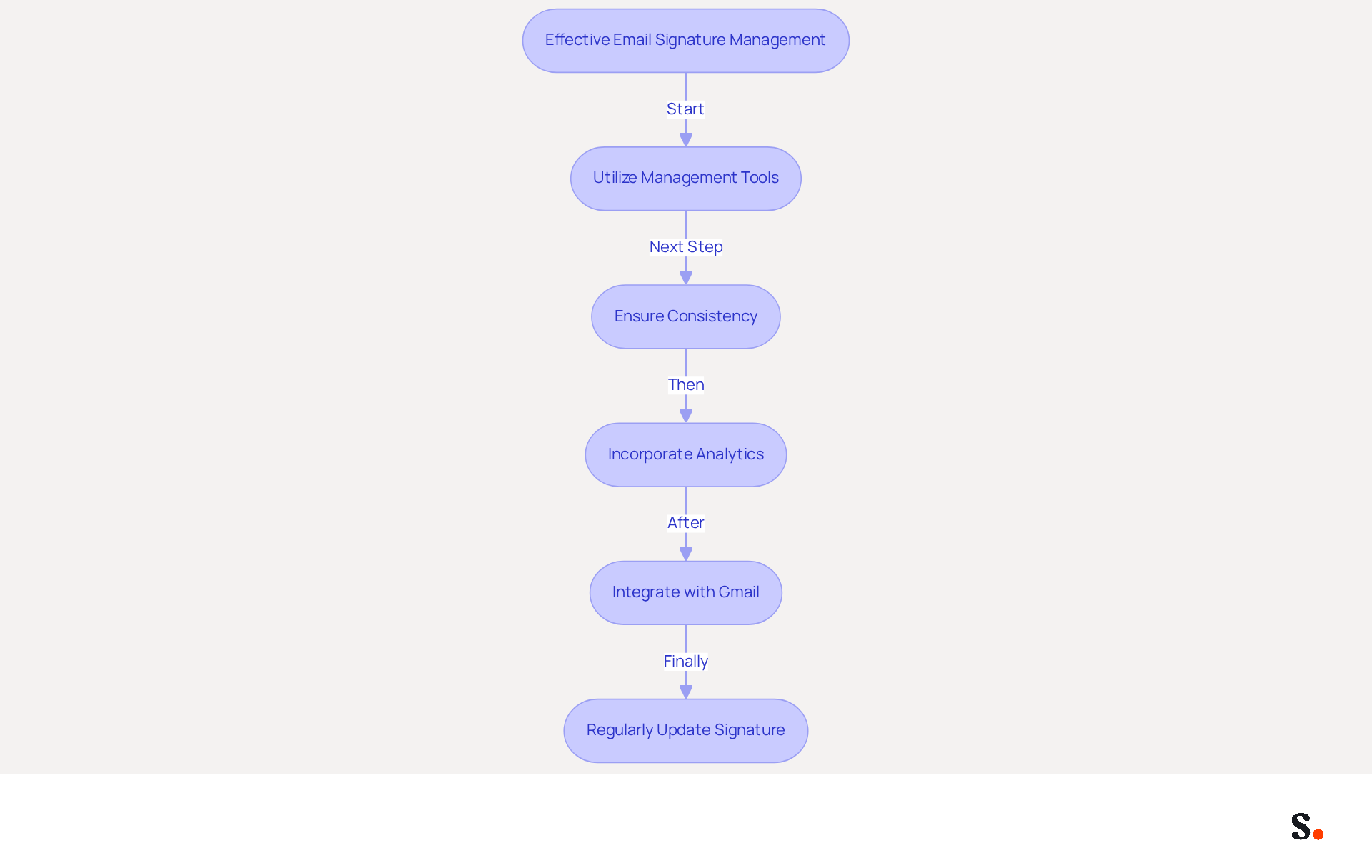
Throughout this guide, key insights have been shared on:
- Accessing Gmail settings
- Creating or modifying signatures
- Testing for consistency across platforms
- Utilizing tools for effective email signature management
The importance of maintaining brand integrity through consistent digital identifiers has been emphasized, alongside the benefits of using Scribe for automated synchronization and compliance with security standards like SOC 2 Type II, GDPR, and CCPA.
In conclusion, the importance of managing your email signature effectively is clear. It is an opportunity to enhance brand visibility and engagement, especially since research shows that effective digital identifiers can significantly increase engagement rates. Organizations should prioritize regular updates and testing of their email signatures to ensure they reflect current branding and marketing initiatives. By leveraging tools like Scribe, businesses can achieve 100% brand consistency and measurable marketing ROI, making every email a powerful marketing asset.
Frequently Asked Questions
How do I access Gmail settings to edit my signature?
To access Gmail settings, log into your Gmail account, click on the gear icon in the top right corner, and select 'See all settings' from the dropdown menu.
Where can I find the signature section in Gmail settings?
In the settings menu, navigate to the 'General' tab and scroll down until you find the 'Signature' section, where you can create or modify your message footer.
What is required to enable one-click synchronization with Scribe?
To enable one-click synchronization, you need to grant the necessary permissions for Scribe to connect with your email provider, and you must be a Super Admin to do this.
How does Scribe help with email signature management?
Scribe simplifies the process of managing email signatures through one-click synchronization, ensuring that signatures are consistently branded and adhere to security standards.
What should I do if I have multiple accounts linked in Gmail?
If you have multiple accounts linked, make sure to select the correct one from the dropdown menu at the top of the settings page.
How often does Scribe sync teammate data from email providers?
Scribe automatically syncs teammate data from your email provider daily, enhancing branding efforts while maintaining SOC 2 Type II compliance.
List of Sources
- Access Gmail Settings to Edit Your Signature
- Add a good looking signature in Gmail (1 minute guide) (https://wisestamp.com/guides/how-to-add-signature-in-gmail)
- How to Add a Signature in Gmail: Tips and Steps to Follow | HoneyBook (https://honeybook.com/blog/gmail-signature)
- How to Add or Edit Your Email Signature in Gmail (https://brandly.com/blog/how-to-add-change-email-signature-gmail)
- How to create custom Gmail signature (https://foxnews.com/tech/how-to-create-custom-gmail-signature)
- Gmail Statistics 2026 – Visits Data & Market Share (https://demandsage.com/gmail-statistics)
- Create or Modify Your Email Signature
- Top 10+ best practices for email signatures design in 2026 (https://mysignature.io/blog/email-signature-best-practices)
- The Ultimate Guide to Email Signature Marketing for Small to Medium Businesses | Black Pearl Mail (https://blackpearlmail.com/blog/the-ultimate-guide-to-email-signature-marketing-for-small-to-medium-businesses)
- Email Signature Best Practices Guide With Examples - MailerLite (https://mailerlite.com/blog/email-signature-best-practices)
- Best Practices Designing Email Signatures - Lynne Golodner (https://lynnegolodner.com/articles/best-practices-designing-email-signatures)
- The Signitic blog: expert advice on email branding (https://signitic.com/en/resources)
- Test Your Signature for Consistency Across Platforms
- Consistent email signatures for the whole team | Guide + tool (https://signitic.com/en/resources/how-to-ensure-consistent-email-signatures-for-your-entire-team-even-when-working-remotely)
- 40+ Email Signature Statistics for 2026 (Data + Insights) (https://wavecnct.com/blogs/email-signature-statistics)
- Is There a Way to Make My Email Signature Look Consistent Across Outlook, Gmail, and Apple Mail? | Email Signature Rescue Blog (https://emailsignaturerescue.com/blog/is-there-a-way-to-make-my-email-signature-look-consistent-across-outlook-gmail-and-apple-mail)
- Outlook Signatures Not Compatible between Platforms (Desktop App, OWA Web App, PWA Web App) - Microsoft Q&A (https://learn.microsoft.com/en-us/answers/questions/4576303/outlook-signatures-not-compatible-between-platform)
- Utilize Tools for Enhanced Email Signature Management
- Exclaimer Research: 67% of Marketers Expect Email Signatures to Support With Lead Gen In 2023 (https://businesswire.com/news/home/20230612141095/en/Exclaimer-Research-67-of-Marketers-Expect-Email-Signatures-to-Support-With-Lead-Gen-In-2023)
- Best Practices for Company Wide Email Signature Management (https://scribe-mail.com/en-US/blog/best-practices-for-company-wide-email-signature-management)
- Why you should be using an email signature manager (https://blinq.me/blog/why-you-should-be-using-an-email-signature-manager)
- Company-Wide Email Signature Management | CloudM (https://cloudm.io/blog/optimize-your-process-with-company-wide-email-signature-management)
- Why Email Signature Management Software is Essential for Marketing Success (https://scribe-mail.com/en-US/blog/why-email-signature-management-software-is-essential-for-marketing-success)
Get started with Scribe
Signatures for every role on your team
Free 14-day trial — no credit card.