How to Add a Signature in Gmail: 4 Easy Steps for Marketing Managers
Managing email signatures effectively is crucial for marketing professionals aiming to maintain brand consistency and enhance communication. This guide
Sophie Grant
Email Signature Specialist, Scribe
Introduction
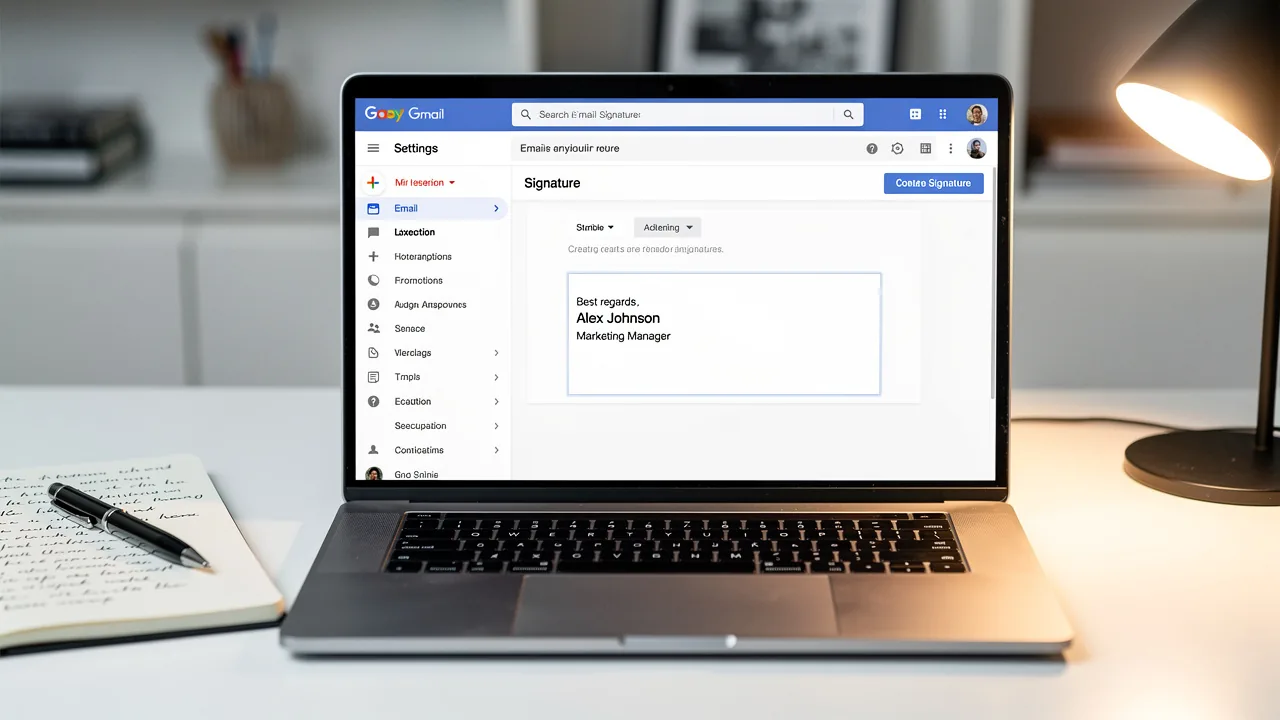
Managing email signatures effectively is crucial for marketing professionals aiming to maintain brand consistency and enhance communication. This guide provides marketing professionals with a straightforward, step-by-step approach to adding a signature in Gmail, enabling them to create a professional and engaging email footer that reflects their brand identity. However, with the myriad of options available, how can one ensure that their email signature not only looks good but also drives engagement and aligns with marketing goals?
Access Gmail Settings to Add Your Signature
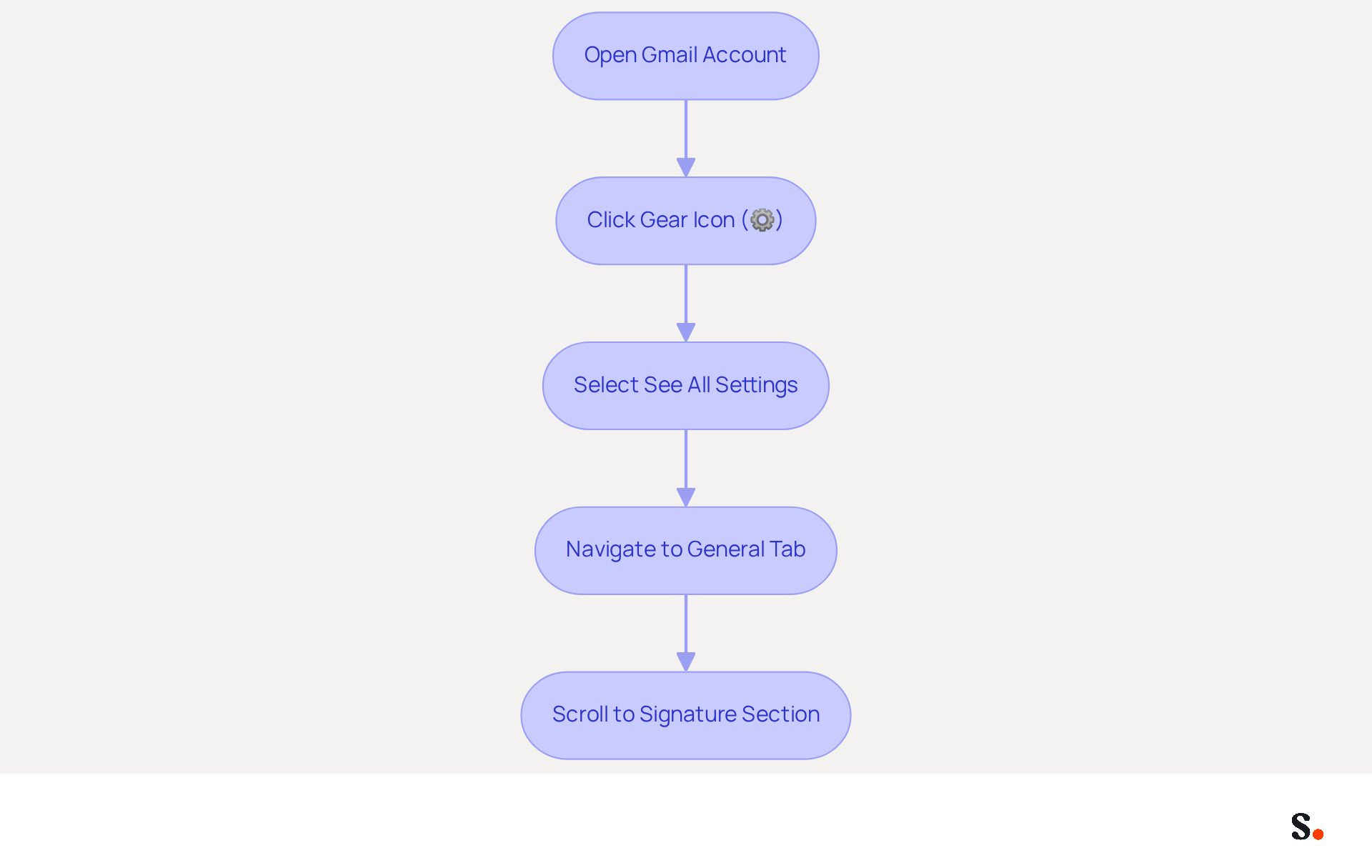
- Open your Gmail account in a web browser.
- In the top right corner, click on the gear icon (⚙️) to access the settings menu.
- From the dropdown, select 'See all settings'.
- In the settings menu, navigate to the 'General' tab.
- Scroll down until you find the section that explains how to add a signature in Gmail. This is where you will learn how to add a signature in Gmail and manage your message footer.
Managing digital correspondence identifiers can be challenging without the right tools. Consider syncing your Google Workspace with Scribe. This requires Super Admin access, ensuring that only authorized personnel can make changes. This streamlined synchronization allows you to effortlessly keep your teammates' signatures updated, saving time and maintaining brand consistency. With Scribe, any modifications made in your Google Workspace, such as updates to job roles or group assignments, will be automatically reflected without any manual input. Additionally, the application automatically syncs teammate information from your provider daily at your local time. Scribe is also SOC 2 Type II compliant, ensuring the safety of your data while you manage your email identifiers efficiently.
Create and Customize Your Email Signature
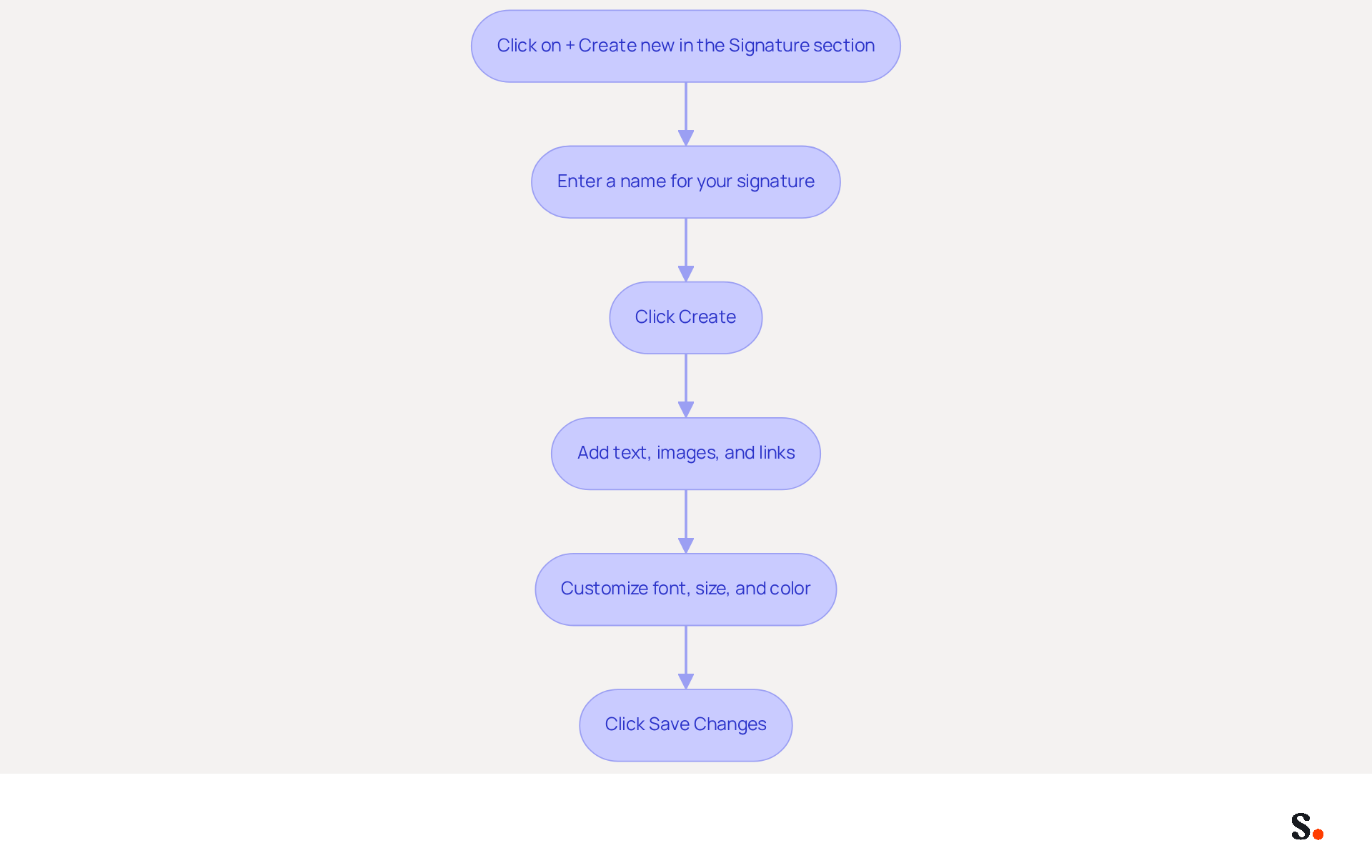
- In the 'Signature' section, click on '+ Create new' to understand how to add a signature in Gmail.
- A pop-up will appear asking you to name your personal mark. Enter a name that helps you identify it later (e.g., 'Marketing Team Signature').
- Click 'Create.'
- In the editor, you’ll have the opportunity to add text, images, and links that represent your brand. You should include:
- Your full name
- Job title
- Company name
- Contact information (phone number, email)
- Social media links or website URL
- Use formatting options to customize the font, size, and color to align with your brand's identity. Incorporate consistent colors and fonts to maintain a professional appearance. You can also insert images or logos by clicking on the image icon in the editor.
- Once satisfied with your design, scroll down and click 'Save Changes' at the bottom of the settings page to understand how to add a signature in Gmail. Regular updates to your signature ensure it remains relevant and aligned with your evolving marketing objectives.
Test Your Signature for Consistency and Visibility
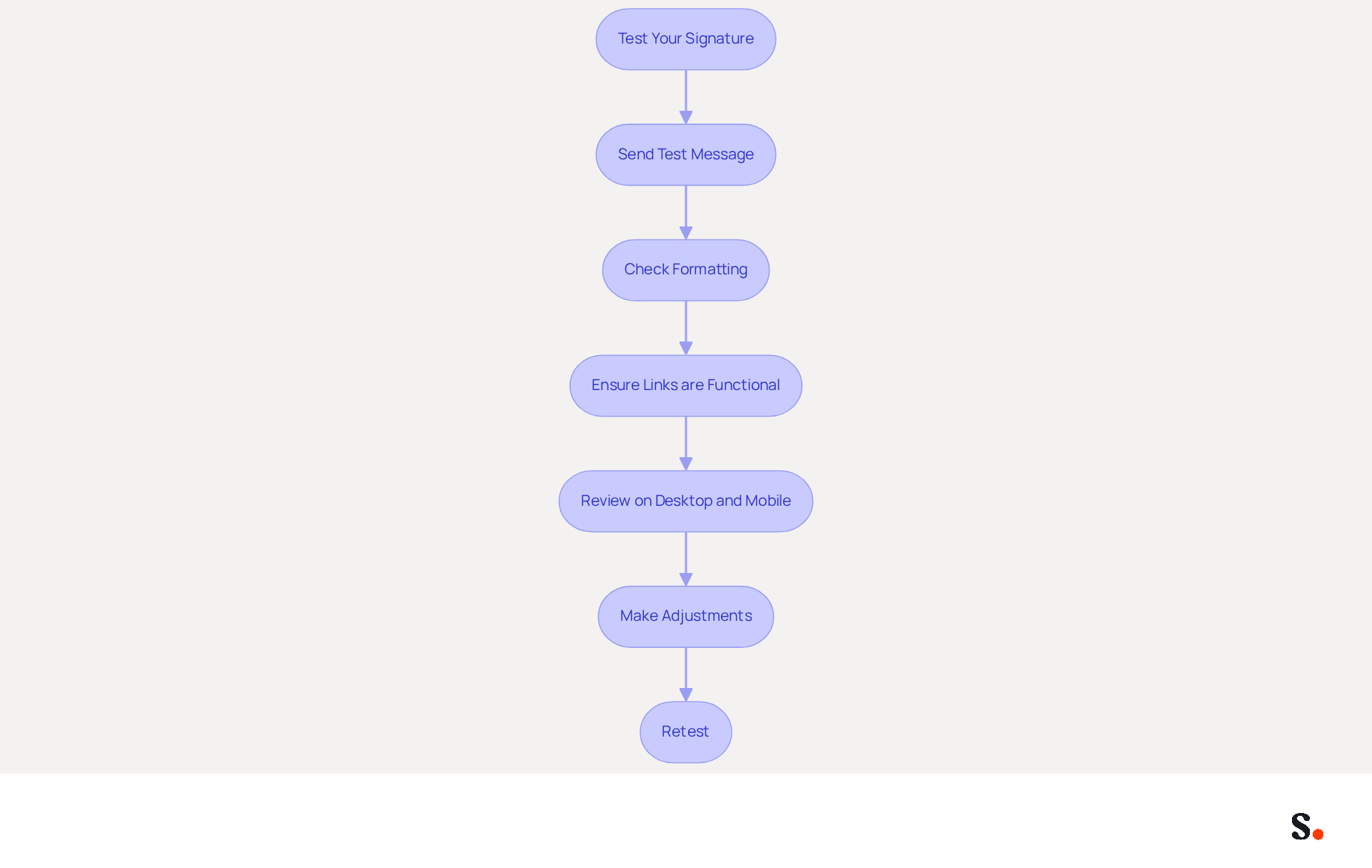
To ensure effective email communication, it is crucial to test your signature across various platforms. Send a test message to yourself and a colleague to assess how the signature appears across different mail clients, including Gmail, Outlook, and mobile devices. This step is essential as 52% of organizational communication in the UK takes place through written messages, making consistency vital.
Next, check for formatting issues, such as misaligned text or images that fail to display correctly. Research shows that 56% of consumers are discouraged by poor formatting in messages, which can adversely affect engagement.
Ensure that all links are functional and direct to the correct pages. A well-organized sign-off can enhance click-through rates, with branded footers boosting website clicks by 15%.
Review the message on both desktop and mobile devices to confirm that the sign-off is responsive and visually appealing on all screens. Considering that a substantial number of messages are accessed on mobile devices, responsive design is crucial for user experience.
If you observe any problems, return to the settings to make necessary adjustments and retest until you are satisfied. Many marketers miss out on the advantages of effective signature management due to inconsistent practices. Granting Scribe permission to connect with your service provider is essential for streamlined management. You need to be a Super Admin of your service provider to grant these permissions. Once approved, any modifications made in your Google Workspace will automatically appear in your communication footer, saving you time and ensuring brand consistency. Additionally, the tool can enhance teammate details from HR software and other sources after email provider sync, further streamlining your email management. Scribe's SOC 2 Type II compliance guarantees that your data remains secure throughout this process. Without proper management, organizations risk losing valuable engagement opportunities.
Optimize Your Signature with Best Practices
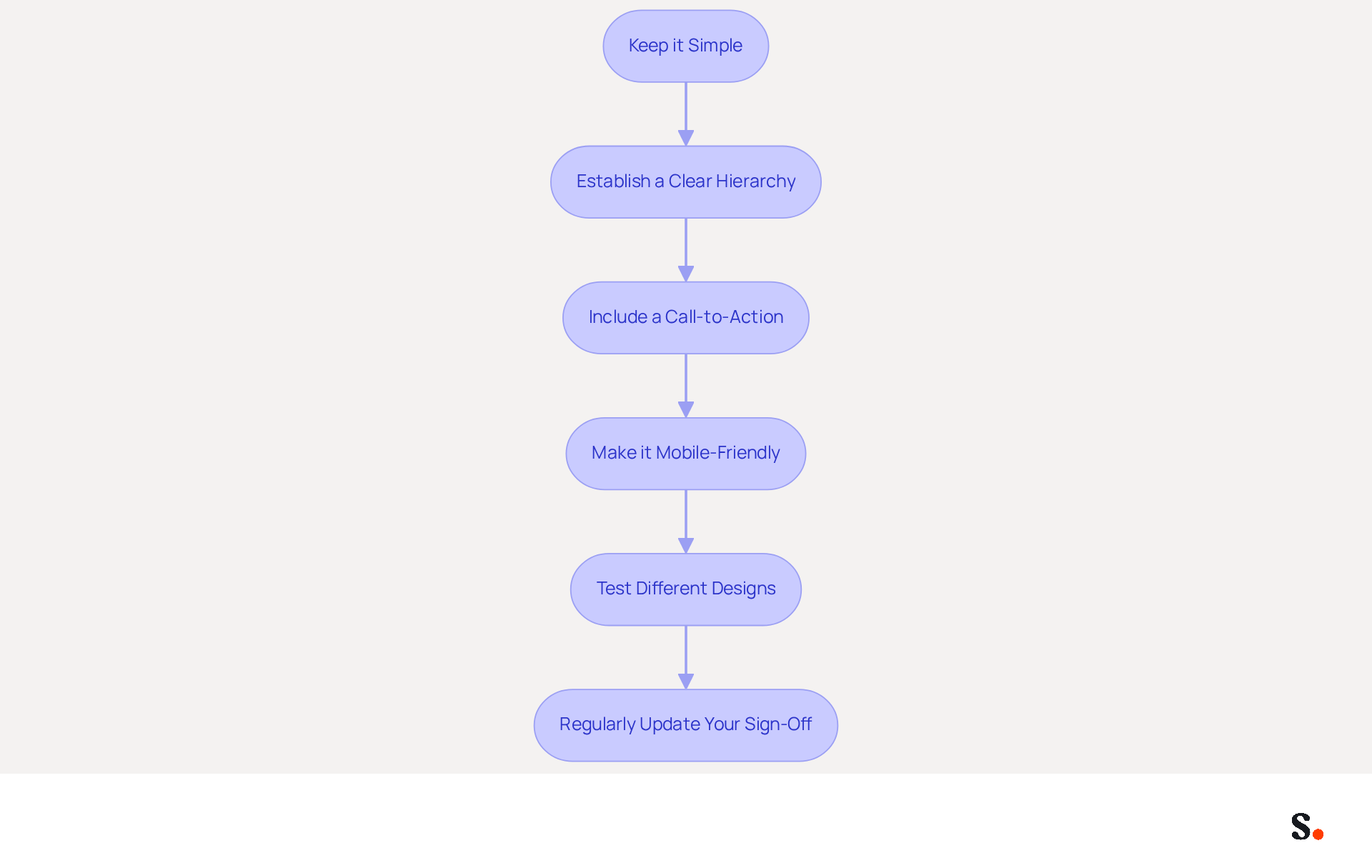
- Keep it simple: Limit your sign-off to essential information, ensuring clarity and avoiding clutter. A professional correspondence footer should not exceed seven lines to maintain professionalism and clarity. When you make changes in your Aircall setup, Scribe automatically updates your email labels, keeping things simple and consistent.
- Establish a clear hierarchy: Arrange details so that the most significant elements, such as your name and title, stand out prominently. This structure helps recipients quickly identify who you are and your role. Scribe's automated synchronization ensures your teammates' identification information remains current, improving brand consistency.
- Include a call-to-action (CTA): Encourage recipients to take action, such as visiting your website or following your social media accounts. Incorporating a strong CTA can lead to significantly higher engagement rates. With Scribe, you can manage these CTAs effectively across your organization.
- Make it mobile-friendly: Ensure that your email footer looks good on mobile devices by using a responsive design. Ensuring your email signature looks consistent across all devices can be challenging. The integration of Scribe with business phone systems enables real-time updates, ensuring your identifier remains mobile-friendly.
- Test different designs: Experiment with various layouts and elements to see what resonates best with your audience. Continuous A/B testing can help identify the most effective combinations, such as button colors and text variations, leading to higher conversion rates. Scribe's capabilities allow for easy adjustments and testing of design patterns.
- Regularly update your sign-off: Keep your sign-off current with any changes in your role, contact information, or branding elements. Failing to update your sign-off can lead to outdated information and a lack of professionalism. With Scribe's SOC 2 Type II compliance, you can trust that your data is secure while automating these updates.
Conclusion
Creating a professional email signature is not merely a task; it is a strategic initiative that can elevate brand perception and communication effectiveness. By following the outlined steps, marketing managers can create a signature that reflects their brand identity and engages recipients effectively.
The article detailed a straightforward process for:
- Accessing Gmail settings
- Creating and customizing an email signature
- Testing for consistency and visibility
- Optimizing the signature with best practices
Key insights included:
- The importance of maintaining brand consistency
- Ensuring mobile-friendliness
- Regularly updating signatures to reflect current information
Utilizing Scribe's advanced features can streamline this process, allowing for easy management and synchronization of signatures across teams while ensuring compliance with security standards such as SOC 2 Type II.
A well-crafted email signature is a critical component of any effective marketing strategy. Think of it as your digital business card-one that can boost engagement and strengthen your brand identity. Investing in a cohesive email signature strategy can transform your communication efforts and significantly impact your brand's recognition and engagement.
Frequently Asked Questions
How do I access Gmail settings to add my signature?
To access Gmail settings, open your Gmail account in a web browser, click on the gear icon (⚙️) in the top right corner, and select 'See all settings' from the dropdown menu.
Where can I find the option to add a signature in Gmail?
In the settings menu, navigate to the 'General' tab and scroll down until you find the section that explains how to add a signature in Gmail.
What is the benefit of syncing Google Workspace with Scribe for managing signatures?
Syncing Google Workspace with Scribe allows for effortless updates to teammates' signatures, saving time and maintaining brand consistency. Changes made in Google Workspace will automatically reflect in signatures without manual input.
What access is required to sync Google Workspace with Scribe?
Syncing Google Workspace with Scribe requires Super Admin access, ensuring that only authorized personnel can make changes.
How often does Scribe sync teammate information from the provider?
Scribe automatically syncs teammate information from your provider daily at your local time.
Is Scribe compliant with data safety standards?
Yes, Scribe is SOC 2 Type II compliant, ensuring the safety of your data while managing your email identifiers efficiently.
List of Sources
- Access Gmail Settings to Add Your Signature
- 14 Key Email Signature Statistics to Know in 2026 (https://mailmodo.com/guides/email-signature-statistics)
- Email Signature Trends in Numbers: Infographic [2026] (https://mailtrap.io/blog/email-signature-trends)
- 40+ Email Signature Statistics for 2026 (Data + Insights) (https://wavecnct.com/blogs/email-signature-statistics)
- Email Signature Statistics: A Closer Look at Email Signatures in 2026 (https://mysignature.io/blog/email-signature-statistics)
- Create and Customize Your Email Signature
- Email Signature Best Practices Guide With Examples - MailerLite (https://mailerlite.com/blog/email-signature-best-practices)
- The Signitic blog: expert advice on email branding (https://signitic.com/en/resources)
- Top 10+ best practices for email signatures design in 2026 (https://mysignature.io/blog/email-signature-best-practices)
- Best Practices Designing Email Signatures - Lynne Golodner (https://lynnegolodner.com/articles/best-practices-designing-email-signatures)
- 40+ Email Signature Statistics for 2026 (Data + Insights) (https://wavecnct.com/blogs/email-signature-statistics)
- Test Your Signature for Consistency and Visibility
- Exclaimer Research: 67% of Marketers Expect Email Signatures to Support With Lead Gen In 2023 (https://businesswire.com/news/home/20230612141095/en/Exclaimer-Research-67-of-Marketers-Expect-Email-Signatures-to-Support-With-Lead-Gen-In-2023)
- Master Email Signatures with Multiple Logos for Brand Consistency (https://scribe-mail.com/en-US/blog/master-email-signatures-with-multiple-logos-for-brand-consistency)
- Email signature dark mode: How to design one that looks right in every client — Stripo.email (https://stripo.email/blog/email-signature-dark-mode-how-to-design-one-that-looks-right-in-every-client)
- Email Signatures That Boost Deliverability & Sales (https://instantly.ai/blog/master-your-email-signature)
- Email Signature Consistency Test | Rocketseed (https://rocketseed.com/blog/email-signature-consistency-test)
- Optimize Your Signature with Best Practices
- The Ultimate Guide to Email Signature Call-to-Action - NEWOLDSTAMP (https://newoldstamp.com/blog/the-ultimate-guide-to-email-signature-call-to-action)
- Why and how to add an effective CTA to your email signature? (https://signitic.com/en/resources/why-and-how-to-add-an-effective-cta-to-your-email-signature)
- Create Effective CTA Email Signatures (Examples & Templates) (https://wisestamp.com/examples/cta-email-signature)
- Email signature: best practices & expert advice | Signitic (https://signitic.com/en/ressources-categories/email-signature)
- Email Signature Best Practices - NEWOLDSTAMP (https://newoldstamp.com/blog/email-signature-best-practices)
Get started with Scribe
Signatures for every role on your team
Free 14-day trial — no credit card.