How to Add an Outlook Signature: Steps for Marketing Managers
Many marketing managers overlook the significance of an effective email signature, yet it plays a crucial role in branding. A well-designed signature not only
Sophie Grant
Email Signature Specialist, Scribe
Introduction
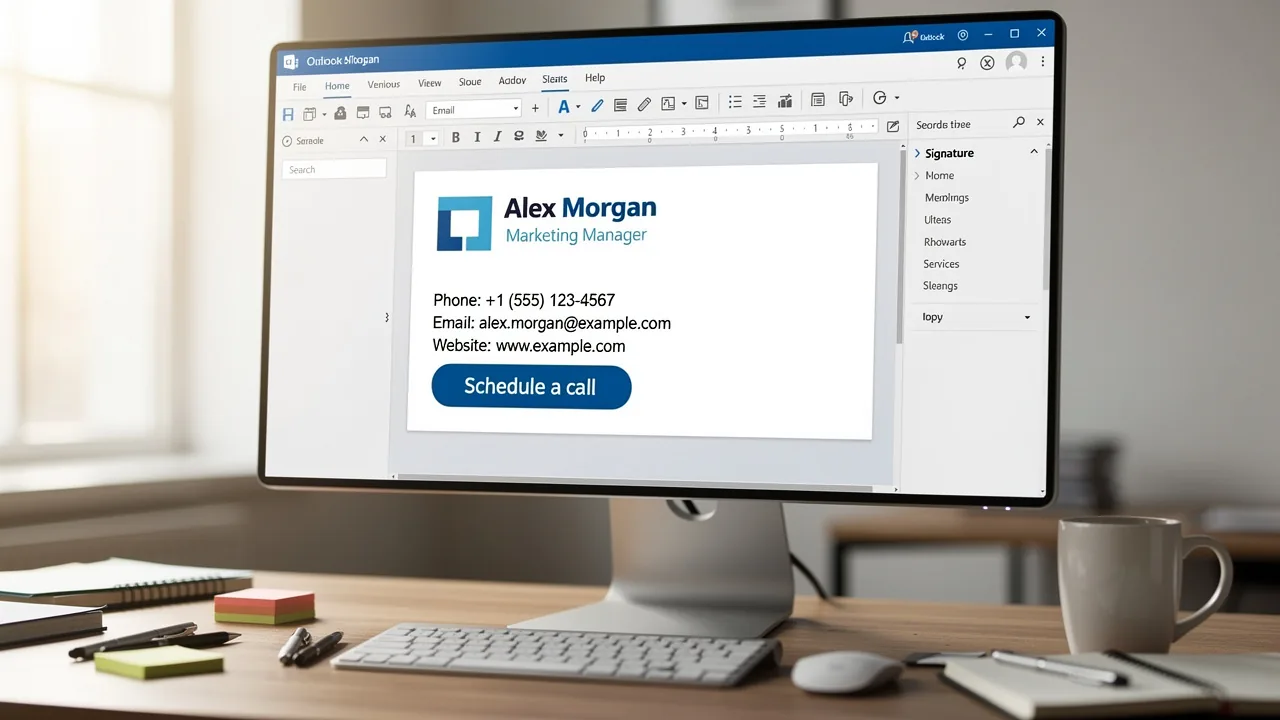
Many marketing managers overlook the significance of an effective email signature, yet it plays a crucial role in branding. A well-designed signature not only conveys professionalism but also enhances trust and engagement with recipients, making it a vital component of any marketing strategy.
So, how can marketing professionals make sure their email signatures reflect their brand identity while also fostering meaningful interactions? This guide outlines key steps for creating and optimizing an Outlook signature that resonates with audiences and ensures brand consistency.
Create Your Email Signature in Outlook
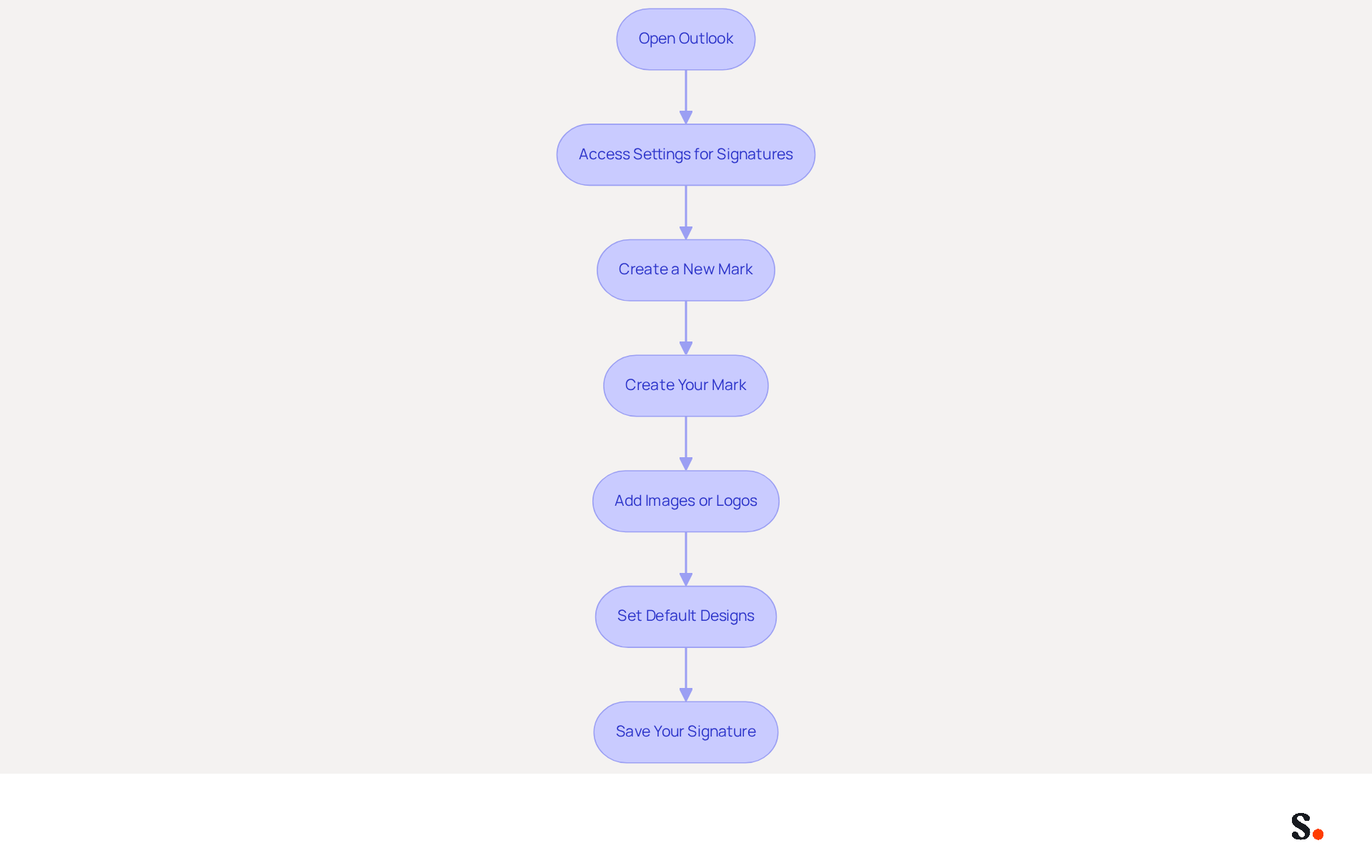
To create your email signature in Outlook, follow these steps:
- Open Outlook: Launch the Outlook application on your computer.
- Access Settings for Signatures: Click on 'File' in the top-left corner, then select 'Options'. In the Mail category, click on 'Signatures'.
- Create a New Mark: In the Signatures and Stationery window, select 'New'. Enter a name for your mark and click 'OK'.
- Create Your Mark: In the editing box, type your desired content for your mark. You can format the text using the available tools (font, size, color, etc.).
- Add Images or Logos: If you want to include a logo, click on the image icon and upload your logo file.
- Set Default Designs: Select your new design as the default for new messages and replies/forwards if desired.
- Save Your Signature: Click 'OK' to save your changes and exit the settings.
Many professionals overlook the significance of their email signature, often underestimating its impact on recipient perception. A well-crafted email signature is crucial; it significantly influences how recipients perceive your message, often more than the content itself. In fact, 76% of respondents believe that branded digital identifiers enhance trust in the sender. By taking these steps, you will understand how to add an Outlook signature that not only represents your brand effectively but also opens doors for marketing opportunities with each email you send.
Add Links and Call-to-Action Buttons
Enhancing your email signature with links and call-to-action buttons can significantly improve engagement with your audience. Follow these steps to make the most of your email signature:
-
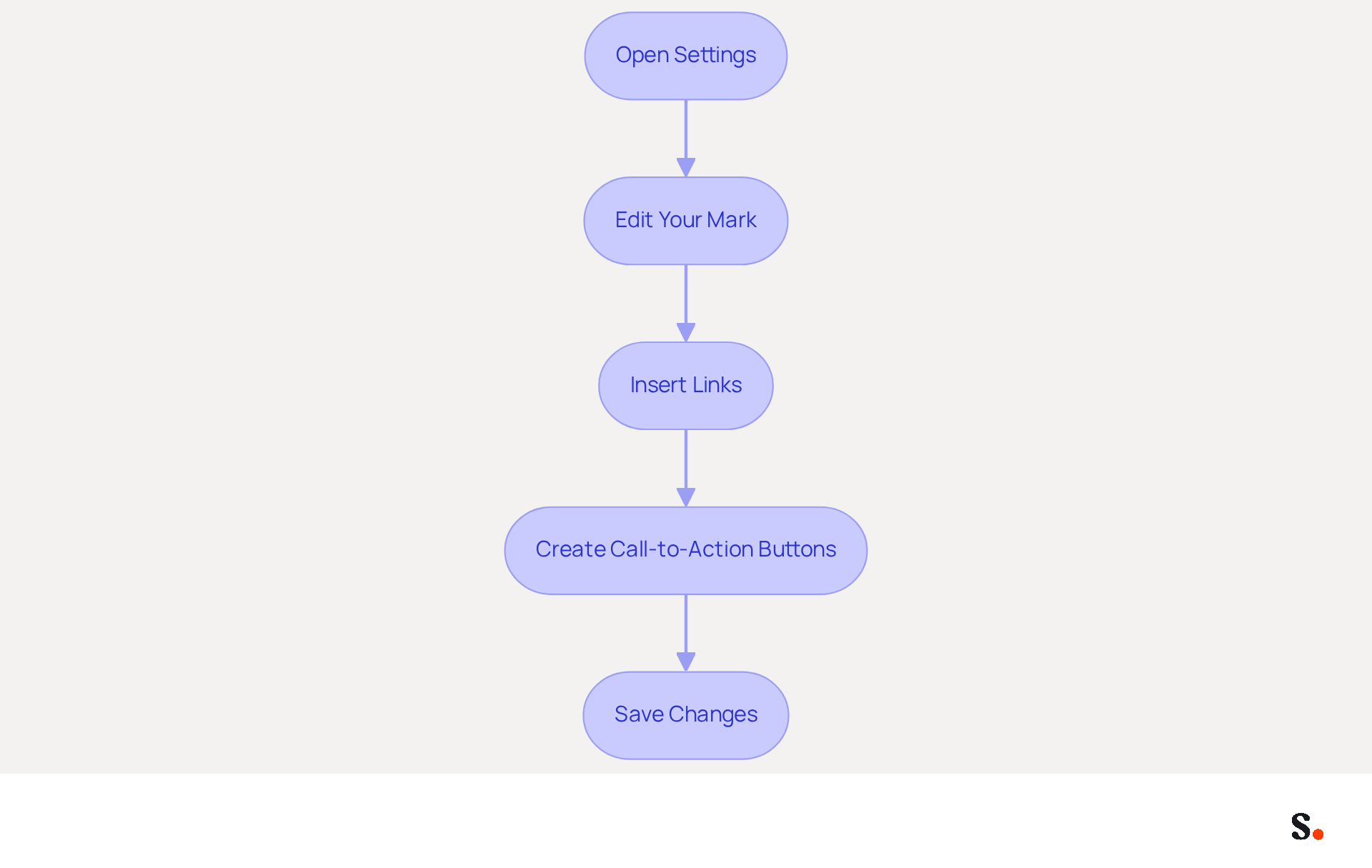
To understand how to add an Outlook signature, open Settings and access the Signatures and Stationery window in Outlook.
-
Edit Your Mark: Select the mark you wish to modify and click 'Edit'.
-
Insert Links: Highlight the text you want to convert into a link (e.g., 'Visit our website'). Click on the hyperlink icon (chain link) in the formatting toolbar. Enter the URL in the address field and click 'OK'. Remember to limit hyperlink text to no more than five words for clarity.
-
Create Call-to-Action Buttons: To create a button, use a simple HTML code snippet. For example:
<a href='YOUR_LINK' style='background-color: #007BFF; color: white; padding: 10px; text-decoration: none; border-radius: 5px;'>Click Here</a>Replace 'YOUR_LINK' with your desired URL. Keep your CTA concise, using no more than 3-4 words or 20 characters for maximum impact. Ensure high contrast between the button color and text for visibility.
-
Save Changes: After you understand how to add an Outlook signature with your links and buttons, click 'OK' to save your signature.
When you add links and CTAs, you’re not just sharing contact info; you’re inviting your audience to connect with your brand. Statistics indicate that incorporating a well-placed CTA can greatly enhance conversion rates, with 89% of marketing professionals viewing this method as the primary tool for generating leads. Additionally, A/B testing different CTAs can help determine which ones resonate best with your audience. Don't forget to include legal disclaimers in your correspondence to ensure compliance and transparency. By strategically incorporating these elements, you not only provide essential information but also create opportunities for meaningful interactions with your brand.
Ensure Brand Consistency in Signatures
To maintain a strong brand identity, it is crucial to ensure consistency in your email signatures:
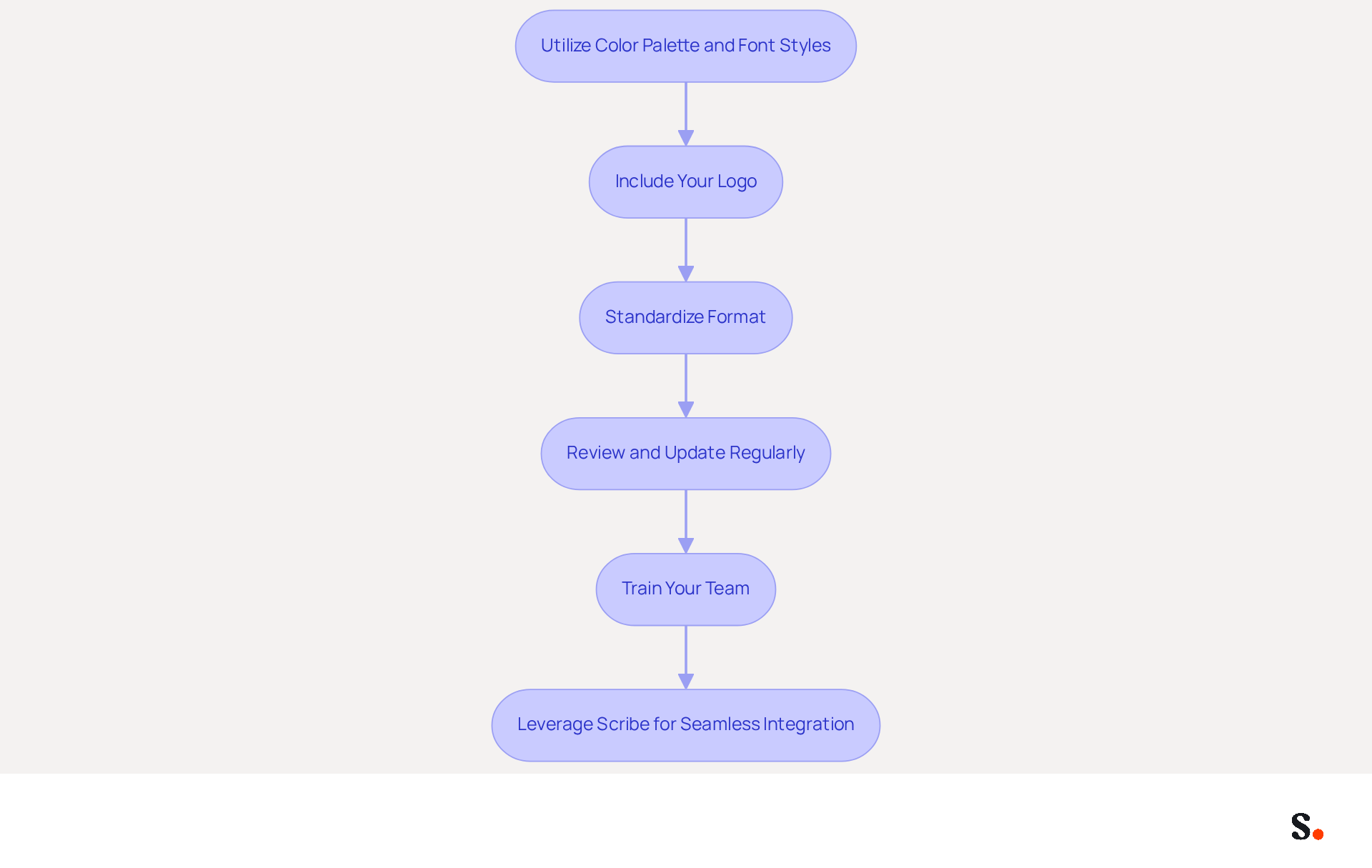
- Utilize your color palette and font styles: Ensure your email reflects your color scheme and typography. This creates a cohesive look across all communications, reinforcing brand identity. Using color psychology thoughtfully can evoke emotions and clearly communicate your company's values. Research shows that 78% of people believe consistent branding is crucial for effective email communication.
- Include Your Logo: Always incorporate your company logo in the email footer. Ensure it is high quality and properly sized to avoid distortion, as a well-designed mark can enhance professionalism and trust, with 76% of respondents feeling that branded marks increase their trust in the sender.
- Standardize Format: Create a template for your correspondence that includes essential elements like name, title, contact information, and social media links. This ensures consistency across all employees' marks, preventing variations that could confuse recipients. Such confusion can result in misunderstandings and diminish trust from your audience. A standardized approach helps maintain a recognizable structure for customer-facing emails.
- Review and Update Regularly: Periodically assess your endorsement to ensure it aligns with any updates or changes in contact information. Failing to update your email signatures can lead to miscommunication and a loss of credibility. Creating a routine for evaluations can assist in avoiding the use of outdated identifiers.
- Train Your Team: Educate your team on the importance of using the standardized format and provide them with the necessary resources to implement it. Training your team helps build a culture of brand consistency, making sure every message reflects your company's professionalism. Additionally, emphasize the importance of compliance with legal standards to maintain trust and professionalism.
- Leverage Scribe for Seamless Integration: Utilize Scribe's capabilities to auto-fill your teammates' contact information and synchronize changes automatically with Aircall. Scribe's SOC 2 Type II certification and adherence to GDPR and CCPA guarantee that your correspondence management is secure and reliable. This guarantees that all approvals are current and uniform throughout your organization, enhancing integrity and saving time for your marketing team.
By implementing these guidelines, you not only enhance your brand's professionalism but also foster greater trust and engagement with your audience.
Troubleshoot Common Signature Issues
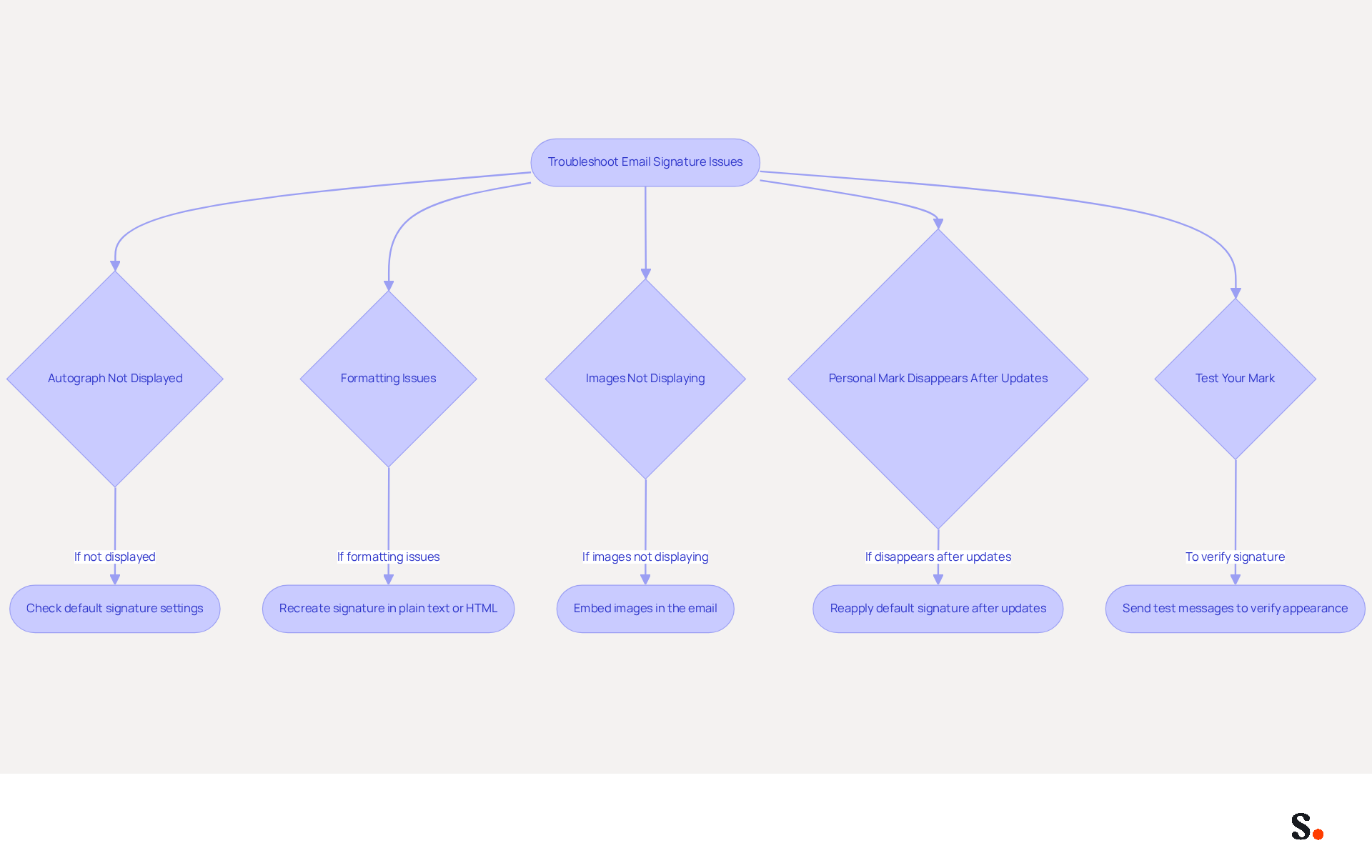
Experiencing issues with your email signature can be frustrating, but there are effective troubleshooting steps to resolve them:
- Autograph Not Displayed: Ensure that your autograph is set as the default for new emails and replies. To verify your settings, navigate to 'File' > 'Options' > 'Mail' > 'Signatures' and check how to add outlook signature. This is essential, as many users have reported that their marks do not appear due to incorrect default settings.
- Formatting Issues: If your signature looks off, try recreating it in plain text or HTML format. Avoid copying and pasting from other applications, as this can introduce hidden formatting that disrupts the layout. Users have found that marks created directly in the Outlook editor preserve their intended appearance better.
- Images Not Displaying: Ensure that images are embedded in the email rather than linked from external sources. Check the image size and format for compatibility, as improperly formatted images can lead to display issues across different email clients.
- Personal Mark Disappears After Updates: Outlook updates can sometimes reset personal mark settings. If your mark vanishes, revisit the settings to reapply it as the default. Many users have experienced this issue after updates, necessitating a quick check of their settings.
- Test Your Mark: Send test messages to yourself and colleagues to ensure that the mark appears correctly across various messaging clients. It's important to test because different email clients can display your signature in various ways.
By implementing these steps, you will understand how to add an Outlook signature that maintains a polished and professional email appearance reflecting your brand.
Conclusion
An effective email signature in Outlook is more than a technical detail; it represents a strategic asset for marketing managers aiming to boost brand visibility and engagement. Following these steps allows professionals to create signatures that effectively communicate essential contact information while embodying their brand's identity and values. A well-designed signature can significantly influence how recipients perceive communications, making it a vital component of any marketing strategy.
Key insights from this guide emphasize the importance of:
- Incorporating links and call-to-action buttons
- Ensuring brand consistency
- Troubleshooting common issues
By utilizing Scribe's capabilities, marketing teams can streamline the signature management process, ensuring that all signatures are up-to-date and compliant with security standards like SOC 2 Type II, GDPR, and CCPA. This not only saves time but also reinforces trust and professionalism in every email sent.
In the end, your email signature can be a powerful tool for making lasting impressions and driving engagement. By implementing these best practices, organizations can leverage their email communications to foster stronger connections with their audience, enhance brand recognition, and ultimately achieve measurable marketing ROI. By harnessing the power of your email signature, you can turn every message into a strategic opportunity for engagement and growth.
Frequently Asked Questions
How do I create an email signature in Outlook?
To create an email signature in Outlook, open the application, click on 'File', select 'Options', then go to the Mail category and click on 'Signatures'.
What steps are involved in creating a new signature in Outlook?
In the Signatures and Stationery window, select 'New', enter a name for your signature, and click 'OK'. Then, type your desired content in the editing box and format it as needed.
Can I add images or logos to my email signature in Outlook?
Yes, you can include a logo by clicking on the image icon in the editing box and uploading your logo file.
How can I set my new signature as the default in Outlook?
After creating your signature, you can select it as the default for new messages and replies/forwards in the Signatures and Stationery window.
What should I do after creating my email signature in Outlook?
After creating and formatting your signature, click 'OK' to save your changes and exit the settings.
Why is having a well-crafted email signature important?
A well-crafted email signature significantly influences how recipients perceive your message and can enhance trust in the sender, with 76% of respondents believing that branded digital identifiers improve trust.
List of Sources
- Create Your Email Signature in Outlook
- 40+ Email Signature Statistics for 2026 (Data + Insights) (https://wavecnct.com/blogs/email-signature-statistics)
- Email Signature Trends in Numbers: Infographic [2026] (https://mailtrap.io/blog/email-signature-trends)
- Email Signature Statistics: A Closer Look at Email Signatures in 2026 (https://mysignature.io/blog/email-signature-statistics)
- 14 Key Email Signature Statistics to Know in 2026 (https://mailmodo.com/guides/email-signature-statistics)
- Add Links and Call-to-Action Buttons
- Using Email Signatures as a Marketing Tool: Ideas for Generating Leads and Promoting Business (https://blog.ringostat.com/en/using-email-signatures-as-a-marketing-tool-ideas-for-generating-leads-and-promoting-business)
- The Ultimate Guide to Email Signature Call-to-Action - NEWOLDSTAMP (https://newoldstamp.com/blog/the-ultimate-guide-to-email-signature-call-to-action)
- Calls-to-Action, Buttons & Links (https://salesforce.ucm.iu.edu/creating-emails/best-practices/links-buttons.html)
- Why and how to add an effective CTA to your email signature? (https://signitic.com/en/resources/why-and-how-to-add-an-effective-cta-to-your-email-signature)
- Create Effective CTA Email Signatures (Examples & Templates) (https://wisestamp.com/examples/cta-email-signature)
- Ensure Brand Consistency in Signatures
- The impact of email signatures on your branding (https://signitic.com/en/resources/the-impact-of-email-signatures-on-your-branding)
- Email Signature Branding: Consistency and Impact | Crossware365 (https://crossware365.com/blog/mastering-email-signature-branding-market-presence)
- Email Signatures and Brand Consistency: A Guide for Small Businesses (https://designhill.com/design-blog/email-signature-brand-consistency-guide)
- Research Recap: Branded Email Signatures Increase Company Recognition, Trust - Demand Gen Report (https://demandgenreport.com/industry-news/research-recap-branded-email-signatures-increase-company-recognition-trust/47252)
- Why Email Signatures Must Be In Your 2026 Marketing Plan | Rocketseed (https://rocketseed.com/blog/2026-marketing-plan-email-signatures)
- Troubleshoot Common Signature Issues
- justanswer.com (https://justanswer.com/email/lyeqn-email-signatures-no-longer-loading-automatically.html)
- Outlook Signature Not Working in Office 365: Causes & Fixes (https://exclaimer.com/email-signature-handbook/outlook-signature-not-working-in-office-365)
- How to solve problems with email signatures in Microsoft 365? (https://mail-signatures.com/articles/problems-email-signatures-office-365)
- Why Did My Outlook Signature Disappear? Common Causes Explained (https://scribe-mail.com/en-US/blog/why-did-my-outlook-signature-disappear-common-causes-explained)
Get started with Scribe
Signatures for every role on your team
Free 14-day trial — no credit card.