How to Change Your Gmail Signature: A Step-by-Step Guide for Marketing Managers
A Gmail signature holds the potential to be a powerful branding tool that significantly impacts professional communication. For marketing managers, mastering
Sophie Grant
Email Signature Specialist, Scribe
Introduction
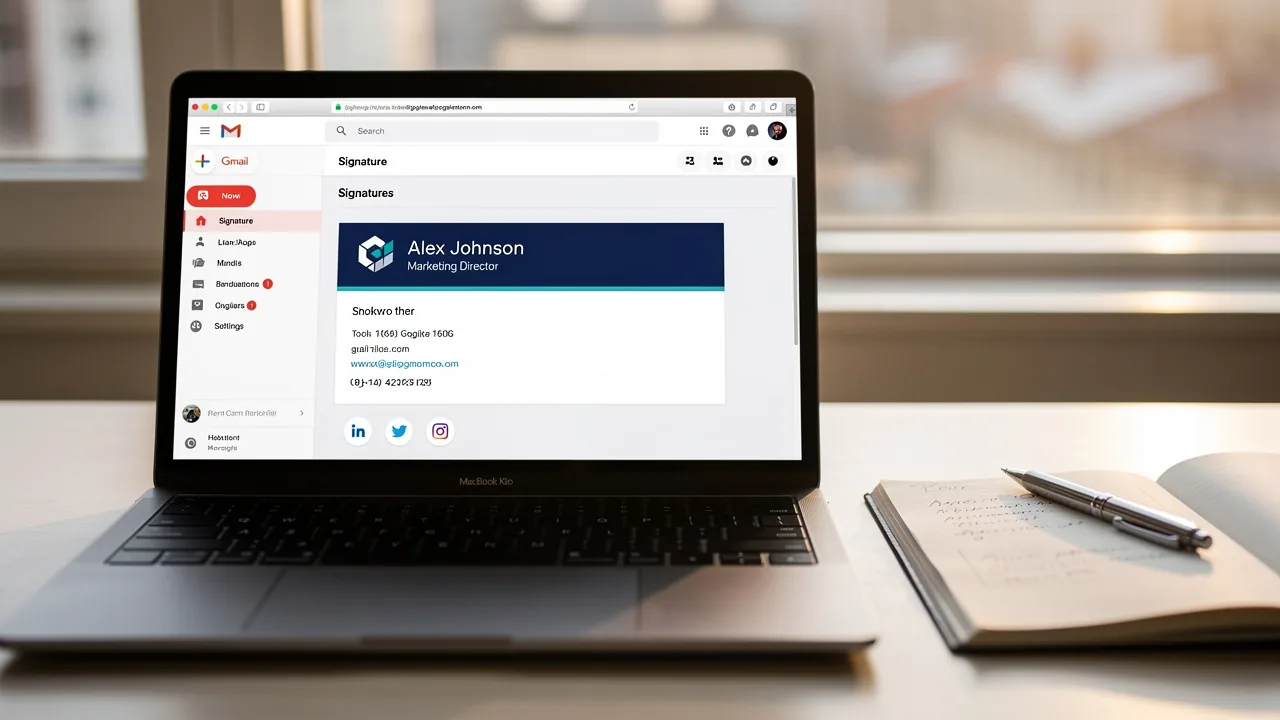
A Gmail signature holds the potential to be a powerful branding tool that significantly impacts professional communication. For marketing managers, mastering the art of crafting an effective signature can enhance brand identity, drive engagement, and establish credibility. Despite its importance, many professionals fail to recognize the impact of a well-crafted signature.
How can you transform a simple email footer into a compelling marketing asset? This guide outlines a step-by-step process for changing a Gmail signature, providing insights that can enhance marketing strategies and strengthen client connections.
Understand the Importance of Your Gmail Signature
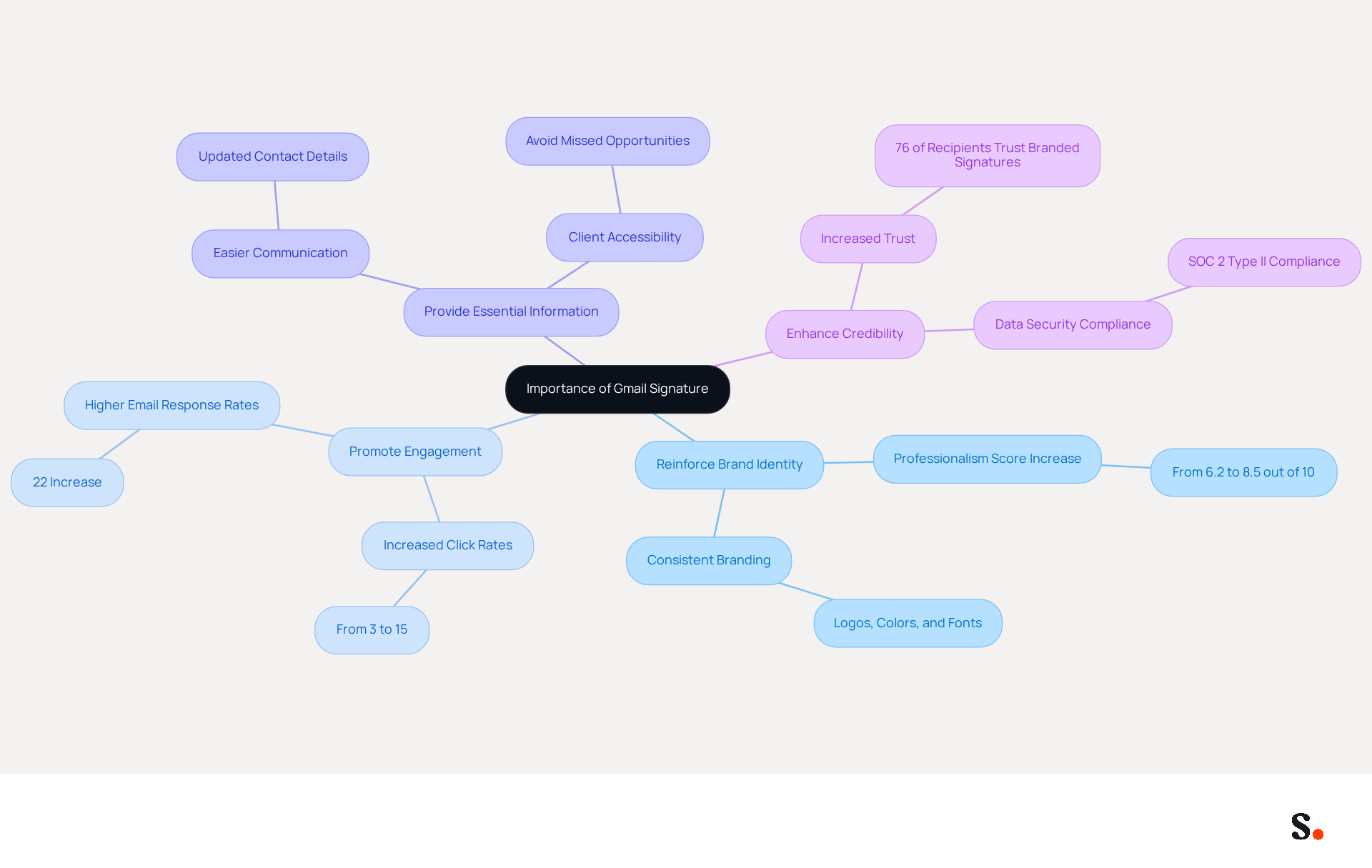
A Gmail sign-off is not merely a formality; it is a crucial element that shapes your professional image and identity. For marketing managers, a well-crafted signature can:
- Reinforce Brand Identity: Consistent application of logos, colors, and fonts establishes a recognizable brand presence, leading to a professionalism score increase from 6.2 to 8.5 out of 10. With Scribe, your digital identifiers are automatically synchronized with your business phone system, ensuring that any updates to your branding are reflected in real-time without requiring action from your team.
- Promote Engagement: Including links to your website or social media can drive traffic, with click rates to websites increasing from 3% to 15% when using branded email footers. Moreover, businesses using consistent email formats experience a 22% rise in email response rates, further highlighting the significance of engagement. The automated synchronization of the platform with Aircall enhances brand consistency, making it easier to maintain engagement across all communications.
- Provide Essential Information: A sign can include vital contact details, facilitating easier communication for clients and prospects. Without a clear sign-off, clients may struggle to reach you, leading to missed opportunities. This feature keeps your contact details up-to-date, ensuring clients can always reach you.
- Enhance Credibility: A professional email footer boosts trust and recognition among recipients, with 76% of email recipients reporting that branded footers increase their trust in the sender. Knowing that Scribe adheres to SOC 2 Type II compliance gives you peace of mind about your data security, which in turn boosts your credibility.
Understanding these aspects emphasizes the importance of investing time in learning how to change Gmail signature effectively. By prioritizing your Gmail footer, you position yourself for greater visibility and engagement in your professional interactions.
Access Your Gmail Signature Settings
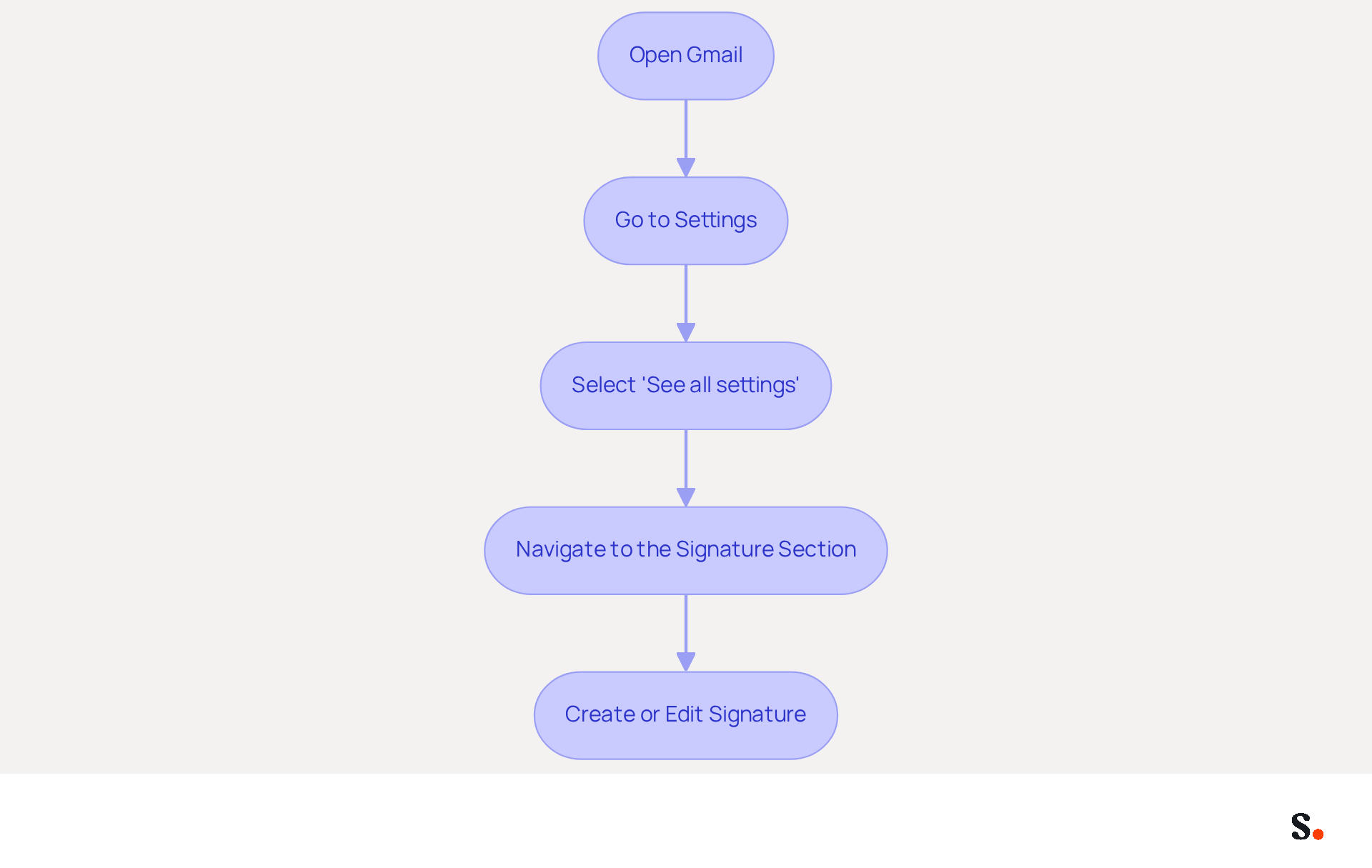
Effectively managing your Gmail signature is crucial for maintaining a professional brand image. To change your Gmail signature, follow these steps:
- Open Gmail: Log into your Gmail account on a desktop browser.
- Go to Settings: Click on the gear icon located in the top right corner of the screen.
- Select 'See all settings': This will take you to the full settings menu.
- Navigate to the Signature Section: Scroll down to the 'General' tab and find the 'Signature' section.
- Create or Edit Signature: Here, you can create a new mark or modify an existing one by clicking on the appropriate option.
Following these steps will teach you how to change Gmail signature to effectively modify your email signature and align it with your professional identity.
Email signatures serve as vital branding tools. Research shows that 52% of users believe a strong digital identifier is key for effective client communication, highlighting the significance of maintaining brand consistency. Furthermore, integrating elements such as call-to-action buttons can greatly improve engagement, with 32.3% of users including such features in their profiles, which can lead to increased interaction rates.
Understanding the effect of email footers on marketing strategies is essential. For instance, companies with 100 employees can generate approximately 60,000 to 80,000 branded signature impressions per month, significantly boosting brand visibility. By utilizing automation, businesses can efficiently achieve these impressive numbers. This tool's one-click synchronization with Google Workspace guarantees that any modifications in your provider, such as relocating teammates or updating their details, are automatically reflected without any manual input. Moreover, Scribe is SOC 2 Type II compliant, guaranteeing the security of your data while you optimize your settings. Tracking metrics such as click-through rates (CTR) and engagement rates can provide insights into how recipients interact with your email marketing efforts, allowing for adjustments to improve effectiveness.
Optimizing your Gmail settings allows you to leverage this often-overlooked asset, enhancing your marketing initiatives and driving lead generation.
Design and Customize Your Signature
Creating a Gmail signature that stands out requires careful attention to design elements that enhance professionalism and brand representation:
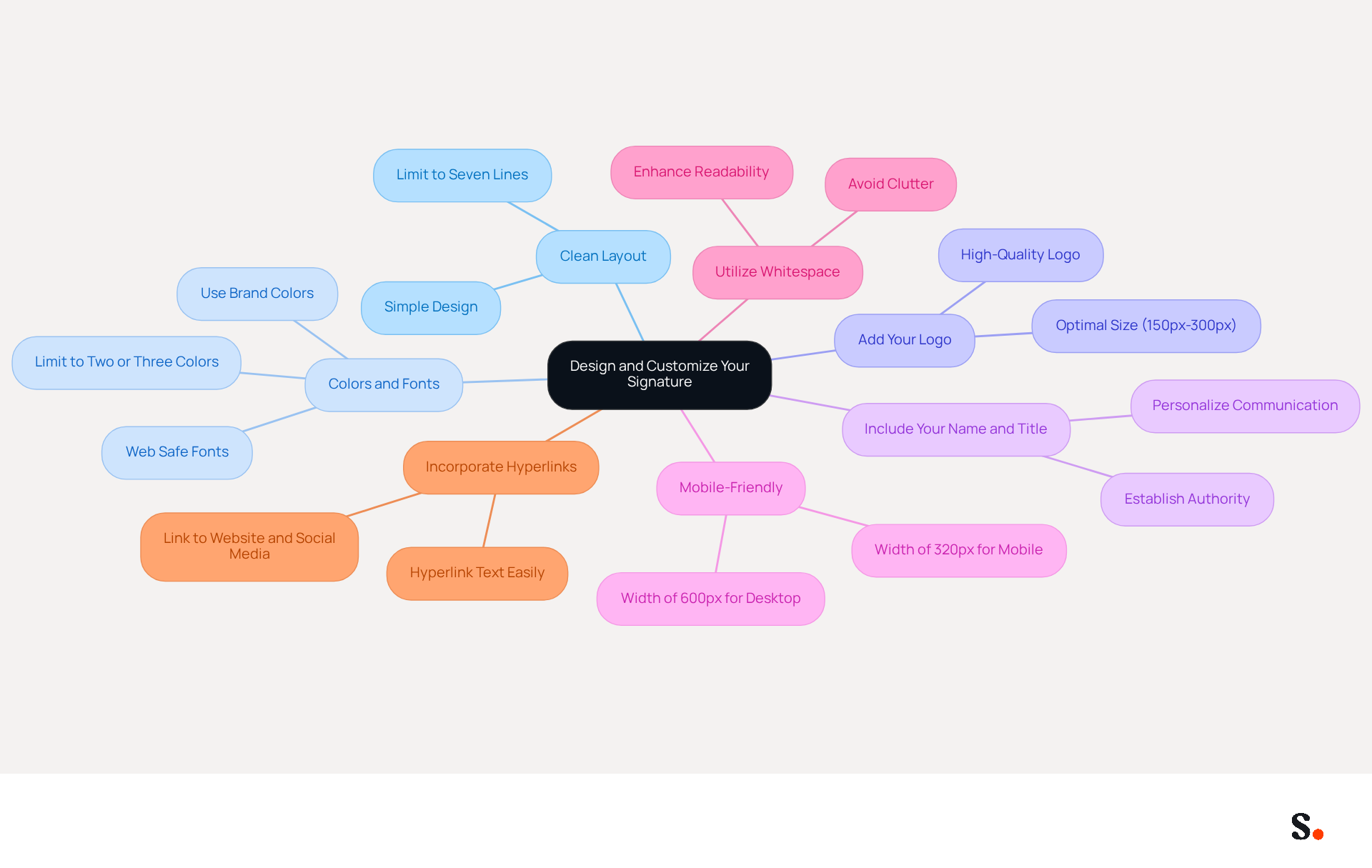
- Choose a Clean Layout: Opt for a simple design that is easy to read. Avoid cluttering your signature with excessive information, as an effective email signature should not exceed seven lines to maintain clarity.
- Incorporate Colors and Fonts: Use your organization's colors and fonts to ensure consistency across all marketing materials. Limiting your color palette to two or three colors can enhance readability and focus.
- Add Your Logo: Including your company logo can significantly enhance recognition. Ensure the logo is high quality and sized appropriately, ideally between 150px and 300px for optimal display.
- Include Your Name and Title: Clearly state your name and job title to establish authority and personalize communication. This builds trust and helps recipients identify you easily.
- Keep It Mobile-Friendly: With mobile users representing a substantial share of message openings, ensure that your branding appears appealing on both desktop and mobile devices. A width of 600px is ideal for desktop, while 320px is recommended for mobile screens.
- Utilize Whitespace: Strategically using whitespace can enhance readability and professionalism, helping to avoid clutter and ensuring that key elements stand out.
- Incorporate Hyperlinks: Adding links to your website, social media profiles, or relevant resources can drive traffic and engagement. Hyperlinking text is straightforward in Gmail; simply highlight the desired word(s) and use the link icon.
Focusing on these design elements helps ensure your signature not only looks professional but also truly reflects your brand. Studies indicate that well-crafted email signatures can boost website click-through rates by as much as 15%.
Incorporate Visual Elements and Links
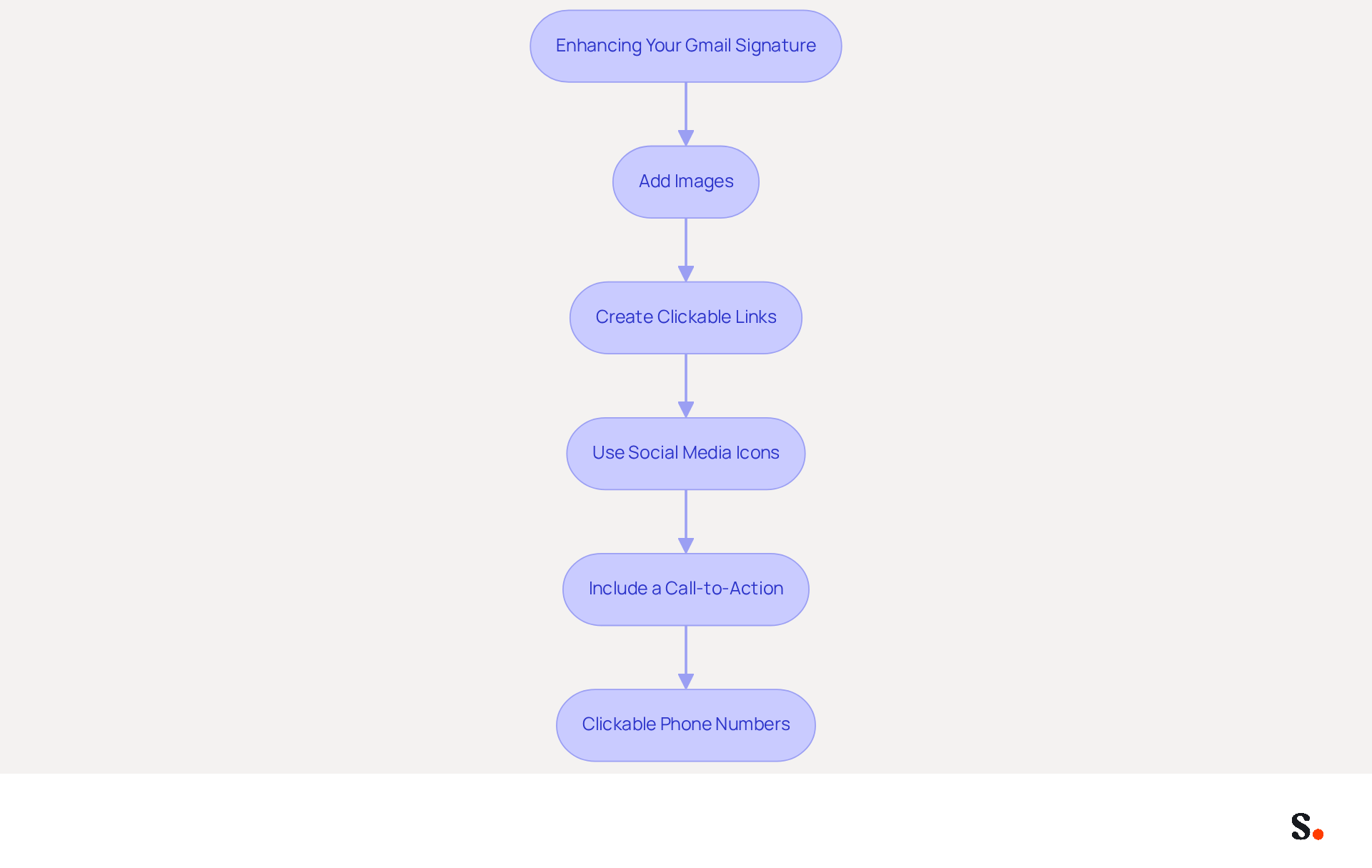
To create a more impactful Gmail signature, integrating visual elements and hyperlinks is essential:
- Add Images: Optimize images for web use to avoid slow loading times; high-quality visuals can enhance brand visibility and professionalism. Use the 'Insert Image' button to include your logo or other relevant visuals.
- Create Clickable Links: Highlight the text you wish to link, click the 'Link' icon, and enter the desired URL. This allows recipients to easily access your website, social media profiles, or specific marketing campaigns.
- Use Social Media Icons: Integrate icons that link to your social media accounts. This encourages recipients to connect with you across various platforms, enhancing your digital presence and community engagement.
- Include a Call-to-Action: A straightforward phrase like 'Visit our website for more information' can prompt recipients to take action. In fact, research shows that strategically placed CTAs can increase engagement by as much as 40%, making them a vital element of your branding.
- Clickable Phone Numbers: Consider making your phone number clickable by formatting it with 'tel:' followed by the number. This enables recipients to easily dial your number directly from the message, enhancing accessibility.
Ultimately, these enhancements can demonstrate how to change Gmail signature into a powerful marketing tool that drives engagement and fosters connections.
Manage Multiple Signatures Effectively
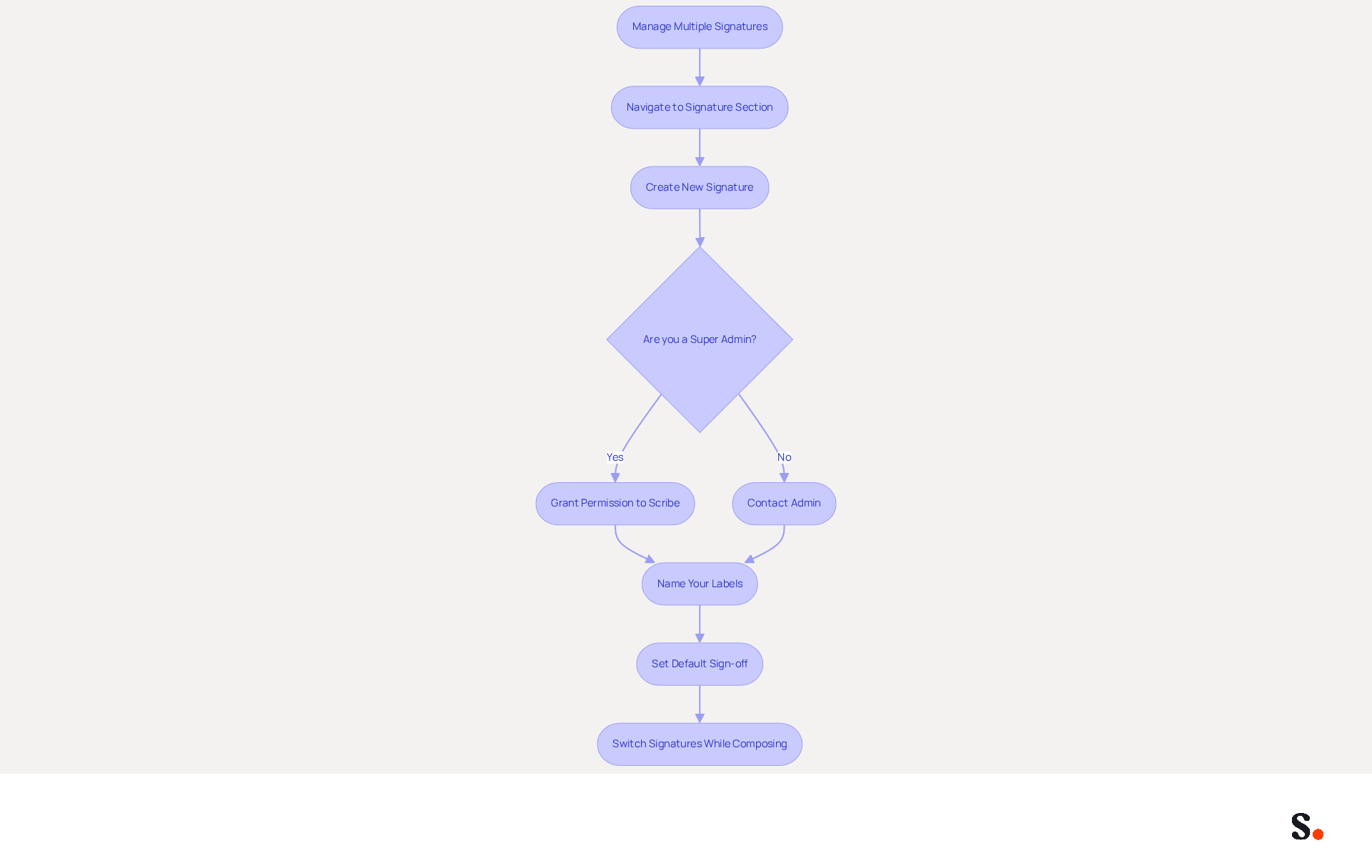
Managing multiple email identities in Gmail can significantly enhance your communication strategy, particularly when you understand how to change Gmail signature effectively. Here’s how to effectively manage multiple signatures with Scribe's features:
- To understand how to change Gmail signature, navigate to the 'Signature' section in your settings and click 'Create New' to add more signatures tailored to specific needs. To enable one-click synchronization, you must grant permission to Scribe to connect with your provider. You need to be a Super Admin of your email provider to provide these permissions. Scribe enables seamless synchronization of signatures across your organization, reinforcing brand consistency.
- Name Your Labels: Assign distinct names to each label, such as 'Sales', 'Support', or 'Marketing', to easily identify their intended use. This organization helps maintain clarity and professionalism in your communications.
To learn how to change Gmail signature, follow these simple steps. To understand how to change Gmail signature, you can set a default sign-off for new messages and responses by selecting it from the dropdown menu in the settings, ensuring consistency in your communications. The platform allows you to manage these defaults centrally, enhancing your branding efforts.
I need to learn how to change Gmail signature. Switch Signatures While Composing: When drafting a message, click the pen icon in the message box toolbar to understand how to change Gmail signature for that context. Scribe's automated synchronization guarantees that any modifications made in your provider are reflected in your documents, conserving your time and effort.
Managing multiple signatures not only streamlines your marketing efforts but also aligns with research indicating that 76% of consumers have greater trust in companies that use customized digital identifiers. Furthermore, businesses utilizing consistent branded communication formats report over a 22% increase in response rates. By utilizing Scribe's features, you can ensure that your communications resonate with different audiences, ultimately driving engagement and reinforcing your brand identity. As George El-Hage, Founder of Wave Connect, mentions, a professional communication footer should include at minimum: full name, job title, company name, and one direct contact method, highlighting the significance of upholding a professional image in all interactions. With Scribe's SOC 2 Type II compliance, you can rest assured that your data is secure while you enhance your email signature management. By prioritizing professional communication, you not only enhance your brand's image but also foster stronger connections with your audience.
Conclusion
For marketing managers, a well-crafted Gmail signature is not merely a digital sign-off; it is a vital branding asset that can significantly influence client perceptions. By understanding how to change your Gmail signature effectively, professionals can reinforce their brand identity, promote engagement, and enhance credibility. This guide provides clear steps to access and customize your signature effectively, emphasizing the importance of design elements and the integration of visual components and links.
Key insights discussed include the significant impact of a professional email signature on brand visibility and engagement rates. With statistics showing that businesses can generate thousands of branded impressions monthly, the potential for increased traffic and response rates is substantial. Utilizing Scribe's features, such as automated synchronization and compliance with SOC 2 Type II, ensures that marketing managers can maintain brand consistency while optimizing their email communications.
Ultimately, managing your Gmail signature goes beyond aesthetics; it’s a strategic choice that can enhance your marketing results and strengthen client relationships. By leveraging the insights and tools provided in this guide, marketing professionals can transform their email signatures into effective marketing instruments that drive engagement and foster brand loyalty. By prioritizing your Gmail signature management, you position yourself to achieve greater marketing success and build lasting client relationships.
Frequently Asked Questions
Why is a Gmail signature important for professionals?
A Gmail signature shapes your professional image and identity, reinforces brand identity, promotes engagement, provides essential information, and enhances credibility.
How does a well-crafted Gmail signature reinforce brand identity?
Consistent application of logos, colors, and fonts in your signature establishes a recognizable brand presence, increasing professionalism scores significantly.
What impact does a Gmail signature have on engagement?
Including links to your website or social media in your signature can increase click rates from 3% to 15%, and consistent email formats can lead to a 22% rise in email response rates.
What essential information should be included in a Gmail signature?
A Gmail signature should include vital contact details to facilitate easier communication for clients and prospects, ensuring they can always reach you.
How does a professional email footer enhance credibility?
A branded email footer boosts trust and recognition among recipients, with 76% of email recipients reporting increased trust in the sender due to branded footers.
What steps should I follow to change my Gmail signature?
To change your Gmail signature, log into your Gmail account, click on the gear icon for settings, select 'See all settings', navigate to the 'Signature' section, and create or edit your signature.
What role does Scribe play in managing Gmail signatures?
Scribe automatically synchronizes your digital identifiers with your business phone system, ensuring real-time updates to your branding without requiring manual action.
How can automation improve the management of Gmail signatures?
Automation allows for one-click synchronization with Google Workspace, ensuring that any changes, such as relocating teammates or updating details, are automatically reflected in signatures.
What metrics can be tracked to assess the effectiveness of email signatures?
Metrics such as click-through rates (CTR) and engagement rates can provide insights into how recipients interact with your email marketing efforts, allowing for adjustments to improve effectiveness.
Why is it important to optimize your Gmail settings?
Optimizing your Gmail settings enhances your marketing initiatives, drives lead generation, and leverages the often-overlooked asset of email signatures for greater visibility and engagement.
List of Sources
- Understand the Importance of Your Gmail Signature
- Research Recap: Branded Email Signatures Increase Company Recognition, Trust - B2BMX INSIGHTS (https://demandgenreport.com/industry-news/research-recap-branded-email-signatures-increase-company-recognition-trust/47252)
- The impact of email signatures on your branding (https://signitic.com/en/resources/the-impact-of-email-signatures-on-your-branding)
- 40+ Email Signature Statistics for 2026 (Data + Insights) (https://wavecnct.com/blogs/email-signature-statistics)
- Access Your Gmail Signature Settings
- Email Signature Statistics: A Closer Look at Email Signatures in 2026 (https://mysignature.io/blog/email-signature-statistics)
- Email signature statistics: Why every business should optimize their email signatures — Stripo.email (https://stripo.email/blog/email-signature-statistics-why-every-business-should-optimize-their-email-signatures)
- 40+ Email Signature Statistics for 2026 (Data + Insights) (https://wavecnct.com/blogs/email-signature-statistics)
- Master Gmail Signature Settings on Mobile for Marketing Success (https://scribe-mail.com/en-US/blog/master-gmail-signature-settings-on-mobile-for-marketing-success)
- Design and Customize Your Signature
- Email Signature Best Practices - NEWOLDSTAMP (https://newoldstamp.com/blog/email-signature-best-practices)
- Maximize Your Email Signature: Best Practices for Brand Engagement (https://scribe-mail.com/en-US/blog/maximize-your-email-signature-best-practices-for-brand-engagement)
- Best Practices Designing Email Signatures - Lynne Golodner (https://lynnegolodner.com/articles/best-practices-designing-email-signatures)
- Email Signature Best Practices Guide With Examples - MailerLite (https://mailerlite.com/blog/email-signature-best-practices)
- Best Practices for Your Company Signature in Email Marketing (https://scribe-mail.com/en-US/blog/best-practices-for-your-company-signature-in-email-marketing)
- Incorporate Visual Elements and Links
- The ultimate guide to email signatures in 2026 (https://signitic.com/en/resources/email-signature)
- Email signature campaigns: boost your marketing (https://signitic.com/en/features/campaign)
- All the Best Email Signature Practices for Marketing Success (https://scribe-mail.com/en-US/blog/all-the-best-email-signature-practices-for-marketing-success)
- 8 Steps to Conquer Email Signature Marketing - Gimmio (https://blog.gimm.io/email-signature-marketing)
- Clickable Email Signature Examples that Drive Conversions (https://wisestamp.com/examples/clickable-email-signature)
- Manage Multiple Signatures Effectively
- 40+ Email Signature Statistics for 2026 (Data + Insights) (https://wavecnct.com/blogs/email-signature-statistics)
- How to Create and Use Multiple Signatures in Gmail - NEWOLDSTAMP (https://newoldstamp.com/blog/more-than-one-signature-in-gmail)
- Exclaimer Research: 67% of Marketers Expect Email Signatures to Support With Lead Gen In 2023 (https://businesswire.com/news/home/20230612141095/en/Exclaimer-Research-67-of-Marketers-Expect-Email-Signatures-to-Support-With-Lead-Gen-In-2023)
- Google Workspace Updates: Create and use multiple signatures in Gmail (https://workspaceupdates.googleblog.com/2020/03/multiple-signatures-gmail.html)
Get started with Scribe
Signatures for every role on your team
Free 14-day trial — no credit card.