Where to Find Signature in Outlook: A Step-by-Step Guide for Marketing Managers
For marketing managers, mastering email signature management in Outlook is essential for upholding brand integrity and professionalism. This guide provides a
Sophie Grant
Email Signature Specialist, Scribe

Introduction
For marketing managers, mastering email signature management in Outlook is essential for upholding brand integrity and professionalism. This guide provides a clear, step-by-step approach to:
- Finding signature settings
- Creating new signatures
- Customizing them to effectively reflect organizational branding
Marketing professionals often face challenges in ensuring their email signatures are both visually appealing and functional. This guide will equip marketing managers with the necessary skills to overcome these challenges.
Locate Signature Settings in Outlook
Accessing signature settings in Outlook is essential for effective email communication. To locate the signature settings in Outlook, follow these steps:
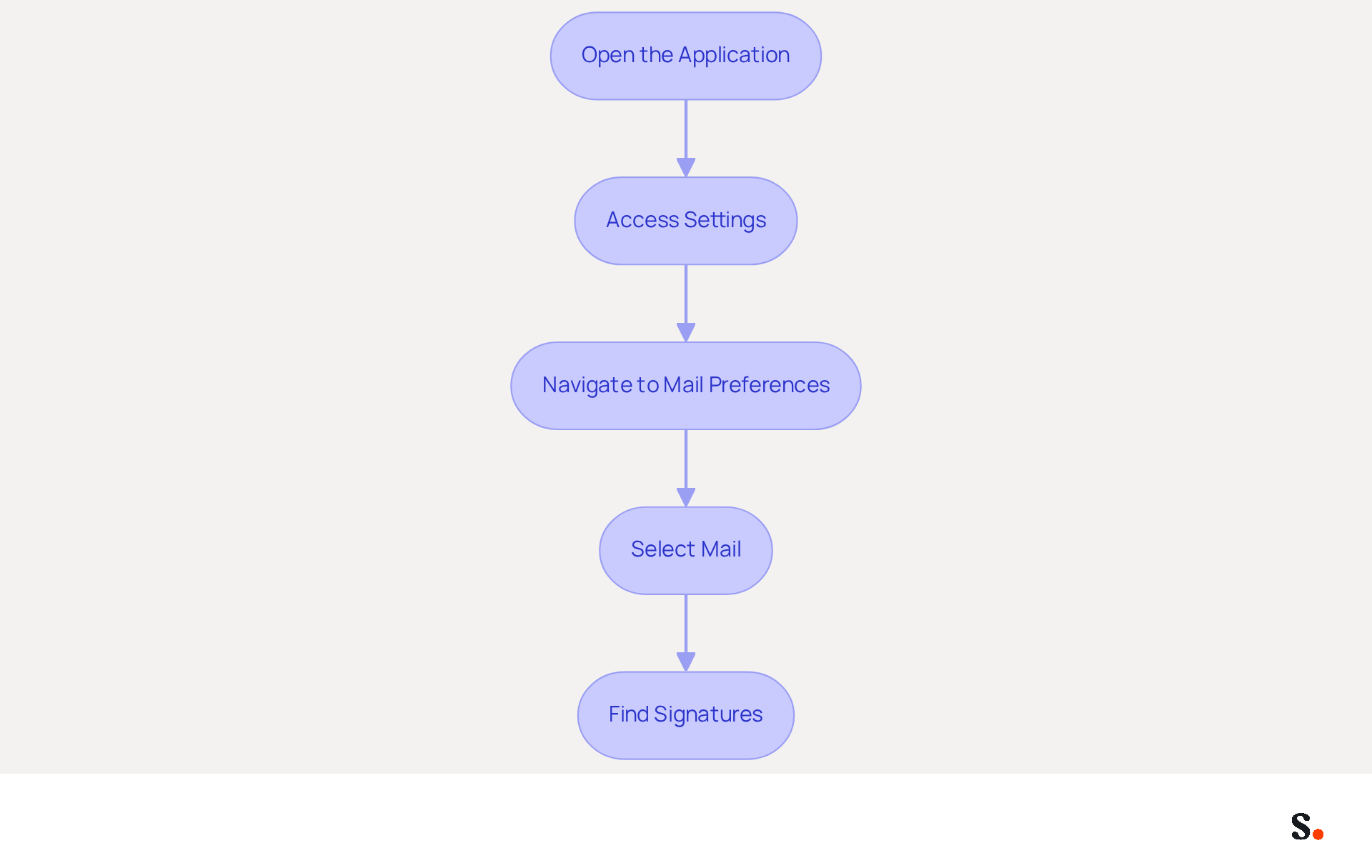
- Open the application: Launch the email program on your computer.
- Access Settings: Click on the gear icon (⚙️) located in the top-right corner of the window.
- Navigate to Mail Preferences: In the menu, scroll down and select View all Outlook preferences.
- Select Mail: Click on the Mail tab located on the left side of the configuration window.
- Find Signatures: Under the Compose and reply section, you will see the Email footer area. Click on it to access the configuration options.
Following these steps allows you to create, edit, and manage your messages effectively.
The new Outlook architecture has transitioned personalization settings to the cloud, making local files for personalizations inaccessible. This shift necessitates centralized management of digital identifiers, with 25% of organizations currently utilizing software for standardization. Furthermore, 42% of users view marketing through electronic mail as one of the top three most effective channels, emphasizing the significance of well-managed electronic communications in driving engagement. As organizations navigate these changes, the importance of a cohesive branding strategy in digital communications cannot be overstated.
Create a New Email Signature
It is essential for effective communication and brand representation to know where to find signature in Outlook when creating a professional email signature. To create a new email signature in Outlook, follow these steps:
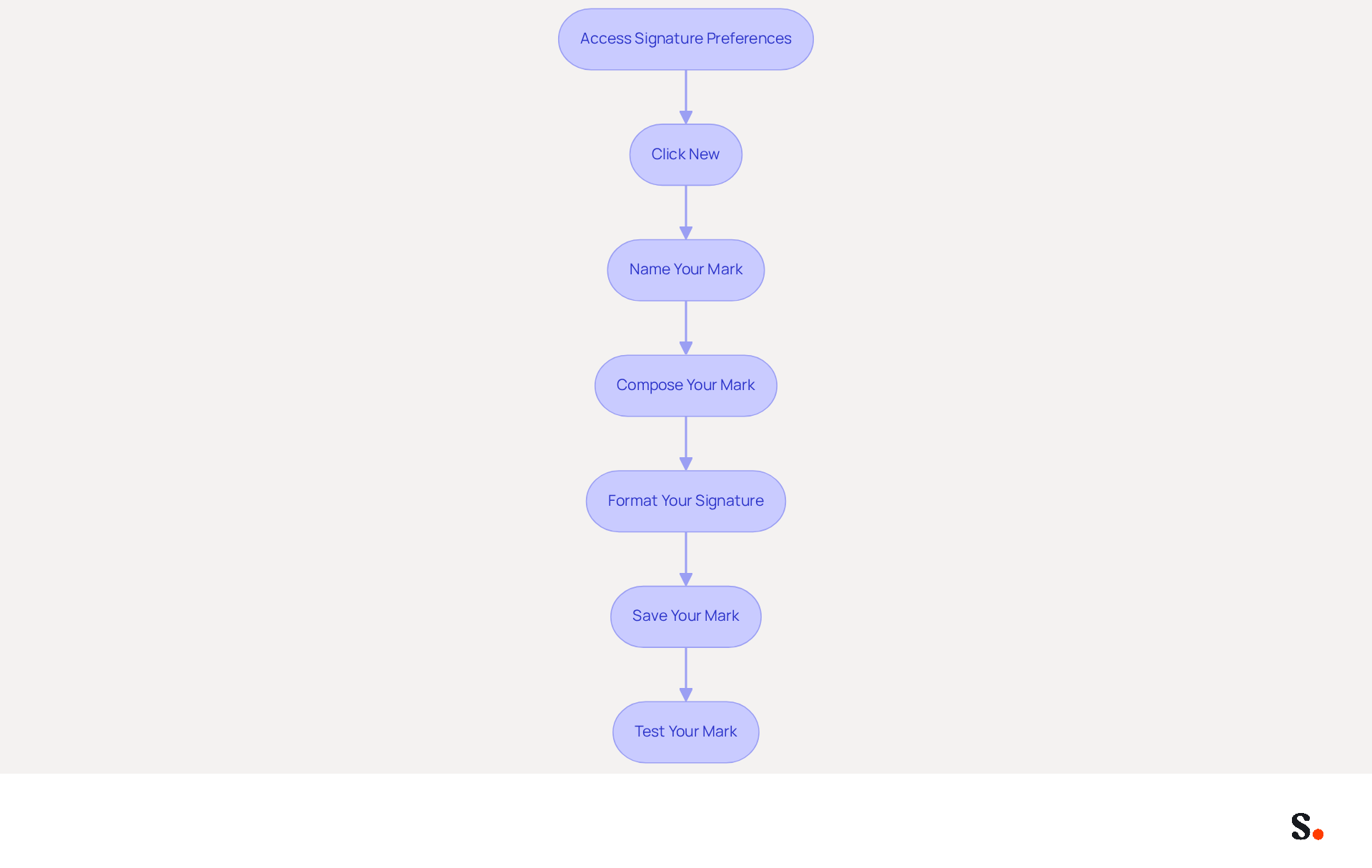
- Access Signature Preferences: Find the preferences for signatures by going to Settings > Accounts > Signatures in the new Scribe or Scribe on the web. For classic Outlook, go to File > Options > Mail > Signatures.
- Click New: After locating the settings for your email, click on New to create a new one.
- Name Your Mark: Enter a distinct name for your mark in the dialog box that appears. This assists in recognizing it later, particularly if you intend to create multiple signings.
- Compose Your Mark: In the editing box, type the content of your mark. Include essential details such as your name, title, company name, phone number, and any other relevant information. A well-crafted signature builds trust; 76% of consumers feel more confident with branded signatures, and 57% of professionals view them as the most impactful email element.
- Format Your Signature: Use the formatting options available (font style, size, color, etc.) to customize the appearance of your mark. You can also add images or logos by clicking on the image icon. Remember, a clean and minimal design is often more professional than a cluttered one.
- Save Your Mark: When you're happy with your signature, just click Save to keep it. This will create a new identifier for your emails. Importantly, with Scribe, any modifications made in your Aircall configuration will automatically sync to your electronic identifiers, ensuring brand consistency across all platforms, including where to find signature in Outlook. Scribe also adheres to SOC 2 Type II compliance and GDPR/CCPA regulations, ensuring secure data handling.
- Test Your Mark: After creating your mark, send a test message to ensure it appears correctly and that any images render properly. Be aware that signatures may not sync across devices, which can lead to confusion and misrepresentation of your brand.
By ensuring your email signature is consistent and professional, you enhance your brand's credibility and effectiveness in communication. Organizations that employ branded digital identifiers can experience a 22% boost in response rates and a 15% rise in click-through rates to their websites, making this a significant component of your communication strategy. Furthermore, consider utilizing the free Inbox Zero Generator to create professional identifiers without formatting problems.
Customize Your Email Signature
It is essential for maintaining a professional image and brand consistency to know where to find signature in Outlook for customizing your email signature. Follow these steps to ensure your signature reflects your brand accurately:
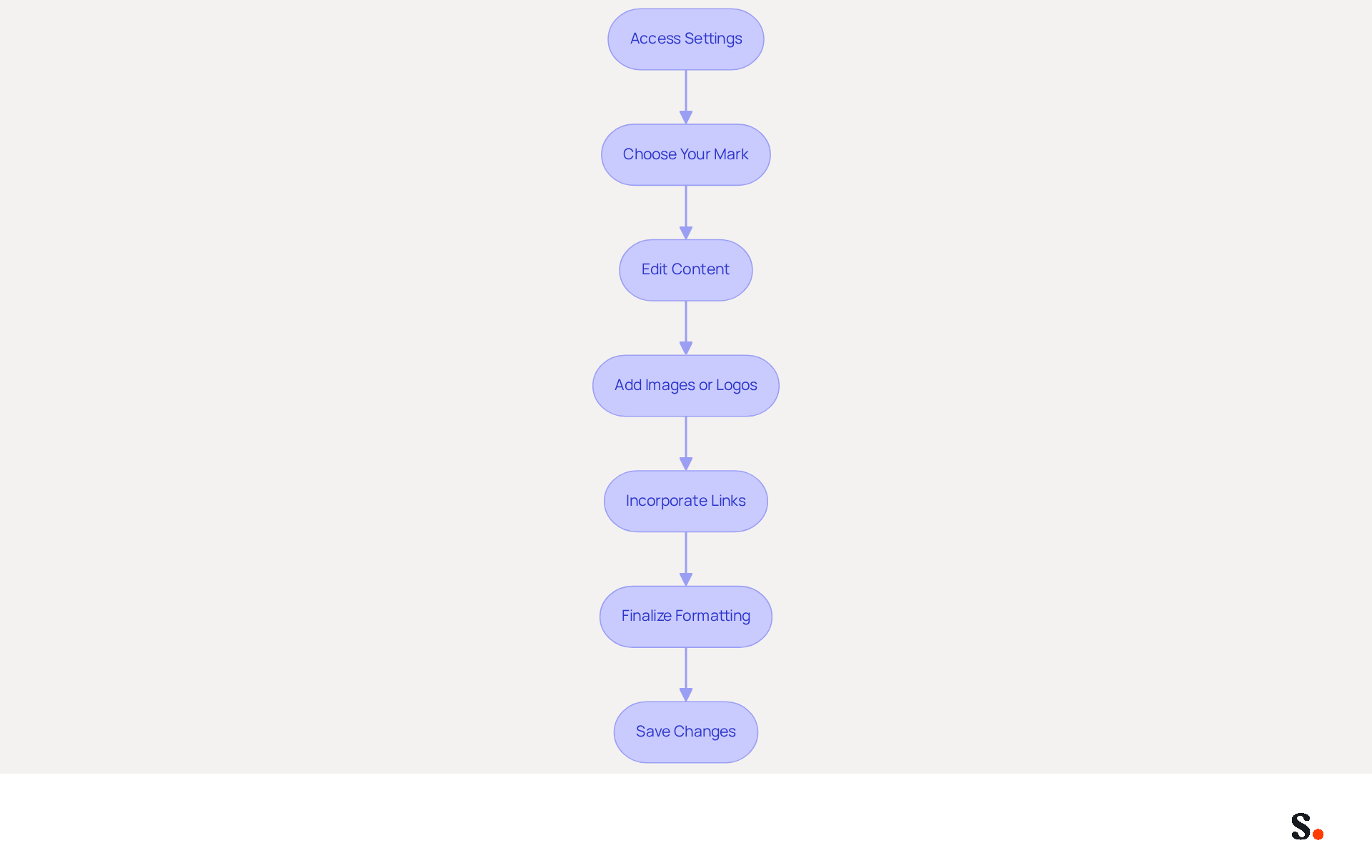
- Access Settings: Return to the settings for your email signatures as previously outlined.
- Choose Your Mark: Click on the mark you wish to customize from the list of marks.
- Edit Content: Modify the text in the editing box as needed. You can add or remove information to keep it current.
- Add Images or Logos: Simply click the image icon in the formatting toolbar to add a logo or image. Browse your files to select the image you want to include.
- Incorporate Links: Highlight the text you want to turn into a hyperlink (e.g., your website URL) and click on the link icon to insert the URL.
- Finalize Formatting: Adjust the formatting to ensure it aligns with your brand's style guide. Use consistent fonts and colors.
- Save Changes: Click Save to apply your customizations.
Following these steps will guide you on where to find signature in Outlook to create a mark that appears professional. It also strengthens your brand identity. With Scribe, any modifications made in your Aircall configuration will automatically be reflected in your correspondence identifiers, ensuring brand consistency and effortless updates. This automated synchronization streamlines the management process, enabling marketing teams to maintain control over their messaging while adhering to SOC 2 Type II compliance and GDPR/CCPA regulations for secure data handling. Statistics indicate that consistent branding in digital correspondence can result in a 22% rise in response rates, emphasizing the significance of a well-designed closing. Additionally, incorporating elements like logos and colors enhances brand recognition, making your communications more effective. Ultimately, a well-crafted email signature can significantly enhance your communication effectiveness and brand perception.
Set Default Signatures for Different Accounts
It is crucial for maintaining brand consistency to know where to find signature in Outlook when setting default signatures for different email accounts. To set default signatures, follow these steps:
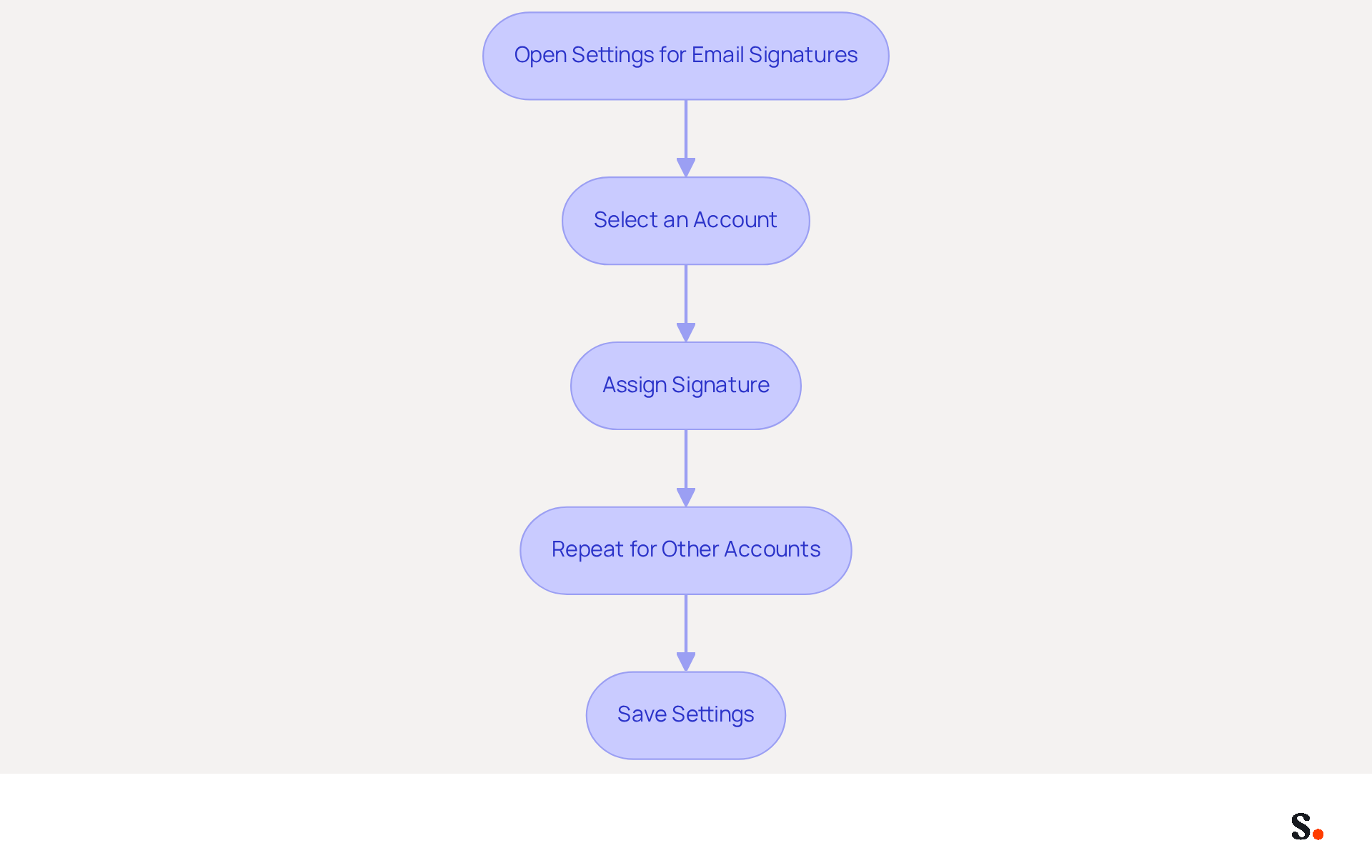
- Open Settings for Email Signatures: Access the settings for email signatures through the Outlook options menu.
- Select an Account: In the Choose default designation section, select the account for which you want to set a default designation.
- Assign Signature: In the New messages dropdown, choose the designation you want to use for new emails. If you want a different sign-off for replies or forwards, select it in the Replies/forwards dropdown.
- Repeat for Other Accounts: If you have multiple accounts, repeat the process for each account to ensure that each one has the appropriate default sign-off.
- Save Settings: Click OK to save your changes.
To ensure consistent branding in your communications, it's important to know where to find signature in Outlook for establishing default signatures for each account. This practice is essential, as 76-80% of marketers believe that branded messages enhance trust in the sender, and companies with consistent branded visuals report over a 22% increase in response rates. With Scribe, every modification made in your Aircall configuration will automatically be reflected in your correspondence identifiers, ensuring seamless updates and enhanced brand consistency. Furthermore, Scribe is SOC 2 Type II certified and complies with GDPR and CCPA, providing secure data handling. Users who have effectively implemented standard identifiers across multiple accounts have observed enhanced brand recognition and engagement in their communications. Regularly updating your identifiers ensures your branding remains relevant and effective in your communications.
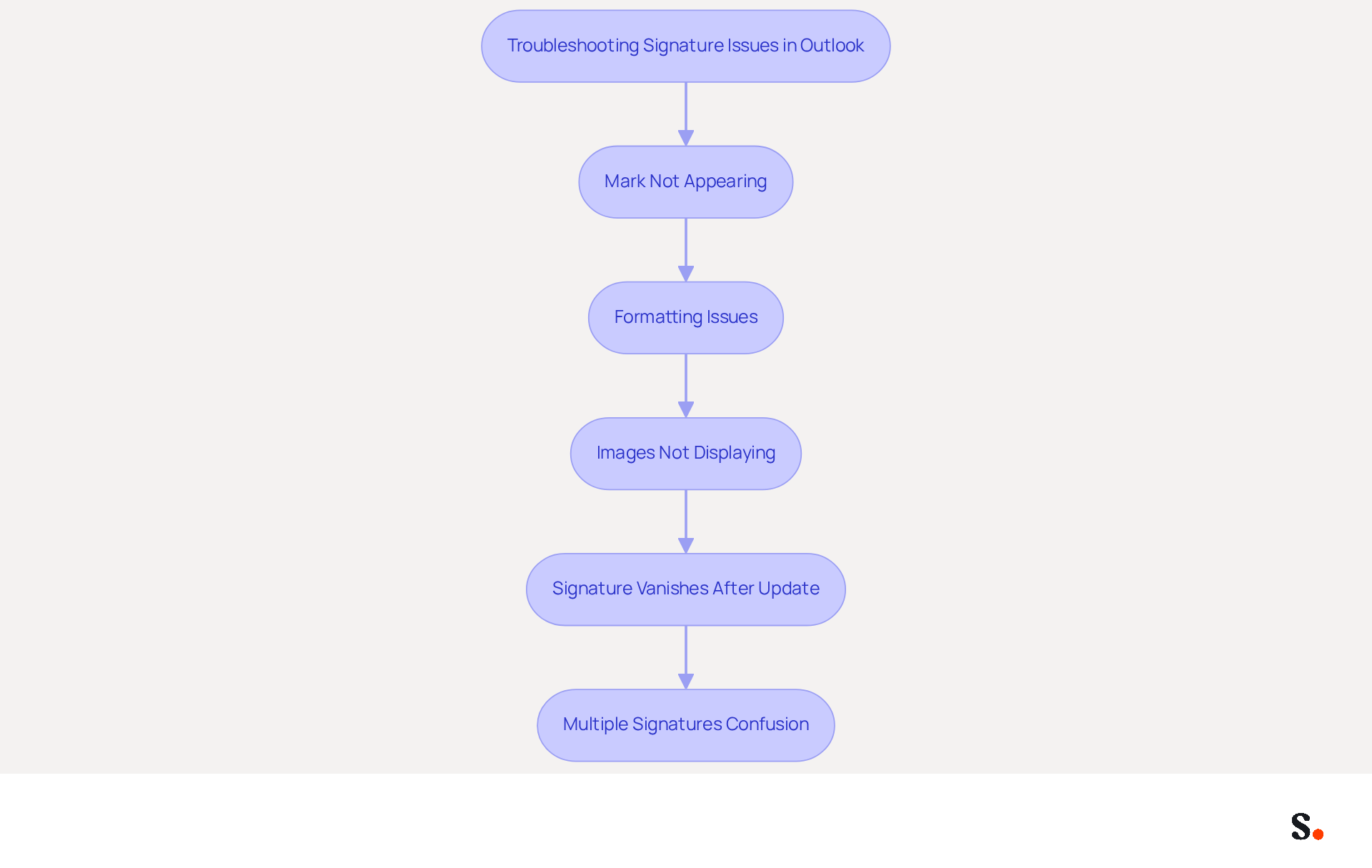
Troubleshoot Common Signature Issues
Experiencing issues with where to find signature in Outlook can disrupt your communication flow. Follow these troubleshooting steps to resolve common problems:
- Mark Not Appearing: Ensure that the correct mark is set as default for new messages and replies/forwards in the mark settings. Without proper configuration, it can be difficult to know where to find signature in Outlook, which may result in your email signature not displaying correctly.
- Formatting Issues: If your mark appears incorrectly, recreate it using plain text formatting. This can help eliminate hidden formatting issues. Use Notepad to remove formatting before pasting it back into your email client, as this can fix many common display issues.
- Images Not Displaying: Check that the images are properly linked and accessible. If images are not showing, ensure they are hosted online or embedded correctly. Recent updates have caused issues with image display, so verifying the image paths is crucial.
- If your signature vanishes after an update, check your Outlook preferences to see where to find signature in Outlook and confirm that it is still stored. You may need to recreate it if it was lost, as updates can sometimes reset configurations or introduce glitches.
- Multiple Signatures Confusion: If you have multiple signatures, make sure to select the right one when composing your message. You can manage this in the settings related to your sign-off to avoid confusion.
Addressing these issues promptly ensures your email signatures reflect your brand's professionalism.
Conclusion
Many marketing managers struggle with ensuring their email signatures are consistent and professional. Following these steps to manage email signatures can help organizations maintain brand consistency. By creating, customizing, and troubleshooting email signatures, organizations can ensure that their digital correspondence accurately reflects their brand identity.
This guide highlights how a well-crafted email signature can make a significant difference. From creating a new signature to setting defaults for multiple accounts, each step contributes to a cohesive branding strategy. The integration of Scribe enhances this process, allowing for seamless updates and compliance with security standards such as SOC 2 Type II, GDPR, and CCPA. Moreover, statistics reveal that consistent branding can significantly boost response rates and engagement, underscoring the value of a professional email signature.
In conclusion, investing time in mastering Outlook's signature settings not only enhances communication effectiveness but also strengthens brand perception. Marketing managers are encouraged to leverage tools like Scribe to streamline this process, ensuring that every email sent is a reflection of their brand's values and professionalism. By prioritizing email signature management, organizations can significantly enhance their brand's credibility and client relationships.
Frequently Asked Questions
How do I locate the signature settings in Outlook?
To locate the signature settings in Outlook, open the application, click on the gear icon (⚙️) in the top-right corner, select "View all Outlook preferences," click on the Mail tab on the left side, and then find the Email footer area under the Compose and reply section.
What steps should I follow to create a new email signature in Outlook?
To create a new email signature in Outlook, access the signature preferences by going to Settings > Accounts > Signatures in the new Scribe or Scribe on the web, or File > Options > Mail > Signatures in classic Outlook. Click New, enter a distinct name for your signature, compose the content, format it as desired, and then click Save.
What information should I include in my email signature?
Your email signature should include essential details such as your name, title, company name, phone number, and any other relevant information to build trust and professionalism.
How can I format my email signature in Outlook?
You can format your email signature using the available options for font style, size, color, and by adding images or logos through the image icon. A clean and minimal design is recommended for a professional appearance.
Will changes to my signature sync across devices?
Be aware that signatures may not sync across devices, which can lead to confusion and misrepresentation of your brand.
What are the benefits of having a well-crafted email signature?
A well-crafted email signature can enhance your brand's credibility, with 76% of consumers feeling more confident with branded signatures. Organizations that use branded digital identifiers can see a 22% boost in response rates and a 15% increase in click-through rates to their websites.
How does Scribe ensure compliance with data regulations?
Scribe adheres to SOC 2 Type II compliance and GDPR/CCPA regulations, ensuring secure data handling for email signatures and other digital identifiers.
List of Sources
- Locate Signature Settings in Outlook
- The New Outlook for Windows: An IT Guide to Email Signatures (https://exclaimer.com/email-signature-handbook/new-outlook-windows-email-signatures)
- 40+ Email Signature Statistics for 2026 (Data + Insights) (https://wavecnct.com/blogs/email-signature-statistics)
- Email signature statistics: Why every business should optimize their email signatures — Stripo.email (https://stripo.email/blog/email-signature-statistics-why-every-business-should-optimize-their-email-signatures)
- Email Signature Statistics: A Closer Look at Email Signatures in 2026 (https://mysignature.io/blog/email-signature-statistics)
- Create a New Email Signature
- How to Update Your Outlook Signature (2026) (https://getinboxzero.com/blog/post/how-to-update-signature-in-outlook)
- How to add and change an email signature in Outlook | Microsoft Support (https://support.microsoft.com/en-us/outlook/mail/how-to-add-and-change-an-email-signature-in-outlook)
- 40+ Email Signature Statistics for 2026 (Data + Insights) (https://wavecnct.com/blogs/email-signature-statistics)
- Best way to create an email signature for Outlook (https://mail-signatures.com/articles/email-signatures-for-outlook)
- Customize Your Email Signature
- Email Signature Design Trends in 2026: What Works and What to Drop (https://bulksignature.com/blog/email-signature-design-trends)
- Email Signature Trends 2026: What Designers Are Actually Using (https://markaplugin.com/blog/email-signature-trends-2026)
- Top 10+ best practices for email signatures design in 2026 (https://mysignature.io/blog/email-signature-best-practices)
- Email signature statistics: Why every business should optimize their email signatures — Stripo.email (https://stripo.email/blog/email-signature-statistics-why-every-business-should-optimize-their-email-signatures)
- The impact of email signatures on your branding (https://signitic.com/en/resources/the-impact-of-email-signatures-on-your-branding)
- Set Default Signatures for Different Accounts
- 40+ Email Signature Statistics for 2026 (Data + Insights) (https://wavecnct.com/blogs/email-signature-statistics)
- How do I add a default signature across multiple inboxes? - Microsoft Q&A (https://learn.microsoft.com/en-us/answers/questions/4579827/how-do-i-add-a-default-signature-across-multiple-i)
- Outlook signatures show for each email account - Microsoft Q&A (https://learn.microsoft.com/en-us/answers/questions/4621911/outlook-signatures-show-for-each-email-account)
- Managing Shared Mailbox Signatures and Sent Items in a Departmental Setup (Outlook Classic) - Microsoft Q&A (https://learn.microsoft.com/en-us/answers/questions/4676608/managing-shared-mailbox-signatures-and-sent-items)
- 2 email accounts, only 1 gets signatures added on new email. (https://forums.slipstick.com/threads/93898-2-email-accounts-only-1-gets-signatures-added-on-new-email)
- Troubleshoot Common Signature Issues
- Microsoft Outlook Classic Email Signatures Picture Display Issues - Microsoft Q&A (https://learn.microsoft.com/en-us/answers/questions/5982071/microsoft-outlook-classic-email-signatures-picture)
- 4 Steps to Fix Your Outlook Signature Not Showing Issues (https://scribe-mail.com/en-US/blog/4-steps-to-fix-your-outlook-signature-not-showing-issues)
- Email Signature Troubleshooting - Problems & Solutions - Gimmio (https://blog.gimm.io/email-signature-troubleshooting)
- Email Signatures vanishing - New Outlook | Microsoft Community Hub (https://techcommunity.microsoft.com/discussions/outlookgeneral/email-signatures-vanishing---new-outlook/4418809)
- Images are not displayed in emails, newsletters, or signatures in classic Outlook | Microsoft Support (https://support.microsoft.com/en-us/support/known-issues/images-are-not-displayed-in-emails-newsletters-or-signatures-in-classic-outlook)
Get started with Scribe
Signatures for every role on your team
Free 14-day trial — no credit card.